
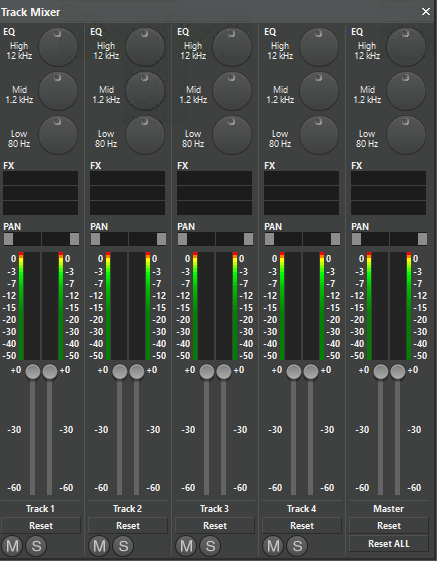
With the Track Mixer each track may be assigned effects, panorama and volume changes.
-
Open the Track Mixer by clicking the Track Mixer Button

-
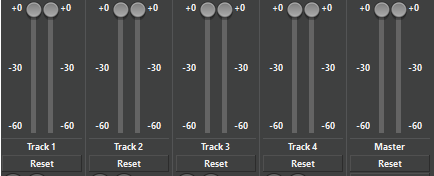
The amplification for the tracks may be changed by the sliders or by the master. All changes will be computed in real-time, i.e. the changes are immediately audible.
-
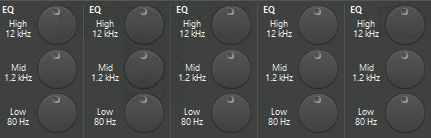
The 3-band EasyEqualizer is already installed in the Track Mixer for every track. Changes for the 3 frequency bands may be set with the left mouse button (continuously) or with the right mouse button (in 6 dB steps).
-
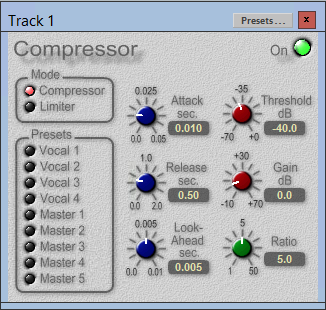
More effects for particular tracks may be added by drag&drop from the Clipboard's Effects tab to the FX effects placeholder (max. 3 effects per track). The effect dialog box opens automatically, for example:
-
In order to reset changed channel settings, right click the channel (sections EQ and PAN) and click Reset:

-
To reset the adjusted values of a track, click the Reset button of the respective track - same for the Master track:

For resetting all tracks at once klick the button Reset ALL:
-
With these two buttons you switch a track Mute or Solo:


When changes in the Track Mixer are applied, the Track Mixer button displays a modified image:

Track Mixer is opened and an effect is applied.

Track Mixer is closed and an effect is applied