Running a process as windows service is different from running it in an interactive windows session:
-
a different user might be used
-
network shares might need explicit authentication
-
no network drive mappings are available
We provide the possibility to mount and authenticate your network shares in a StartupScript.bat, see Using StartupScript.bat
The following actions require a command line window with local Administrator permissions.
Use built-in command-line options
Starting with v1.4.36 DpeNanoServices.exe supports built-in options for creating and deleting services.
Using the built-in options instead of sc.exe commands helps you avoiding typos and remembering the sc.exe syntax
Create windows service
-
Open command-line with Administrator privilges
-
Navigate to the folder containing the DpeNanoServices.exe
-
Use the DpeNanoServices arguments that you would use for starting it when not running as a service and add the option /createservice (uses DpeNanoServices as service name) or /createservice=MyTest (specify the service name) to it
-
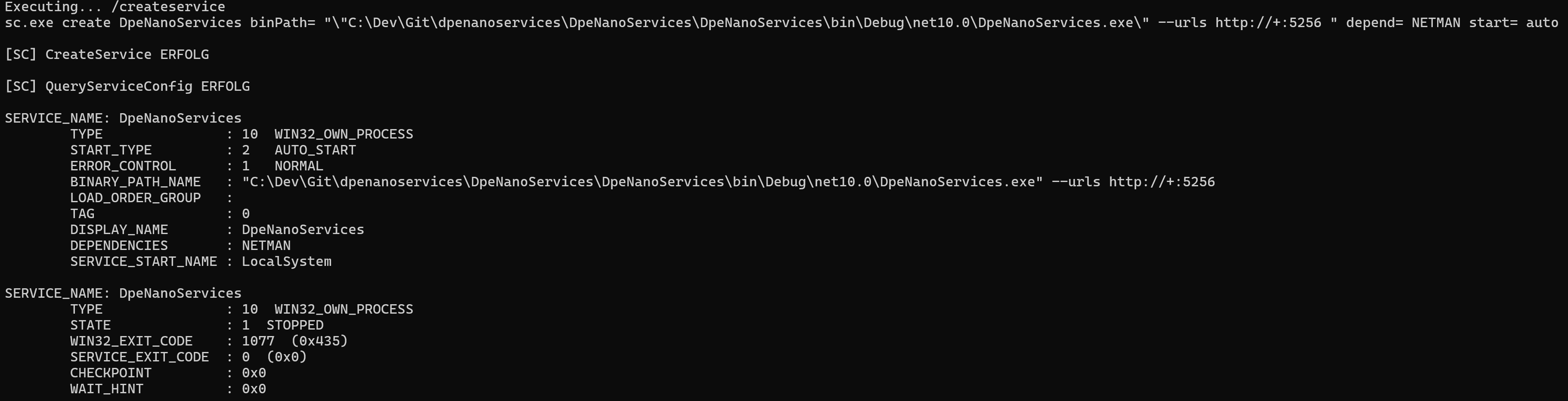
This will also set some additional service configuration options, e.g. set NETMAN as dependency or setting the start mode to Auto
-
Please use the interactive windows service dialog to change the service user.
Examples
DpeNanoServices /createservice
DpeNanoServices --urls http://+:8000 --environment Production /createservice
DpeNanoServices --urls http://+:8000 --environment Production /createservice=MyTest
Example Result
Delete windows service
-
Open command-line with Administrator privilges
-
Navigate to the folder containing the DpeNanoServices.exe
-
Use the DpeNanoServices option /deleteservice (auto-detect the service name) or specify the name of the service to delete /deleteservice=MyTest
Examples
DpeNanoServices /deleteservice
DpeNanoServices /deleteservice=MyTest
Example Result

Use sc.exe commands
Create windows service
-
Ensure that all Prerequisites are installed
-
Open a command line window and navigate to the folder where you copied DpeNanoServices to
-
Optionally adapt your configuration in the appsettings.json file
-
Register DpeNanoServices as windows service, e.g.
PowerShellsc.exe create DpeNanoServices binPath= "\"C:\my-full-path-to-folder\DpeNanoServices.exe\" --environment Production --urls http://localhost:5000" -
Alternatively you can do
PowerShellsc.exe create DpeNanoServices binPath= "dotnet \"C:\my-full-path-to-folder\DpeNanoServices.dll\" --environment Production --urls http://localhost:5000"
Use standard windows service configuration dialog to configure a dedicated user account used to run DpeNanoServices
Delete windows service
sc.exe delete DpeNanoServices
Change windows service configuration
Change start type to “Automatic (Delayed)”
sc.exe config DpeNanoServices start= delayed-auto
Run the service under a dedicated user account
sc.exe config DpeNanoServices type= own obj= "domain\user" password= "password"
The account must have the “log in as service right”. The standard windows service configuration dialog handles a missing right automatically.
Alternatively you can grant the right from command-line
ntrights.exe +r SeServiceLogonRight -u "%DOMAIN%\%USER%"
Add dependency to NETMAN to windows service configuration
DPE Nano Services in an enterprise installation depend on network services. To ensure that services are started in the right order add the dependency NETMAN
sc.exe config DpeNanoServices depend= NETMAN
Query windows service configuration
sc.exe query DpeNanoServices
sc.exe qc DpeNanoServices
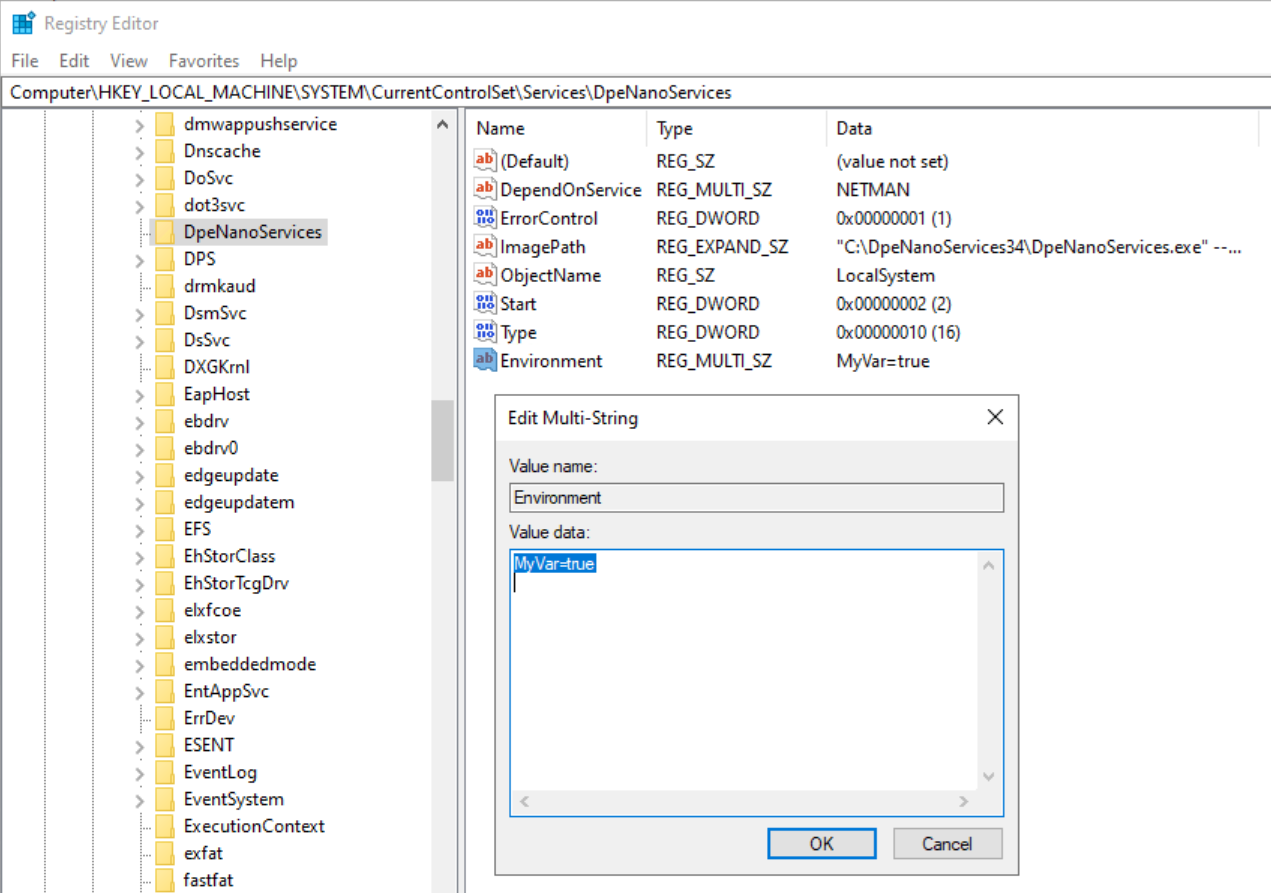
Setting Environment Variables for a Windows Service
Environment variables can be configured globally, for the complete system.
Environment variables for a windows service can also be configured using the windows registry: