
Saving and optionally normalizing a selected range as a new take in the clipboard is available by shortcut (MTS, ETS, STS) and context menu (MTS only)
Define a shortcut (MTS, ETS, STS):
-
Open Options->Settings->Accelerators. In the Command box select Save selected range to clipboard.
-
Under Define new accelerator, enter a shortcut and click Assign>>. The new shortcut appears under Assigned accelerators.
-
Click OK to confirm your settings. The new shortcut is now available.
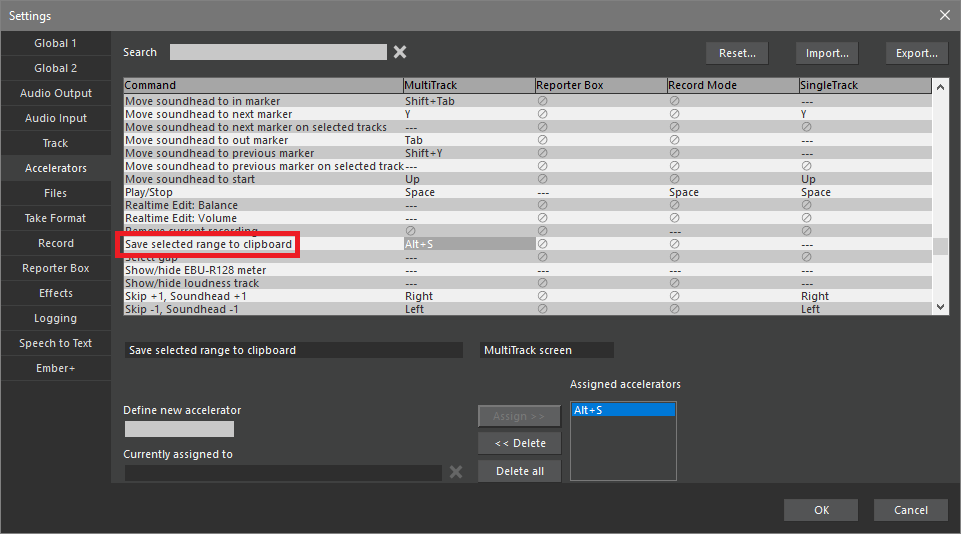
Save selected range to clipboard:
-
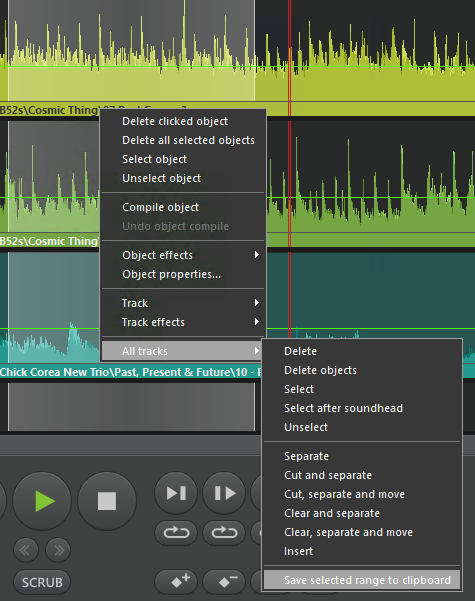
Enter the defined shortcut or alternatively (MTS only) right click on one of the tracks' name, select All tracks and Save selected range to clipboard:
-
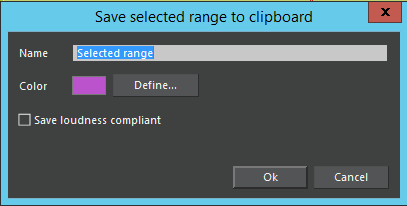
The dialog Save selected range to clipboard opens:
-
Under Name, enter the title of the new take.
-
Under Define, select a color.
-
Optionally mark the Save loudness compliant checkbox.
-
Click Ok to confirm your settings. The newly created take appears in the clipboard.