
This page summarizes the practical setup for using a DHD mixer via Ember+ with DBM and MTE/ETE/STE. It combines product requirements, known working settings, and the most important troubleshooting points from internal documentation.
Primary goal
Use a DHD console fader and/or channel button to control playback workflows in DBM and MTE through TIOEmberPlus.dll.
Important limitation
Ember+ covers mixer control and event signaling, but does not automatically replace existing GPIO-based studio signaling such as red-light or Modbus-based on-air logic. If that behavior is required, it must be handled in parallel by the mixer or another integration path.
Requirements
Before configuration, make sure the following prerequisites are in place:
-
DHD mixer/core with Ember+ enabled
-
Network connectivity between workstation and DHD I/O core
-
TIOEmberPlus.dll available in the DigaSystem folder
-
libember_slim.dll available in the Windows DLL search path, ideally in the same folder as the main application and
TIOEmberPlus.dll -
For Audio Editor integration: minimum documented baseline is MTE/ETE/STE 7.4.1540.0, MultiRec4.ocx 4.6.261.0, and TIOEmberPlus.dll 1.0.7.0
Known DHD Ember+ port
For DHD Ember+ integrations, the commonly used port is 9000. This is different from the classic DHD control connection used by TIODHD.dll, which commonly uses port 2008.
Installation
-
Copy
TIOEmberPlus.dllinto the DigaSystem program directory. -
Copy
libember_slim.dllinto the same directory, or another directory included in the Windows search path. -
Ensure the workstation can reach the DHD core on the correct subnet.
-
Confirm the DHD core is powered on and Ember+ is enabled on the console/core.
For DHD test setups, a working example documented internally used an I/O core reachable on a local subnet and Ember+ on port 9000. In one test case, the workstation adapter was manually configured into the same subnet as the core, and connectivity was verified by ping.
Configuration in MTE
MTE has documented support for Ember+ control through the Audio Editor Ember+ feature.
-
Place the required DLLs in the DigaSystem folder.
-
Set the parameter
UseEmberPlus=1. -
Start MTE.
-
Open Settings and go to the Ember+ tab.
-
Click Configure to open the
TIOEmberPlus.dllconfiguration dialog.
Use the following key settings in the Ember+ DLL configuration:
-
Type of mixer console: DHD
-
IP address: IP of the DHD I/O core
-
Port: 9000
-
Fields to be used: Always use the field
identifier -
Fader open/close signalization: Evaluate fader position and on/off buttons
On the Lines page, assign each logical line used by MTE to the corresponding DHD channel.
How to find the correct channel identifiers
Use EmberPlusView.exe to inspect the DHD Ember+ tree and identify the channel nodes and relevant parameters. This is the most reliable way to map logical lines to actual DHD channels.
After saving the configuration without errors, MTE should react to the configured fader or button. A verified internal test confirmed the following behaviors:
-
Opening a configured fader can start playback
-
Closing the fader can stop playback
-
In Reporter Box scenarios, the next clip can also be triggered
Configuration in DBM
DBM use cases were defined for Ember+ integration in the same general way as MTE, especially for fader-start play/stop. The main intended scenarios are:
-
One item open in mask: open fader starts play, close fader stops
-
One item selected in grid: open fader starts play, close fader stops
For DBM, the exact UI steps are less explicitly documented than for MTE, but the integration concept is the same: configure TIOEmberPlus.dll, connect to the DHD mixer via Ember+, and map logical lines/actions to the application’s playback context.
Practical expectation
DBM support focuses on foreground playback control. The application state matters: the currently open or selected item is the one affected by the fader-start action.
If DBM audio output behaves unexpectedly, also review the Windows mixer-related parameters under DBM|MultiRec:
-
VolumeInUseMixer -
VolumeOutUseMixer -
VolumeOutUseWaveOutSetVolume
These parameters are not Ember+ settings, but they can affect whether audio is actually heard during playback.
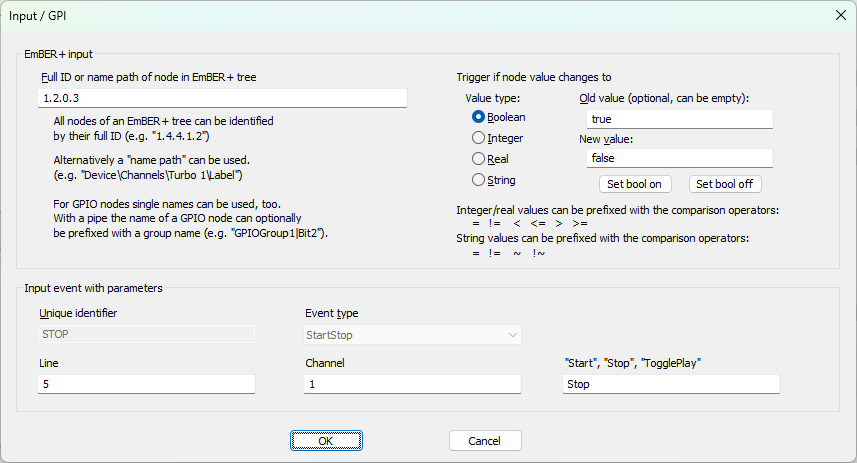
Screenshots for Configuration:
DBM:
-
yellow - you need to configure in Admin
-
green - configured by the applications ember dialog
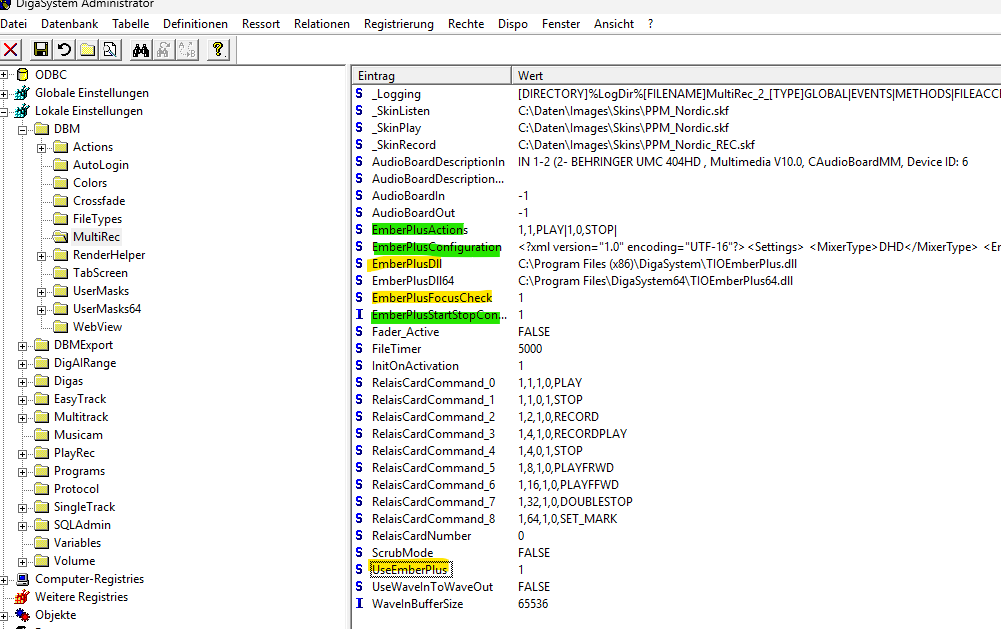
DBM -Settings and MTE-Settings are the same
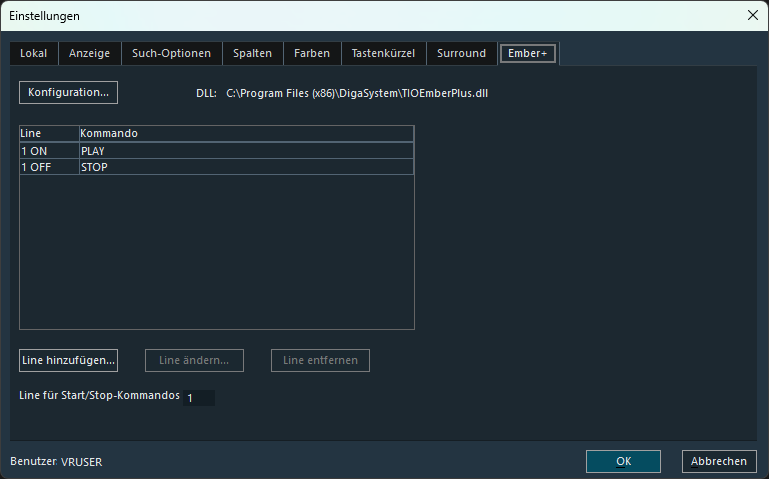
Click Configuration (Konfiguration)
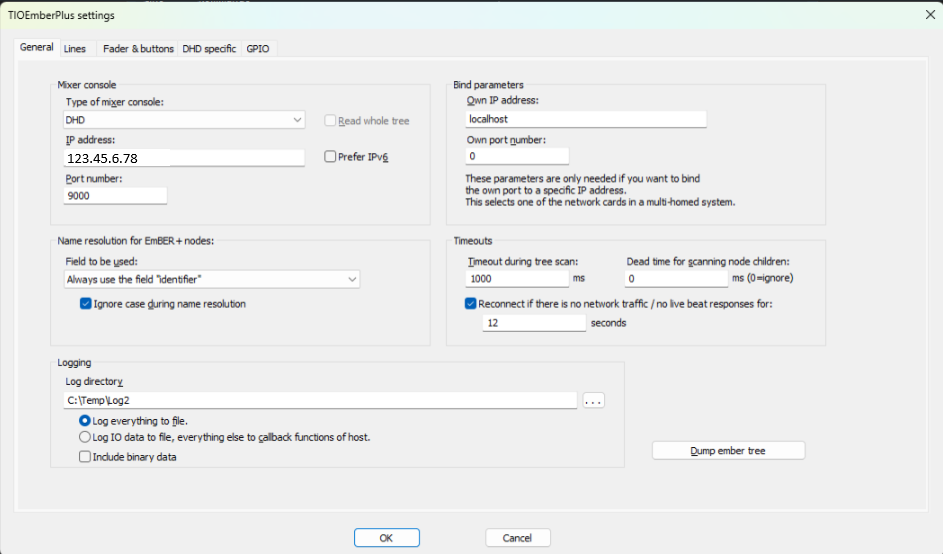
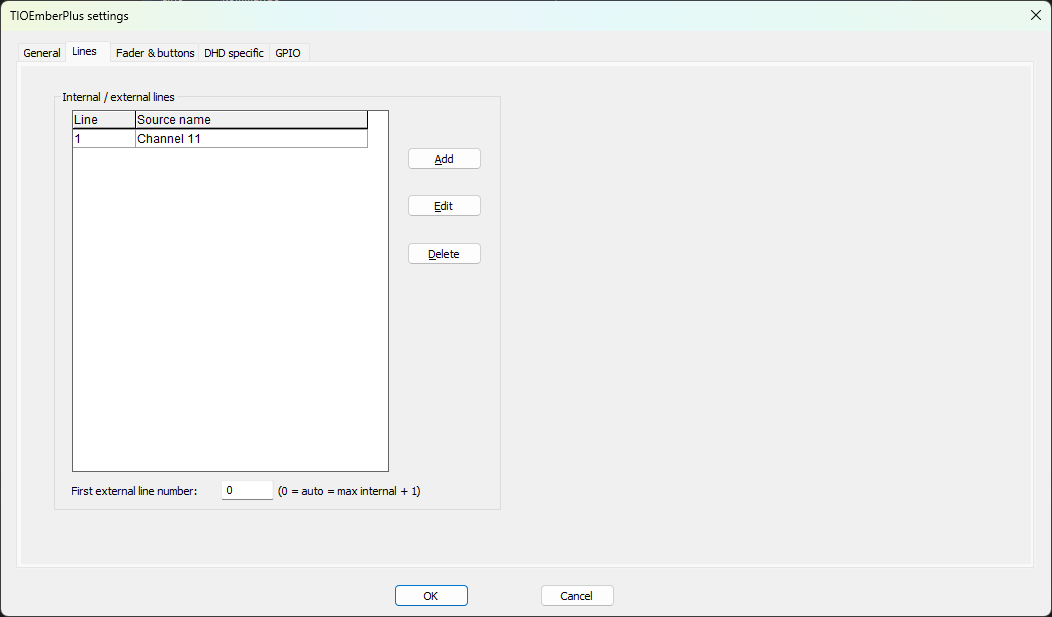
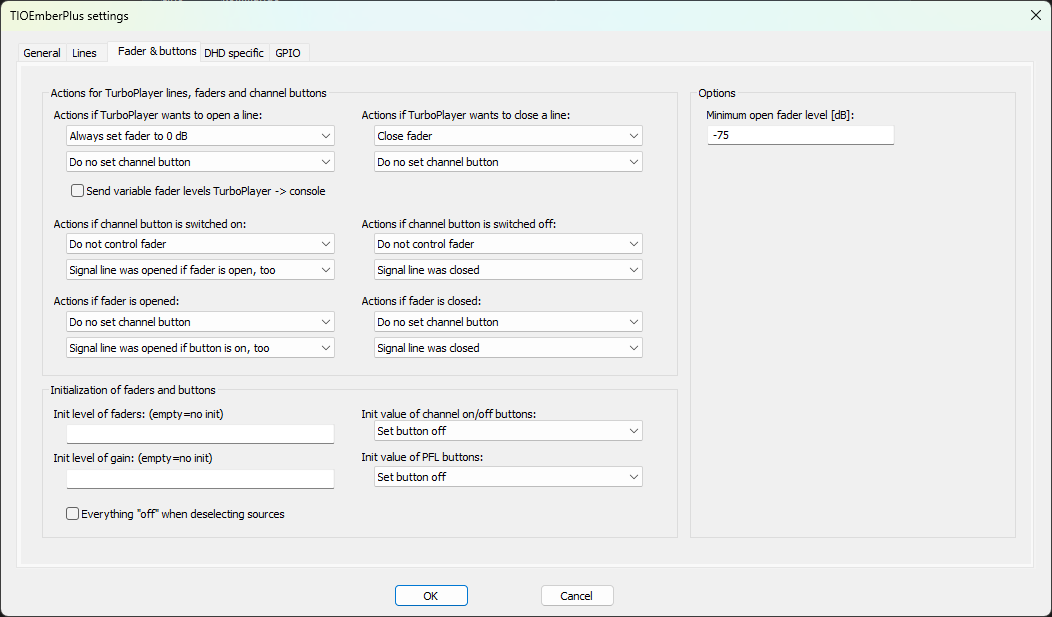
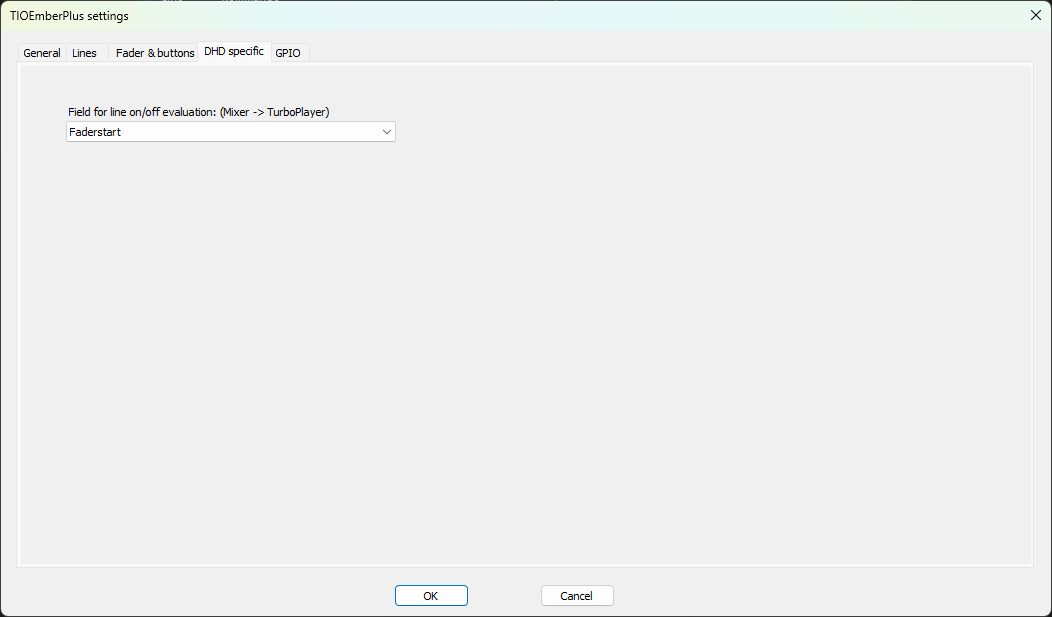
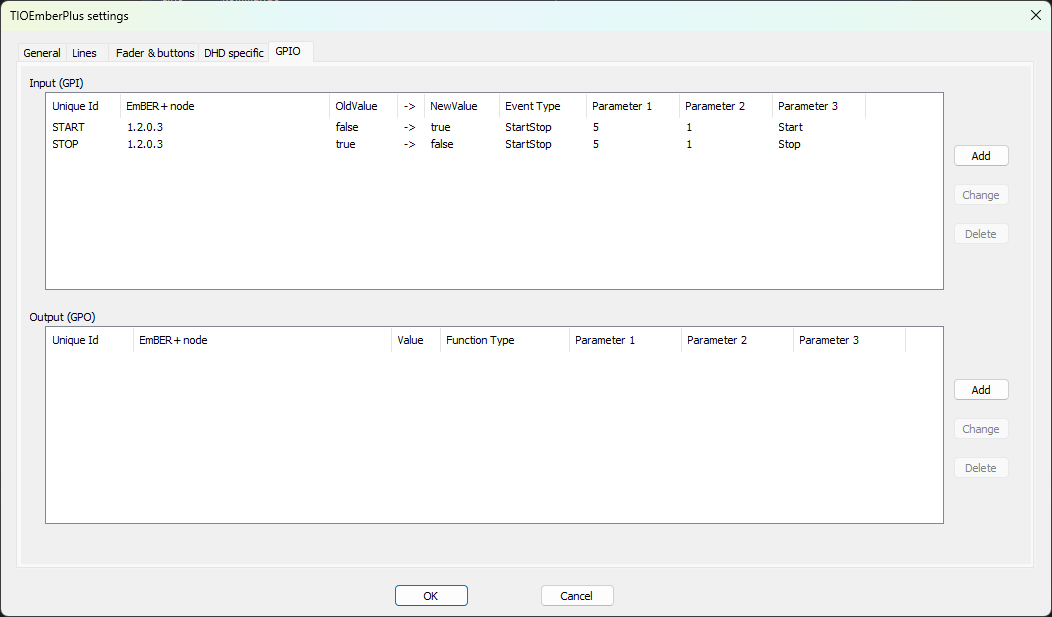
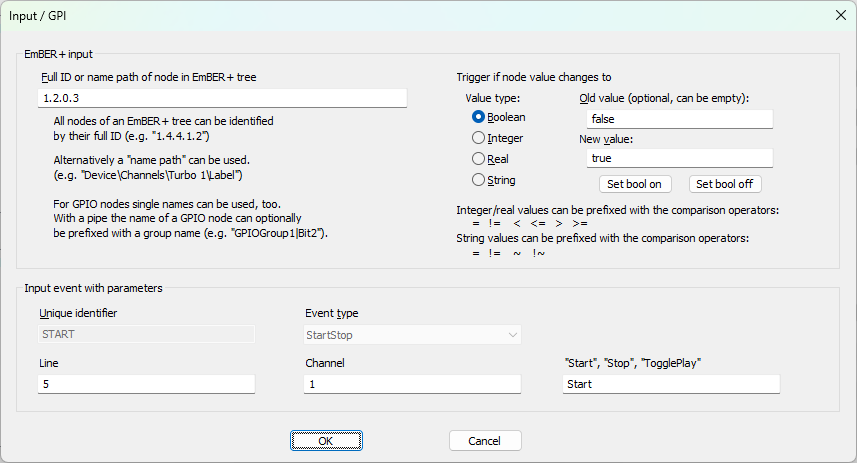
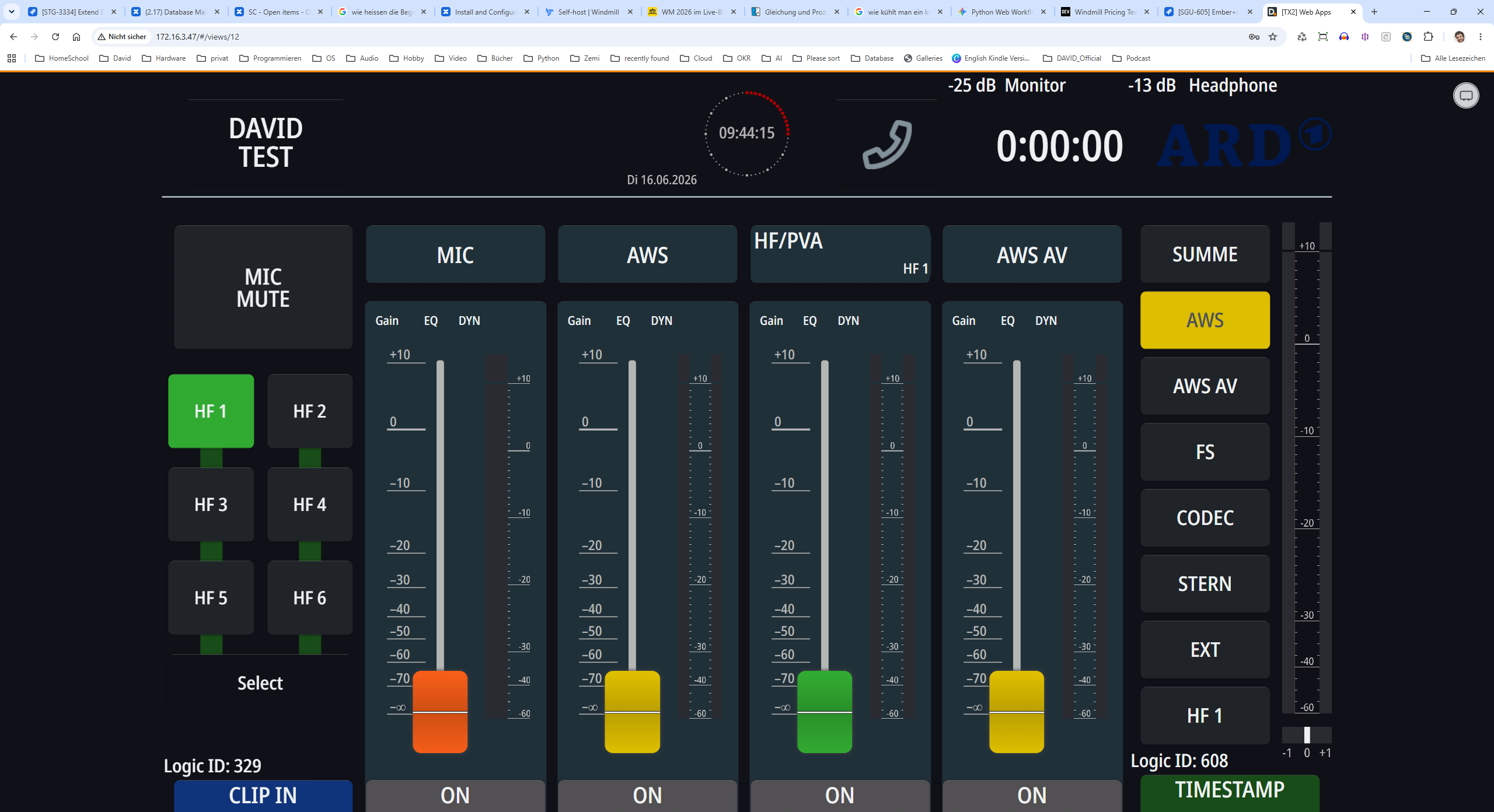
For a test without access to the mixer you can use the remote console application: http://172.16.3.47/#/views/12
Make sure that the remote console in the browser, does not run on the same computer than DBM and MTE, because than the remote mixer will have the fcous and both DBM and MTE will not start !
Recommended DHD-Specific Settings
|
Area |
Setting |
Recommended value |
Reason |
|---|---|---|---|
|
General |
Mixer type |
DHD |
Enables DHD-specific tree interpretation |
|
General |
Port |
9000 |
Typical DHD Ember+ port |
|
General |
Fields to be used |
Always use identifier |
More reliable node matching on DHD |
|
Fader & Buttons |
Fader open/close signalization |
Evaluate fader position and on/off buttons |
Supports practical fader-start behavior |
|
DHD specific |
Field for line on/off evaluation |
Usually |
DHD-specific guidance indicates this is normally sufficient |
|
Lines |
Logical line mapping |
Map each application line to the correct DHD channel |
Required for actual control |
Depending on the mixer configuration, you may need to verify whether the relevant changes come from fader position, Channel_ON, or a Faderstart logic node. Use EmberPlusView to observe what actually changes when operating the console.
Validation and Troubleshooting
Use this quick validation sequence after setup:
-
Verify network reachability to the DHD core with
ping. -
Open EmberPlusView and confirm the Ember+ tree is visible.
-
Move the target fader and verify that relevant nodes change.
-
Open the DAVID application and save the Ember+ configuration.
-
Operate the configured fader/button and confirm the expected play/stop action.
|
Problem |
Likely cause |
What to check |
|---|---|---|
|
No connection to mixer |
Wrong DHD core IP |
Find the correct external IP, for example with DHDCS.exe |
|
Connection succeeds but no control works |
Wrong line/channel mapping |
Inspect identifiers in EmberPlusView and remap lines |
|
Fader movement does nothing |
Wrong node evaluation |
Check whether the mixer updates fader level, Channel_ON, or Faderstart |
|
MTE/DBM starts but no audio is heard |
Windows mixer interaction |
Review MultiRec mixer-related parameters |
|
On-air light or studio signaling no longer works |
GPIO/Modbus path not replaced by Ember+ |
Keep parallel signaling or move logic into the mixer |
Known successful outcome
With the correct DHD core IP, port 9000, DHD mixer type, identifier-based field usage, and correct line assignments, playback start/stop in MTE has been verified to work from both the fader and the channel button.