
Description
Users who normally work with SingleTrack editor, or with a 3rd party audio editor, may find the mouse logic in the MultiTrack screen confusing. To ease their lives, MultiTrack mouse buttons can be reconfigured with the MTSMouseMode parameter. This parameter can have one of the values 1, 2, or 3, and it affects the MultiTrack screen only.
If MTSMouseMode is not defined, the default value is dictated by the UseAlternateMouseButtons parameter (see below).
This table compares various action and how to achieve them in the mouse modes. Terms are explained below the table.
|
Action |
MTSMouseMode |
How to |
|---|---|---|
|
Set sound head |
1 |
Middle click in a track or on the time scale |
|
|
2 |
Left click in a track or on the time scale |
|
|
3 |
Middle click in a track or on the time scale |
|
Set mark in |
1 |
Left click in a track or on the time scale |
|
|
2 |
Middle click in a track or on the time scale |
|
|
3 |
Left click on the time scale |
|
Adjust mark in |
1 |
Left click in a track or on the time scale; or left drag the “in” marker on the time scale |
|
|
2 |
Middle click in a track or on the time scale; or middle drag the “in” marker on the time scale |
|
|
3 |
Left click on the time scale; or left drag the “in” marker on the time scale |
|
Set mark out |
1 |
Right click in a track or on the time scale |
|
|
2 |
Not available |
|
|
3 |
Right click on the time scale |
|
Adjust mark out |
1 |
Right click in a track or on the time scale; or right drag the “out” marker on the time scale |
|
|
2 |
Not available |
|
|
3 |
Right click on the time scale; or right drag the “out” marker on the time scale |
|
Mark region |
1 |
Not available |
|
|
2 |
Right drag across a track; or right drag across the time scale |
|
|
3 |
Not available |
|
Select track object |
1 |
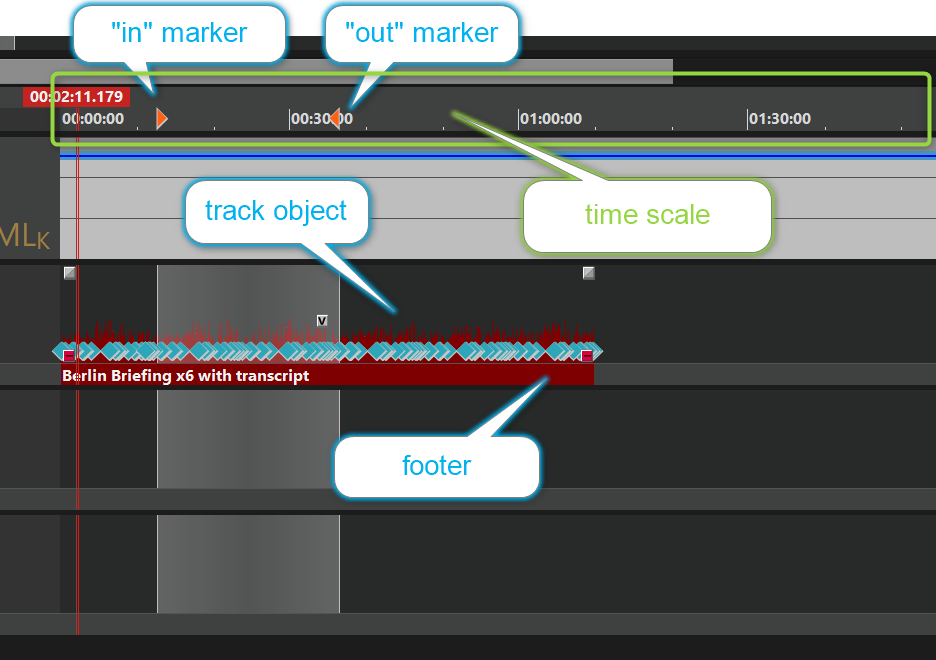
Left click the object’s footer |
|
|
2 |
Left click the object’s footer |
|
|
3 |
Left click the object or its footer |
|
Move track object |
1 |
Left drag the object’s footer |
|
|
2 |
Left drag the object’s footer |
|
|
3 |
Left drag the object or its footer |
|
Separate track object |
1 |
Menu → Edit → Separate; or Edit Tools → Separate → Separate |
|
|
2 |
Menu → Edit → Separate; or Edit Tools → Separate → Separate |
|
|
3 |
Right click the object |
|
Open track object’s menu |
1 |
Right click the object’s footer |
|
|
2 |
Right click the object’s footer |
|
|
3 |
Right click the object’s footer |
Definition of Terms
-
Click: Press and immediately release the mouse button without moving the mouse. Left, middle, right click: Specifies the mouse button to click.
-
Drag: Press and hold down the mouse button, move the mouse to its destination position, then release the mouse button. Left, middle, right drag: Specifies the mouse button.
-
Mark region: Define mark in and mark out in a single mouse gesture: Drag the mouse from one end of the region to the other end.
-
Separate track object: Cut a track object in two.
-
Clickable areas:
Related Parameters
-
UseAlternateMouseButtons: If
MTSMouseButtonsis not defined, or is defined but is neither 1 nor 2 nor 3, thenUseAlternateMouseButtonscontrols mouse button actions:UseAlternateMouseButtons=1behaves likeMTSMouseButtons=2; all other settings work likeMTSMouseButtons=1. (This parameter is used for backward compatibility with very old MTE versions.)-
The default value is
UseAlternateMouseButtons=0.
-
Left-Handed Mouse Usage
In the Windows user profile, you can define left-handed mouse usage. (In Windows 11, this is at Settings → Bluetooth & devices → Mouse → Primary mouse button.) This swaps the actions assigned to left and right mouse buttons. MTE respects this setting.