
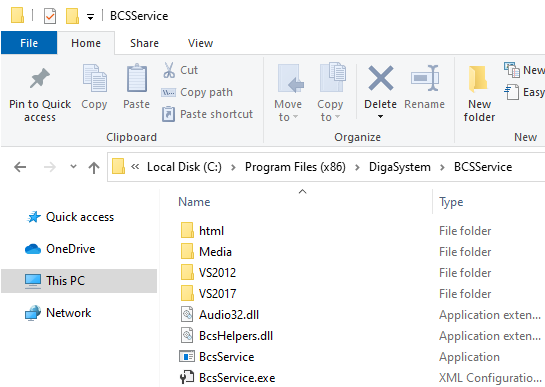
1. Copy all files of the installation package (or unzip) to a folder. In the following example, BCSService is a subfolder of the DigaSystem folder:
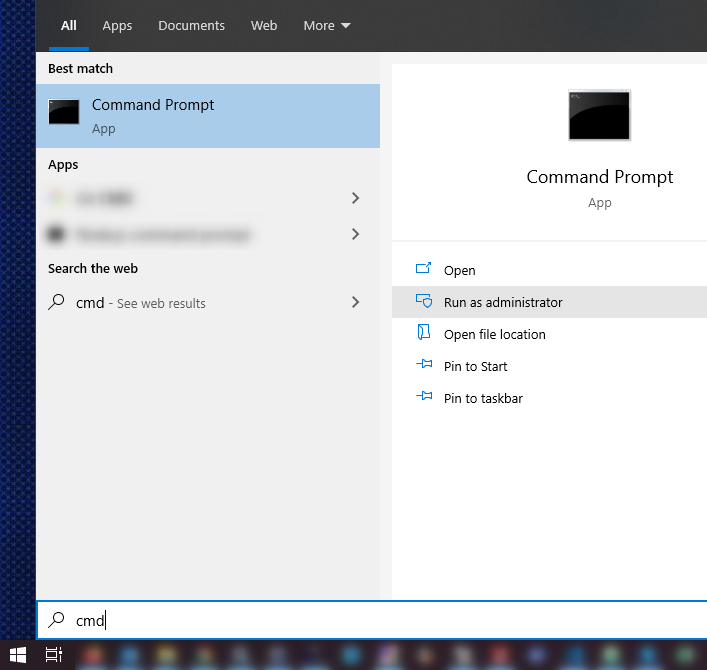
2. Start a command line as Administrator.
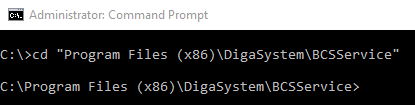
3. Navigate to the installation directory.
4. Execute the command Install.bat Path_To_DigaSystem, where Path_To_DigaSystem is the full path to your DigaSystem directory.

5. Install the BcsService as Windows service via command line. See Install & Configure Windows service for details.
6. Now you can configure the installed service in Windows Service Manager, if needed. For example the "Startup type" or the "Log On".
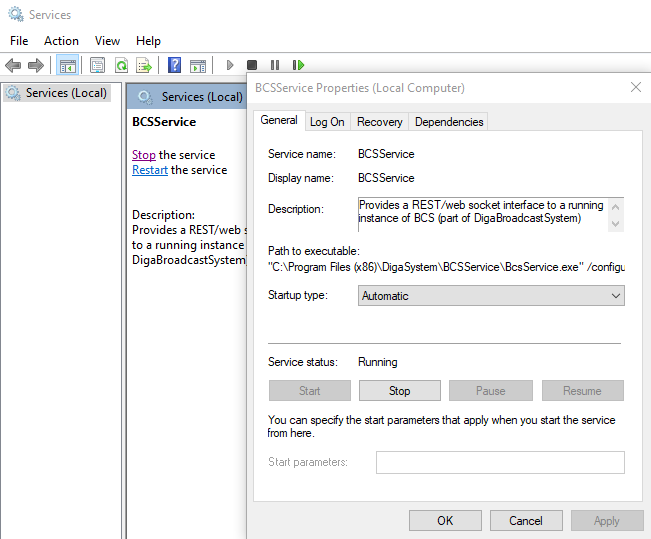
If you work with weak hardware which does not match our recommendations, you need to set the Startup type to "Automatic (Delayed Start)
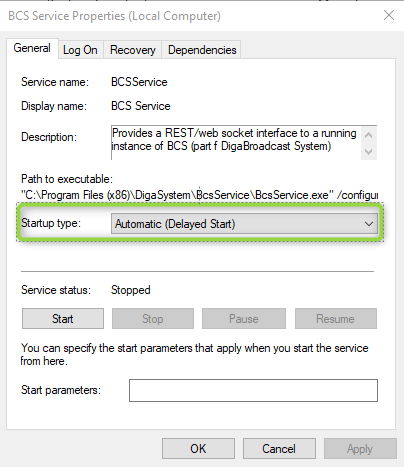
7. Create a configuration for BcsService. You can find the parameter description in Configuration.
8. If you run the windows service under a non-system account register the urlacl’s (see "Register the urlacl's" section). Otherwise the web server cannot start. Per default windows doesn’t allow a normal user to open an http-listen port.
9. Start the service via Windows Service Manager.
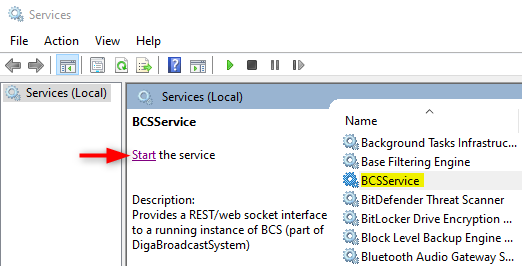
If the service won’t start check the log files for the reason.
Register the urlacl’s
1. If the service runs as a non-Local Administrator you must register the configured URLs that the service can use the ports.
2. Start a command line as Administrator.
3. Regarding your BcsService configuration
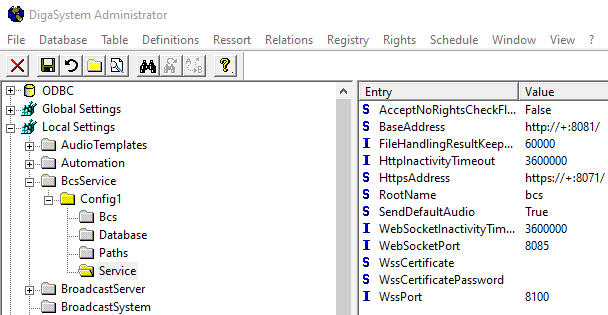
(Local Settings / BcsService / YourServiceName / Service)
you need to register the following URLs:
-
BaseAddress (default) =
http://+:8081/
-
Command line: netsh http add urlacl url=http://+:8081/ user=Domain\User
-
-
HttpsAddress (default) =
https://+:8071/
-
Command line: netsh http add urlacl url = https://+:8071/ user=Domain\User
-
-
WebSocketPort (default) = 8050
-
Command line: netsh http add urlacl url=http://+:8085/ user=Domain\User
-
-
WssPort (default) = 8090
-
Command line: netsh http add urlacl url=https://+:8090/ user=Domain\User
-
HTTPS & WSS
The BcsService supports HTTP, HTTPS, WS and WSS separately in any combination.
Step 1: Copy the certificate to the location of your choice.
This example uses a folder in the DigaSystem directory created for this purpose and called Certificate.
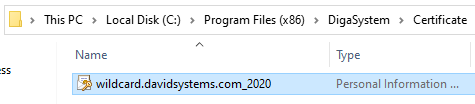
Step 2: Double click on the certificate to import it. The Certificate Import Wizard opens.
Select Local Machine and click "Next".
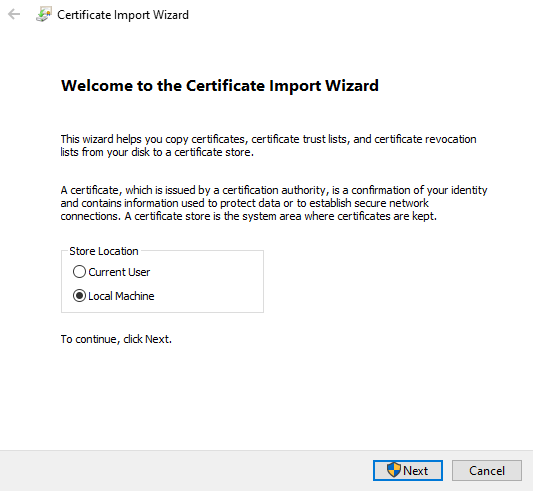
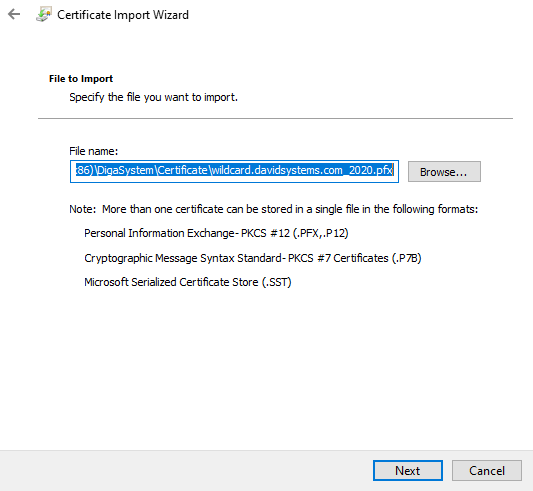
Step 3: Specify the file you want to import and click "Next".
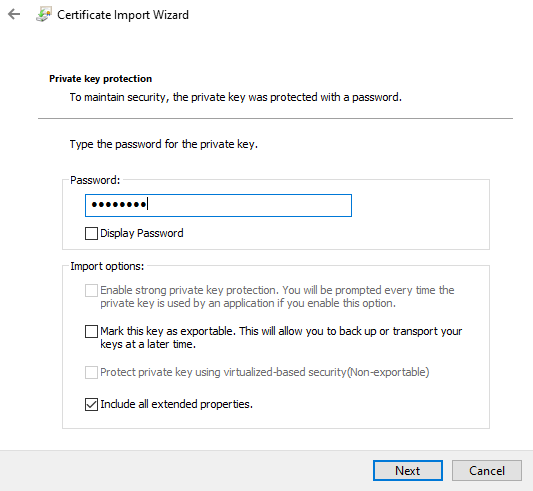
Step 4: Enter the password for the private key and click "Next".
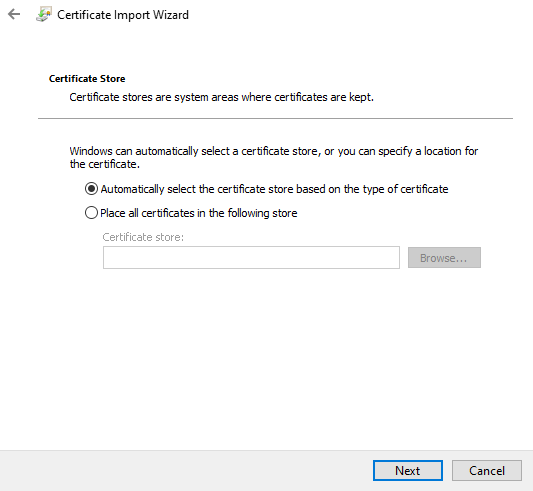
Step 5: Select "Automatically select the certificate store based on the type of certificate" and click "Next".
Step 6: Double-check the settings and click "Finish".
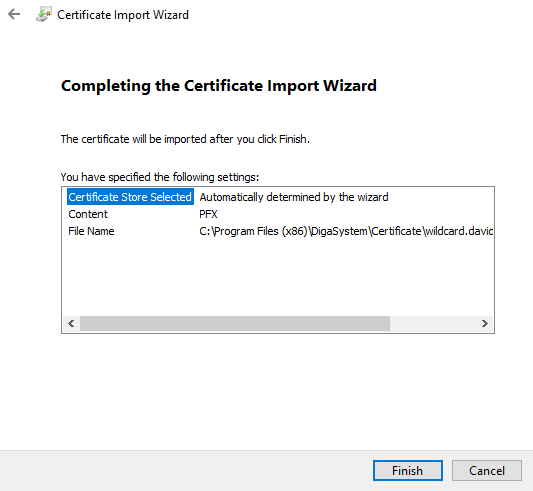
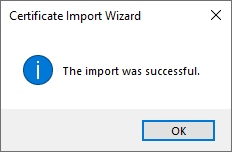
Step 7: Set ports.
Start a command line as Administrator.
Regarding your BcsService configuration
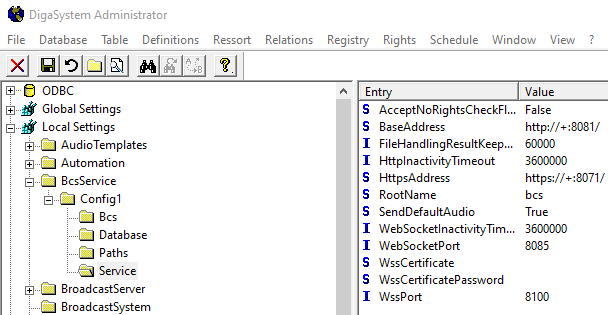
(Local Settings / BcsService / YourServiceName / Service)
you need to register add the sslcert port.
Example: netsh http add sslcert ipport=0.0.0.0:8071 certhash=23928b65b50cbdf5267eeedfd5753215eb0179d0 appid={f59e1a37-81b3-4d54-addb-401cb51bbe74}
Explanation: netsh http add sslcert ipport=HttpsAddress certhash=HASH appid=GUID
-
ipport=HttpsAddress - Replace HttpsAddress with the address and port number you use for the https communication. Example: 0.0.0.0:8071
-
certhash=HASH - Replace HASH with the thumbprint of the SSL server certificate you have created. Detailed instructions can be found after this paragraph. Example: 23928b65b50cbdf5267eeedfd5753215eb0179d0
-
appid=GUID - Replace GUID with the GUID of the BcsService.exe. It can be taken from the example and must not be changed: {f59e1a37-81b3-4d54-addb-401cb51bbe74}
How to find the thumbprint of a certificate
-
Open the certificate manager (Click on Start and type certlm.msc and press Enter).
-
Get the certhash from the imported certificate by double-clicking it and navigating to the Details tab.
-
Then select the field Thumbprint. Copy its value and paste it into your command after certhash=.
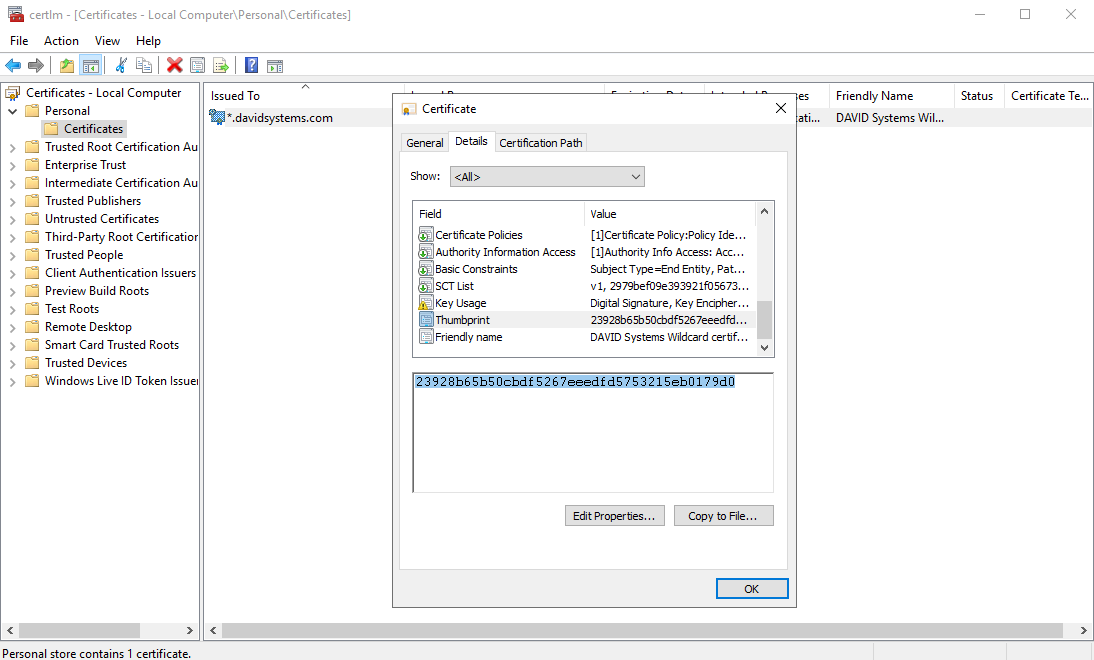
Step 8: Adjust your BcsService configuration
-
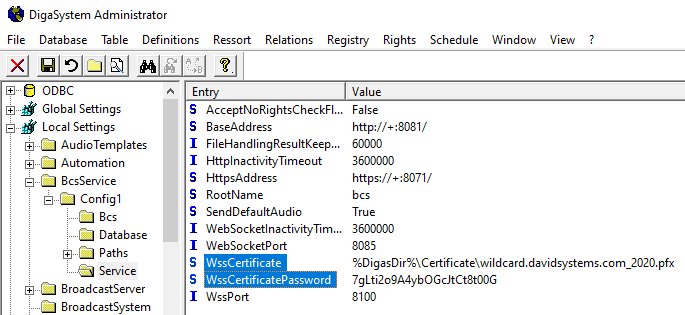
Add the location of the certificate as value for the entry WssCertificate
-
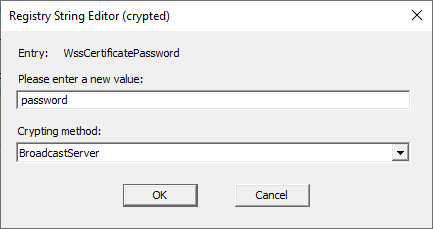
Add the certificate password as value for the entry WssCertificatePassword encryped with the "BroadcastServer" format
-
Example:
Update BcsService
1. Copy all files of the installation package (or unzip) to the installation folder.
2. Double-Check documentation for new configuration parameters.
Uninstallation
1. Start a command line as Administrator.
2. Navigate to the installation directory.
3. Execute the command BcsService.exe /u[:User_Defined_Service_Name], where User_Defined_Service_Name is the optional Windows service name ("BcsService" by default).

4. Delete the installation directory.
5. Delete the "%ProgramData%\DigaSystem\BcsService" directory.