Contextual Audio Editor, in short CAE, is a web application for text-based audio editing. CAE can connect to various SpeechToText service providers and make full use of these services.
It can run within the DAVID ecosystem or as a stand-alone application. With platform independency it gives the user a flexibility to work from everywhere.
It combines working with Text, Audio, Waveform and its different working types like Text View or Waveform View. You can simply arrange your work with a Clipboard and store your created elements back to a DigaSystem database or locally.
CAE supports collaborative workflows with annotations. Users can add comments directly in the context of their work, making it easier to review, discuss and continue editing across teams.
In addition, CAE supports Smart Audio Processing and AI Assistant integrations, allowing users to improve audio quality and streamline their workflows.
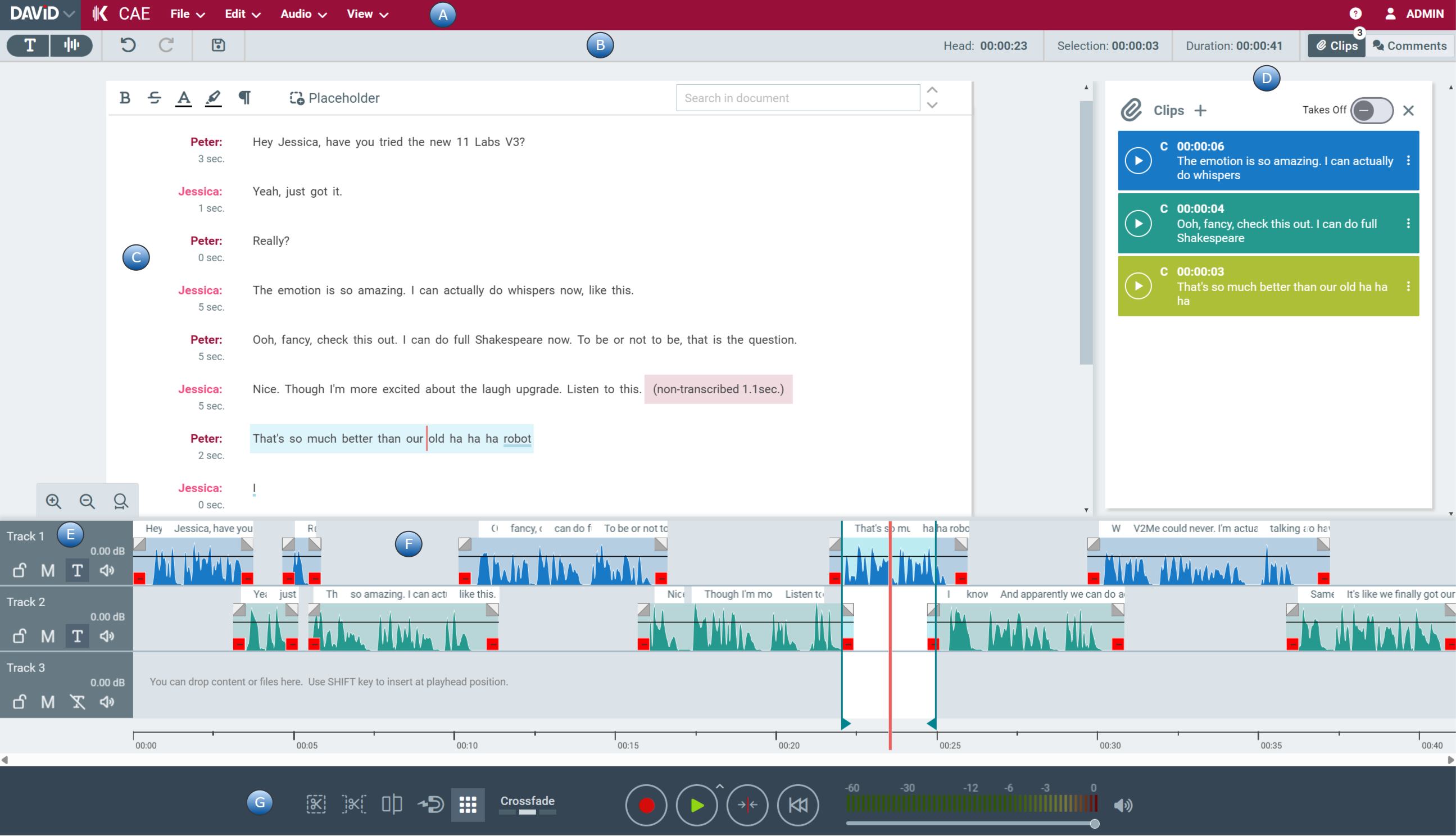
CAE is separated in different areas. Here is an Overview:
|
Area |
Naming |
Description |
|---|---|---|
|
A |
Top Menu (Application Menu + User Menu) |
Open other DAVID web application, use the Menu to work with your Elements - File, Edit, Audio and View. Also Online Help and Info about logged in user is shown |
|
B |
Toolbar |
The View Mode switch, Undo, Save, and timing information are available here. |
|
C |
Text Area |
Text area to work on your transcribed text. Showing text and Speaker plus durations. |
|
D |
Clipboard |
Known from DAVID Audio Editors - to collect Clips to work with. |
|
E |
Track Header |
Contains buttons to control the respective track |
|
F |
Tracks |
Showing the waveform of elements. Also possible to show the corresponding Text. |
|
G |
Transport Area |
Audio bar to record, play etc. with enhanced Volume bar. |