
SAF Administration is the client tool to configure, monitor and start/stop SAF modules.
Entering DigaSystem Credentials
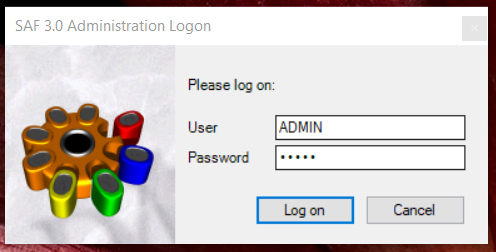
Enter your DigaSystem credentials for working with SAF Administration.
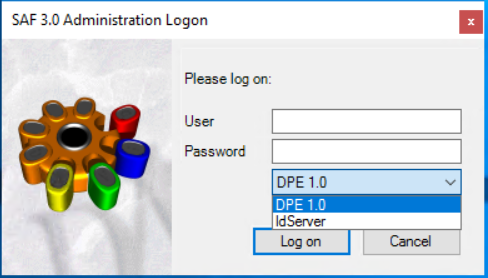
If you have configured multiple authentication providers, choose the wished one form the drop down.
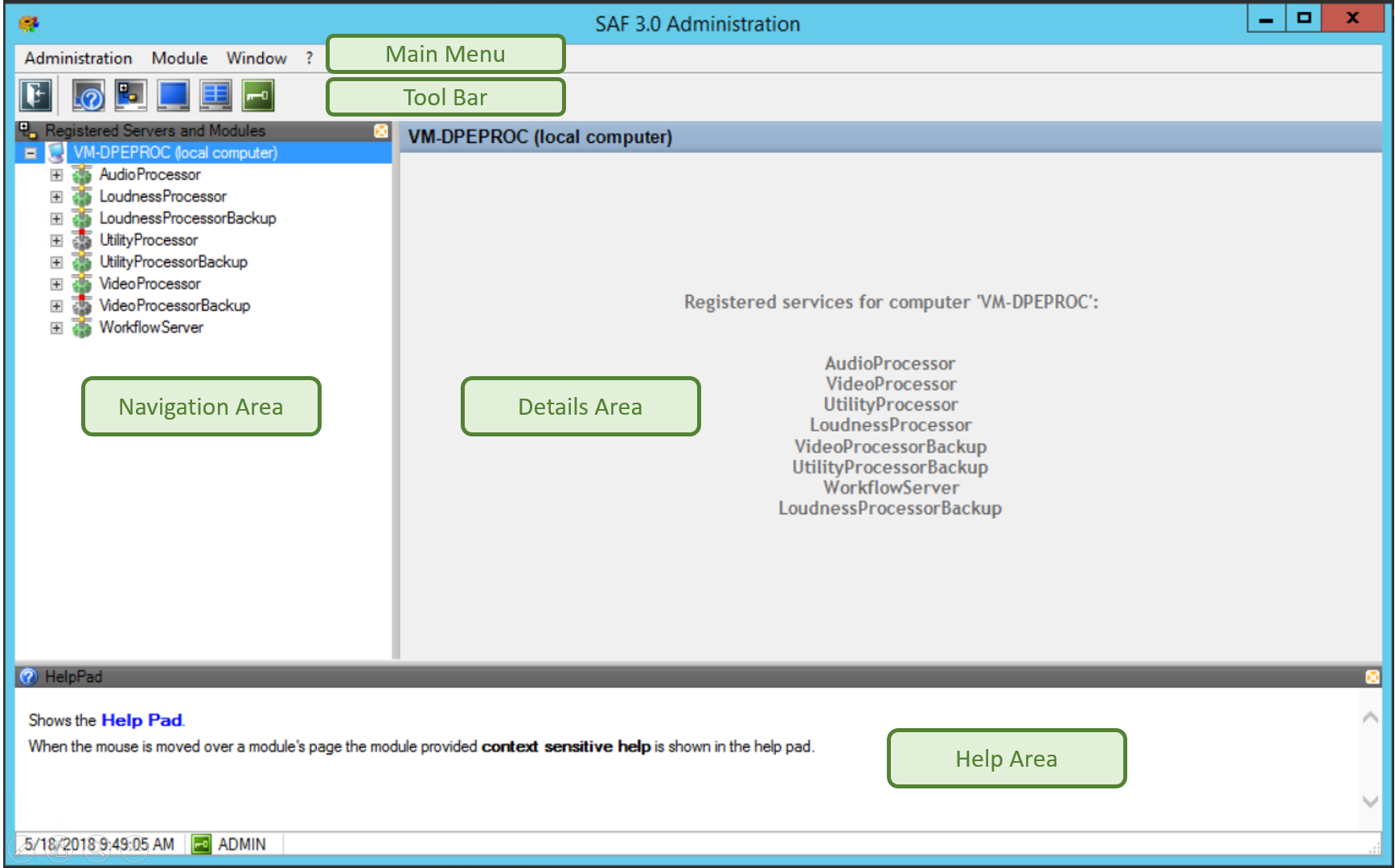
SAF Administration Area Overview
|
Area |
Description |
Related Topics |
|---|---|---|
|
Main Menu |
The Main Menu contains menu items for all functionalities. |
|
|
Tool Bar |
The Tool Bar offers quick access to some often used functionalities. |
|
|
Navigation Area |
The navigation area contains a tree with information about registered entities and allows to navigate to the details of each entity. |
|
|
Details Area |
The details area shows pages according to the currently selected item in the navigation tree. |
|
|
Help Area |
The help area displays context sensitive help. |
|
Navigation Area
The navigation tree contains information about registered entities. It is a hierarchical view.
The top level of the tree lists all machines hosting having at least one registered SAF Server:

The second level of the tree lists all SAF Servers registered for a machine:
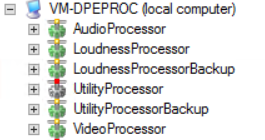
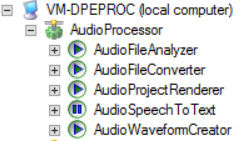
The third level of the tree lists all SAF modules that are registered for a SAF Server:
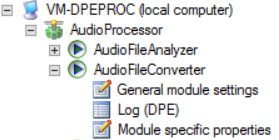
The forth level lists various pages to interact with a SAF module:
Understanding SAF Server States
SAF is a client/server system. The client (SAF Administration) has to connect to the server (SAF Server) first, before it can show information or manage it.
|
SAF Server State |
Description |
|---|---|

Offline |
The SAF server is registered, registration is available, there is no connection to the server. The registry does not contain connection information. Most probable the SAF server is not running. |

Connectable |
The SAF server is registered, registration is available, however, there is not yet a connection to the server. The registry does contain connection information and connection attempts will be made on a regular basis. |

Connecting |
A connection attempt is underway. |

WaitForReconnect |
The connection was cut off. To avoid Denial of Service Attacks the server has signalled to wait a certain time before further connection attempts will be honored. |

Online |
A connection has been established to the SAF server, however, the server has not yet sent a status update. |

Running |
A connection has been established to the SAF server and the server has delivered a status update of its modules. |

ShuttingDown |
The SAF server is in the process of shutting down. At times the server needs to wait for modules to terminate by themselves. |

ShutDown |
The SAF server has been shut down. The connection will be closed as a result. |
Understanding SAF Module States
|
SAF Module State |
Description |
|---|---|
|
|
The module has been registered by its server. However, its execution state is unknown. This state is signalled under the following circumstances:
|
|
|
The module has been loaded by its server, though it is not active. The server will not execute the module, it is Paused. |
|
|
The module has been loaded by its server and it is active. It is kept in a Waiting state until a trigger for execution arrives, also see Configuring General SAF Module Settings. |
|
|
The module is currently being executed. Its activities can be monitored via its activity pages. Triggered modules will always switch between Waiting and Running. Non-Triggered modules will keep Running until they are paused by user interaction. |
|
|
The module is currently being executed. The execution will run normally until finish. After finishing the module it will be set to a Paused state. |
|
|
The module is currently being executed. A request to terminate has been issued to the module, however, it is up to the module to honor this request or ignore it. Aborting time therefore depends on the nature of the module. |
|
|
The module is currently being executed. Execution is stopped externally by the server, killing the execution thread of the module. |
|
|
The module has been put to halt and will be reloaded. Before reloading the module it is put into this state for a configurable period of time. |
|
|
The module has been put to halt. It will no longer be executed or reloaded. The server puts modules into this state in case they produce untrapped errors too often. It does this to prevent dysfunctional modules from interfering with the execution of other modules. |
|
|
The module has been loaded and is now being initialized. Or the configuration has been changed and the module is being reinitialized. |
|
|
The module is disabled and can be used only after restarting the SAF server. |


Main Menu
Window Menu
The following menu items allow to show or hide elements in the user interface.
|
Menu item |
Description |
|---|---|
|
Help |
Show or hide help area |
|
Tooltips |
Show or hide tooltips for nodes in navigator window |
|
Navigator window |
Show or hide navigator window |
|
Views |
Show or hide panel with overview about existing and open views |
|
Toolbar |
Show or hide toolbar |
|
Borders |
Show page embedded in layout or standalone. Double click caption to go back from standalone view. |