Create a new Project
If an existing project is open, save it and press New.

Import Entries
-
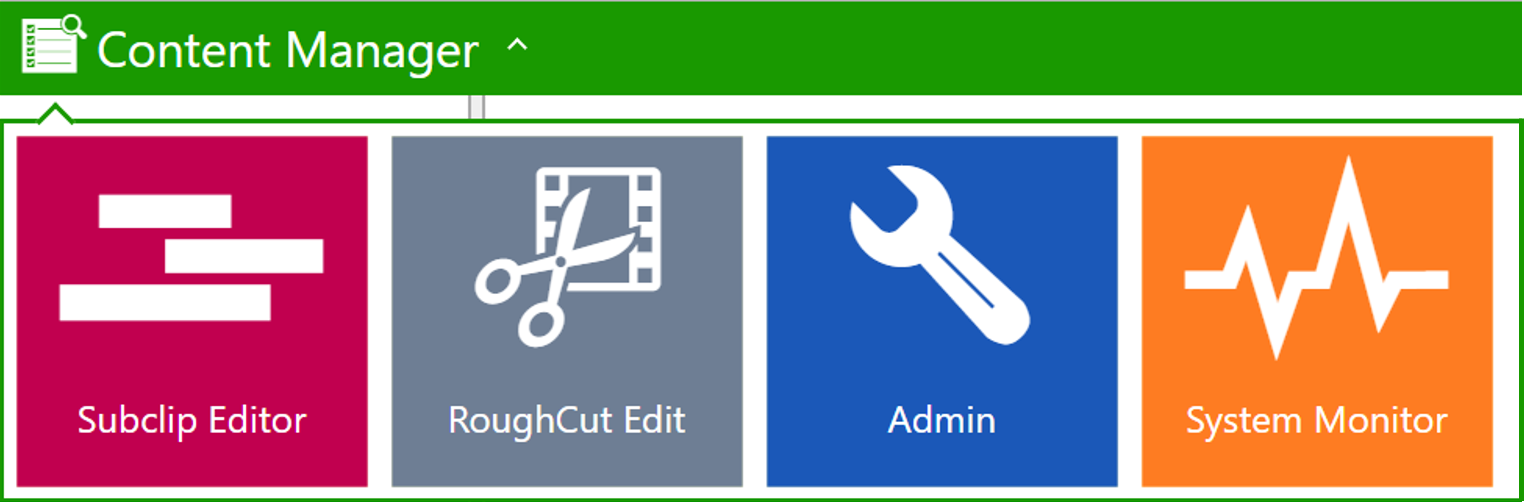
Open the Content Manager in the same tab.
-
Use the Application Menu or
-
Click the add content button (if made available by your administrator).

-
-
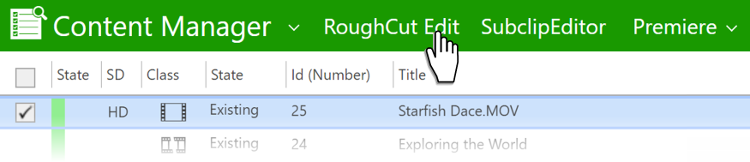
Select the desired entries you want to import.
Entry classes that can be imported:
Group (containing video, audio, images entries)

Video

David Video Project


Audio File

Graphics
-
Click on the RoughCut Edit plugin. This has a unique name defined by your system administrator.
-
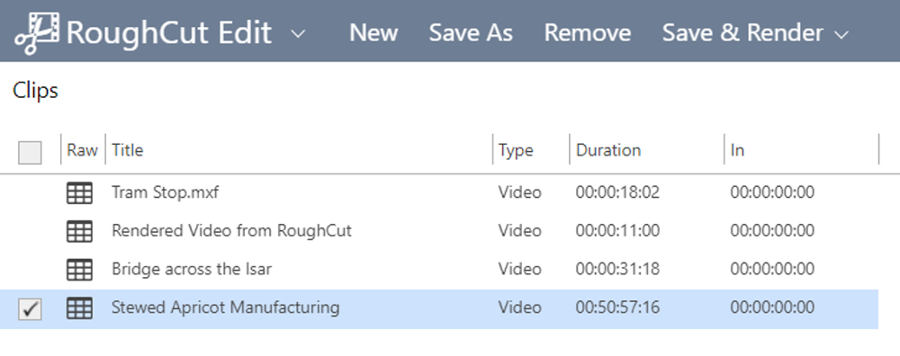
The selected entries appear in the Clip Area.
You can change a clip's name with a delayed double click known from Windows Explorer.
Add Clips to the Timeline
Add all the desired entry segments to the timeline following the Adding and Removing Clips from the Timeline instructions
Save Project
-
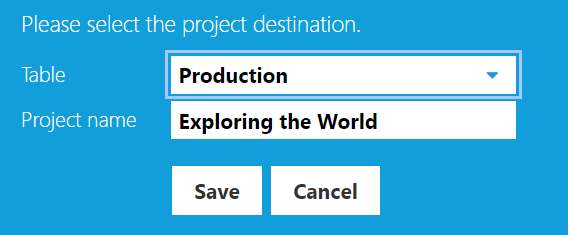
Click on the Save As button
-
Select the Table you want to save the project in
-
Name the project
The content manager will create an entry, containing an XML sheet of all the content. A user can only save into tables he is authorized to create entries in.
Note:
-
The project is autosaved every minute to prevent data loss.
-
The name of the project is displayed in the browser tab.
-
It's only possible to 'save as' changes to a project because the DigaSystem operates on a non-destructive basis.
To 'save' an entry, save it as the same file name and then delete the old version (make sure you double check the change date or the Id number). -
If there are unsaved changes:
-
A dialogue appears before closing the project
-
There is an asterisk in the browser tab

-
Open the Project
From the Content Manager, the saved project can be opened in RoughCut Edit, Final Cut Pro, or Adobe Premiere for further editing.
-
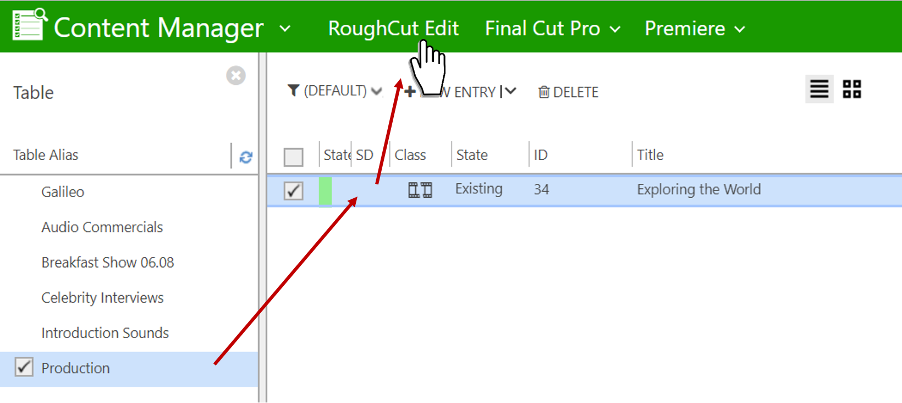
Select the Table you saved the project in.
-
Click on the RoughCut project.
-
Click on the Top menu item responsible for RoughCut Edit (the item's name is arbitrary as it can be set by the administrator).
Note: If content contained in the project has been deleted or soft-deleted, a warning message will be displayed upon opening the project.
The user can see the project currently opened in RCE in the title of the browser tab.
If the project has changed and has not yet been saved, the user will see a * before the project name to be saved. Any save operation will consequently remove this *.