
-
Select just one or more Entries.
-
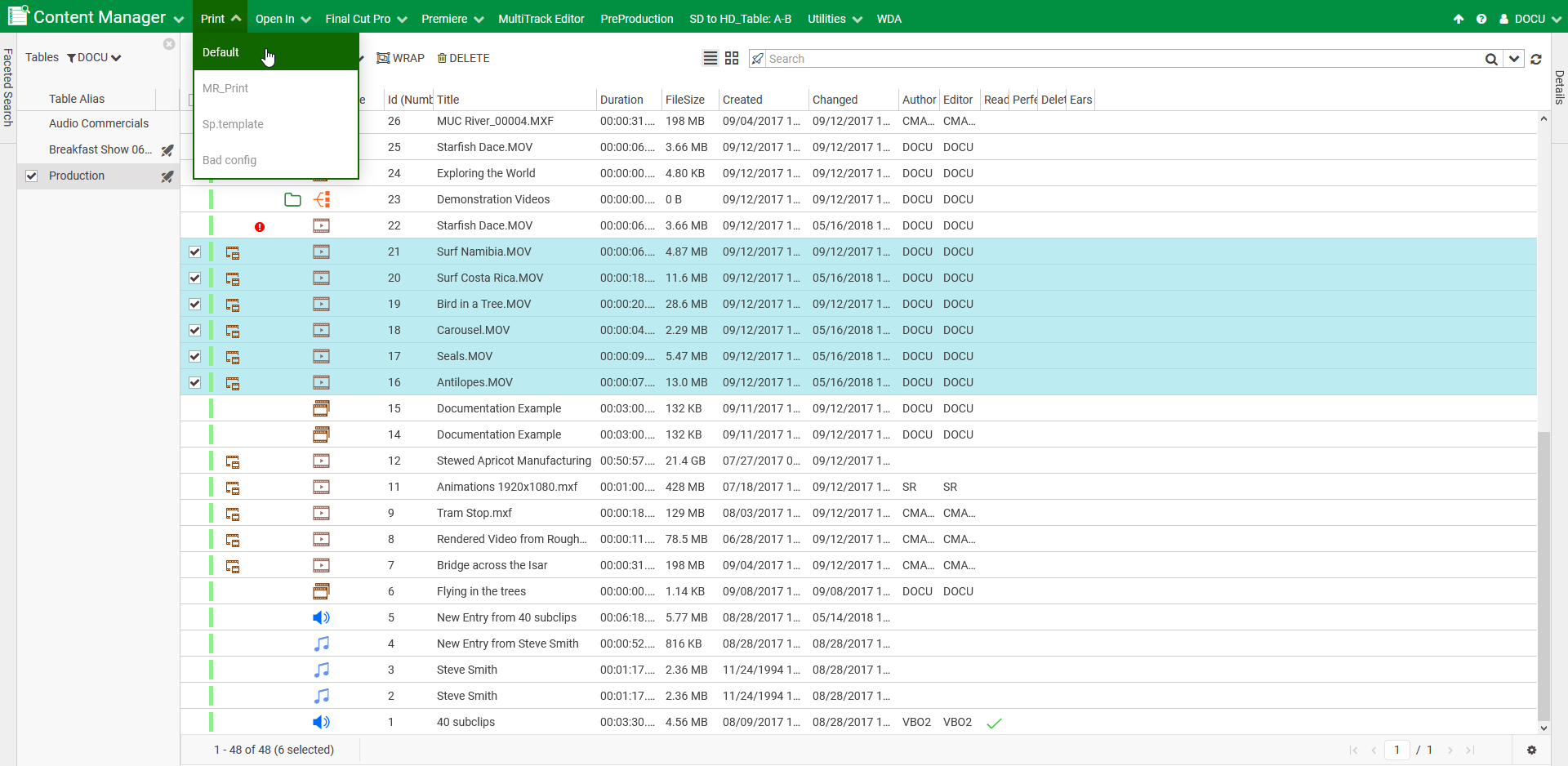
Click on the "Print" menu entry in the ContentManager topbar - appearance depends on configuration made by your DigAs Admin.
-
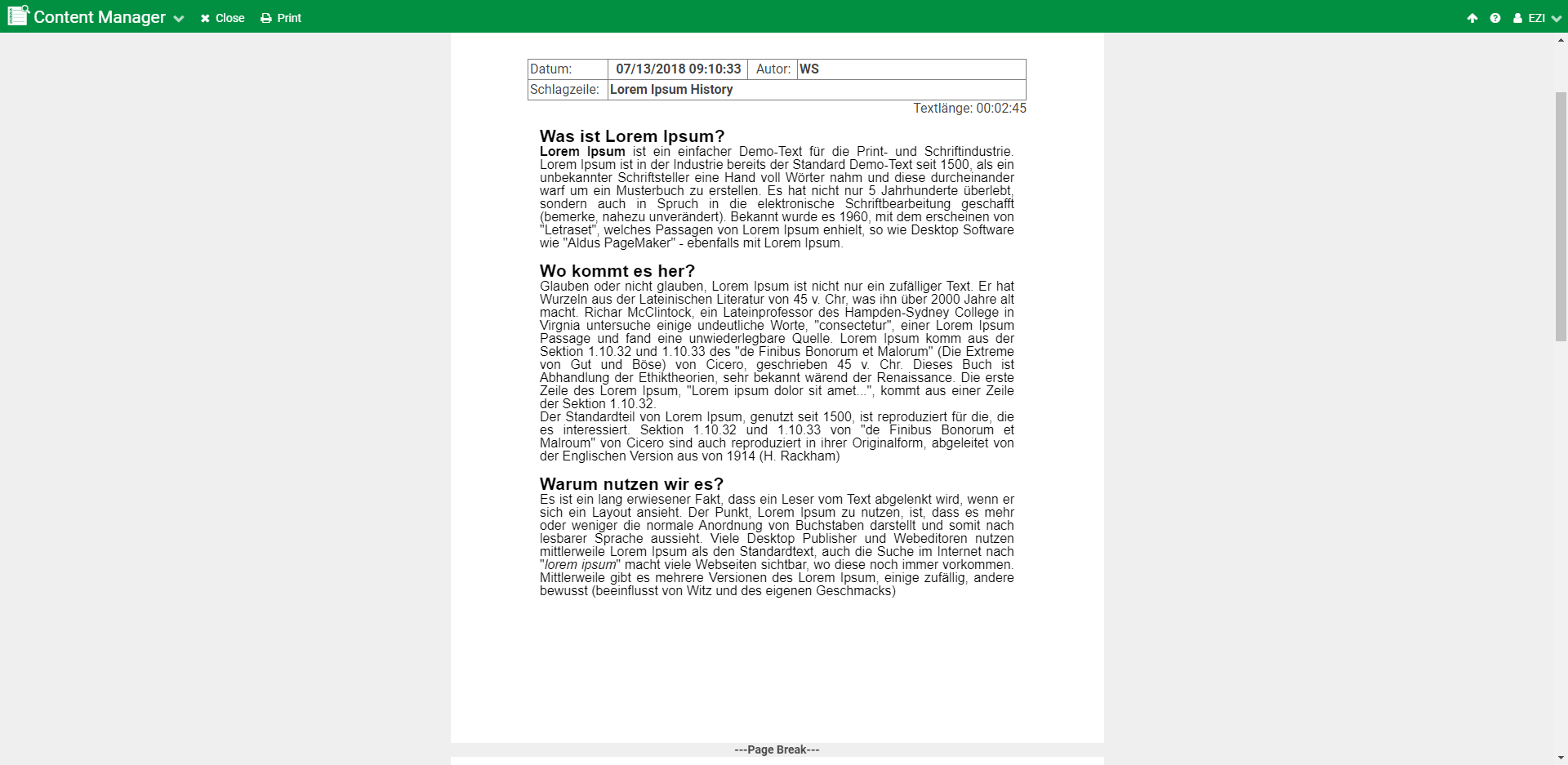
You will be directed to a page when all your selected entries are presented as a list with the default item presentation.
-
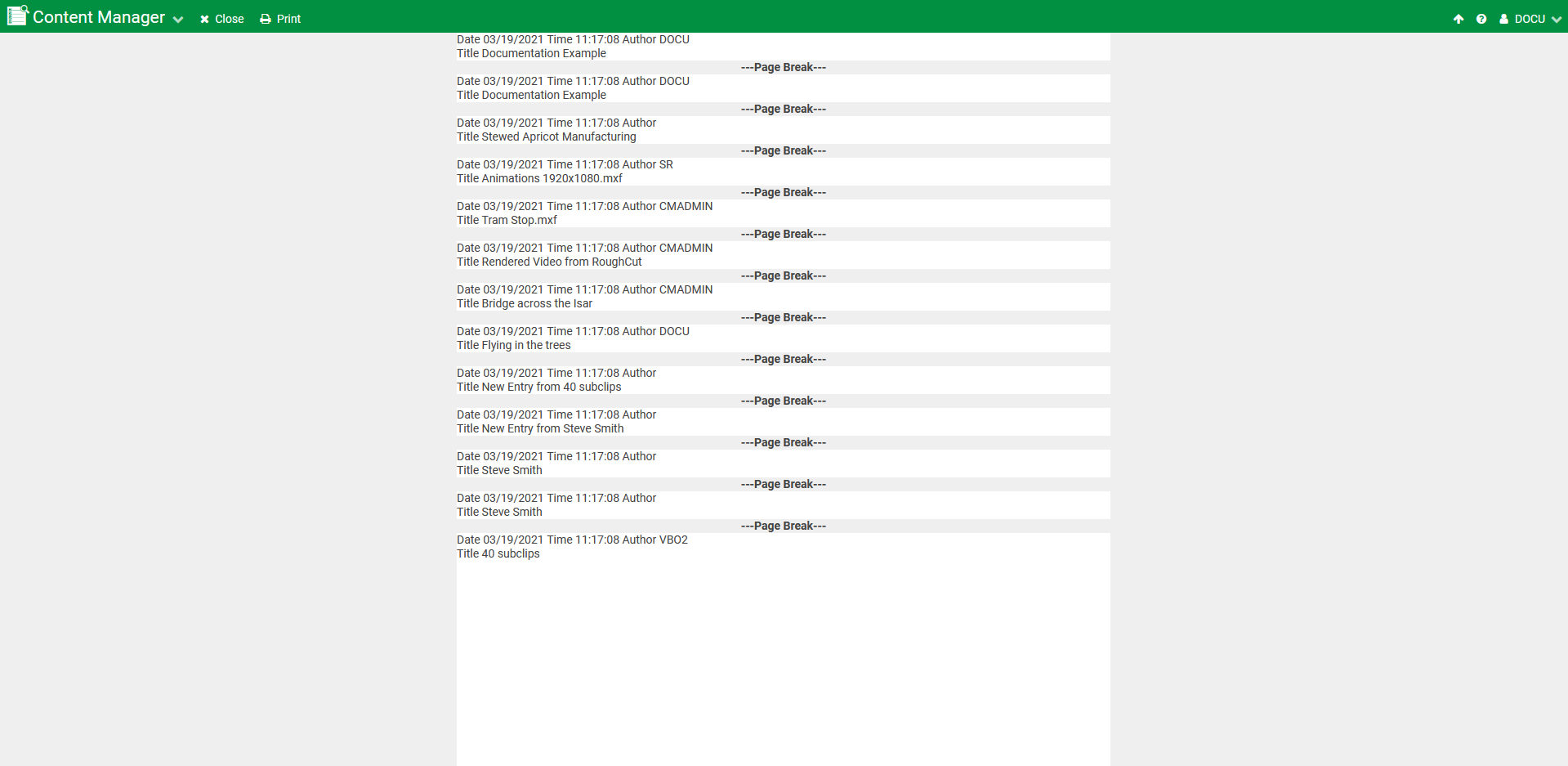
It is also possible to insert a Page Break for ensuring that every single entry is printed on a single page. In this case you will see between entries a page break.
-
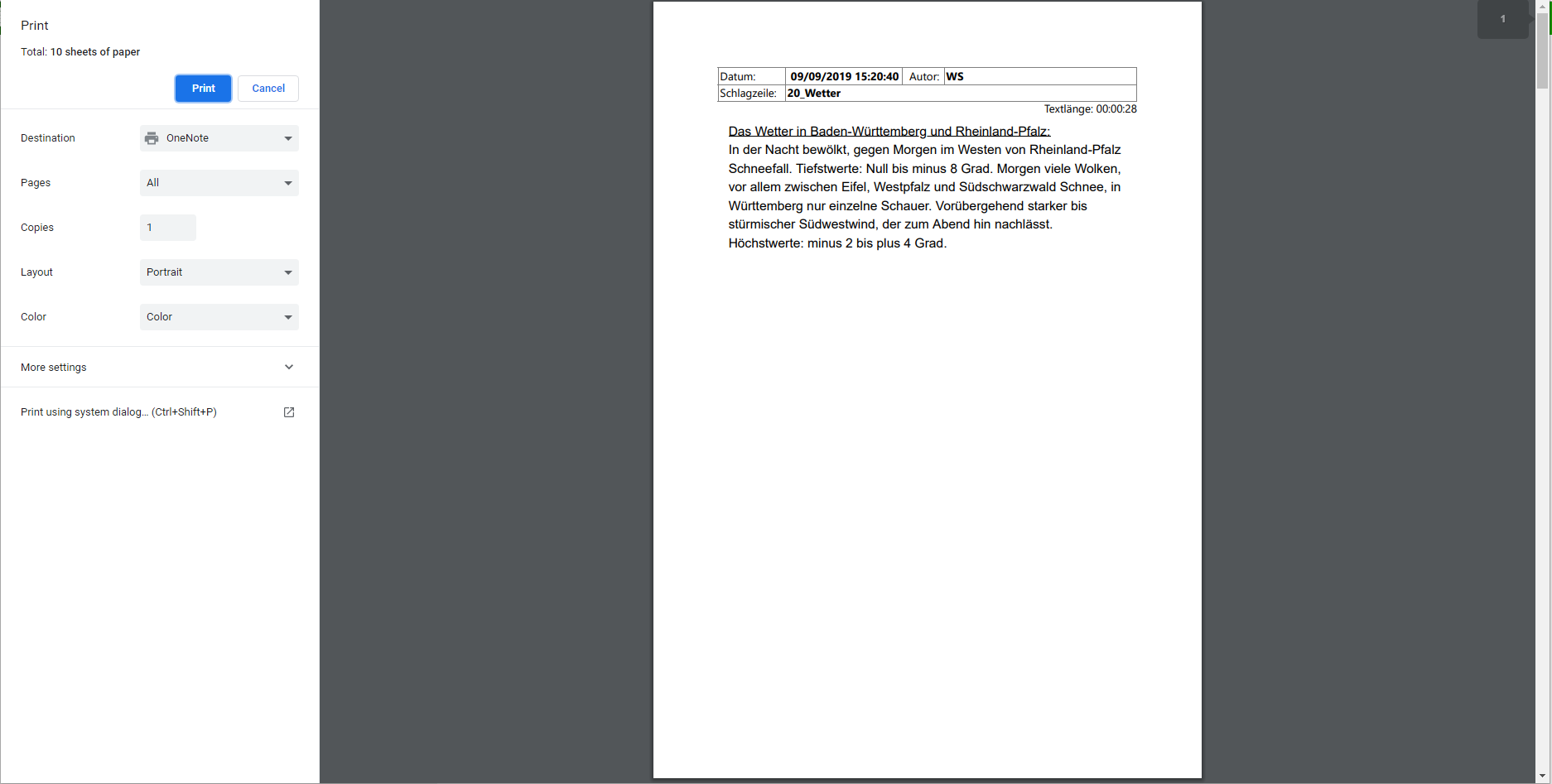
If you press Ctrl + p or the print Button in the menu you can print the entries as e.g. pdf or to physical printer.
-
Depending on the Web Browser you are using you get first a print preview.
If your templates use background colors or background images and you use
-
Firefox: be aware that you enabled "Print Background (colors & images)" option in "Page Setup" dialog.
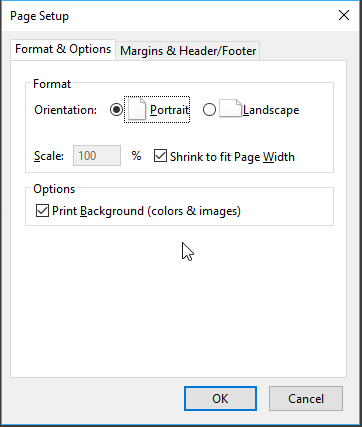
-
Chrome: be aware of enabling "Background Graphics"

available below "More Settings" print options.
