
Edit User
-
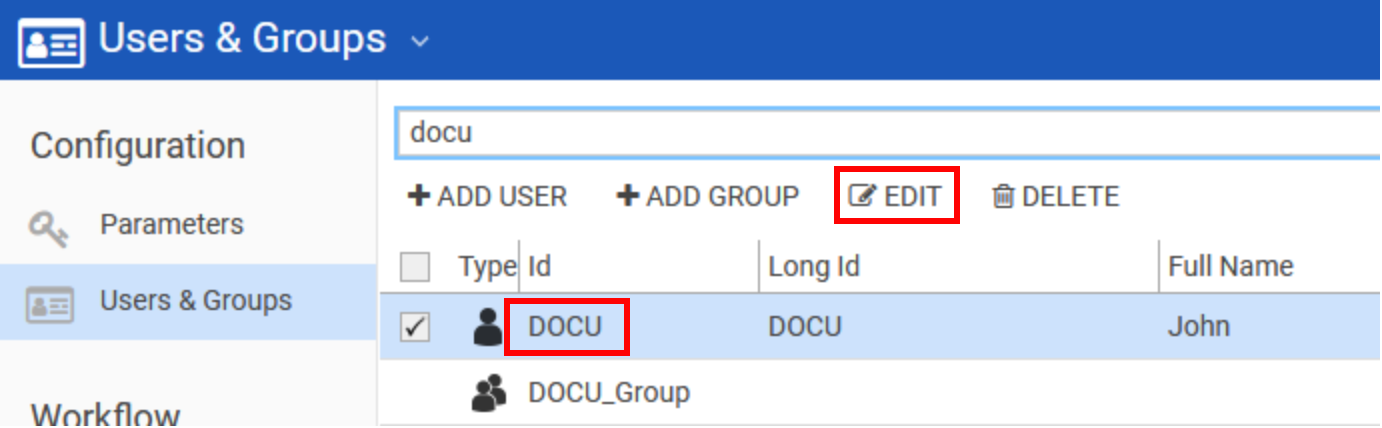
Select the user to be edited and click EDIT.
or simply click on the user´s Id.
-
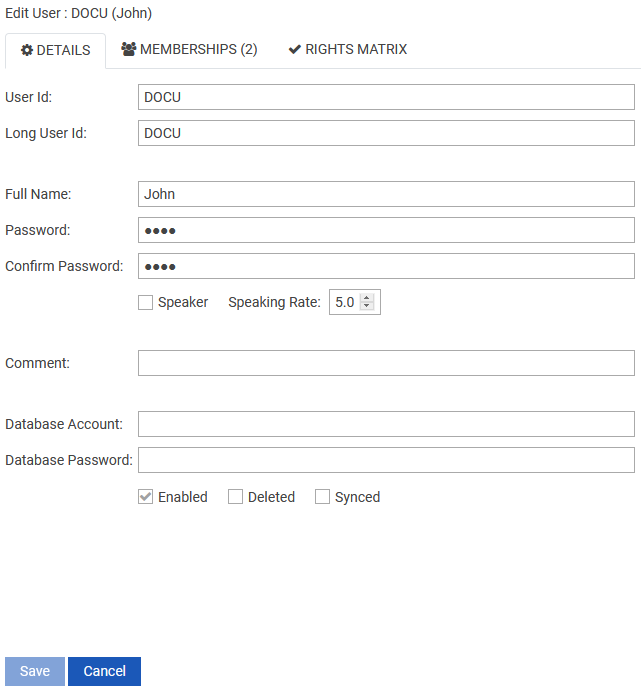
After entering the Edit mode, the following window appears.
-
In the Details tab you can edit the details of the user. Description of the fields can be found in Create a New User.
-
You can assign the user to a group in Memberships tab and
-
you can edit the rights of a user in Rights Matrix tab. To learn more about defining User/Group rights, see
Define User / Group Rights.
Edit Group
-
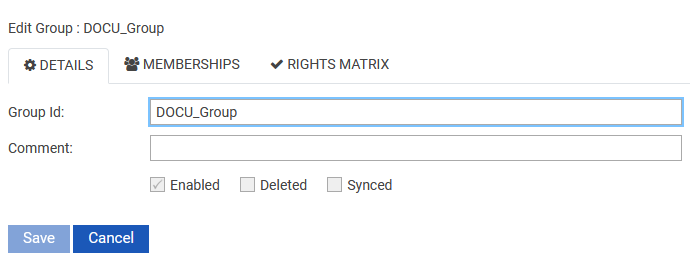
Select the group to be edited and click on the EDIT option and the following window appears
-
In the Details tab you can edit the details of the group. Description of the fields can be found in Create a New Group.
-
The Memberships tab displays all the members of the selected group. In the Rights Matrix tab, you can enable/disable the rights from the group. To learn more about defining User/Group rights, see Define User / Group Rights.
When you select an AdSync user which is deleted and synced, the option CONVERT appears in the local menu.

By clicking on this option, it allows to convert the AdSynced user to a normal Digasystem entry user.
Delete User/Group
A user or group can be deleted by selecting the user/group that is to be deleted and clicking on DELETE from the local menu.
The checkboxes below show status information about users:
|
Field |
Description |
|---|---|
|
Enabled |
If this field is not checked, the user has been blocked and cannot be logged on with. |
|
Deleted |
ADSync status field: If checked, the Active Directory user has been deleted. This user still exist in the DPE environment, but is also blocked and cannot be used. |
|
Synced |
If checked, this user corresponds with an Active Directory user. |