
Requires DPE 2.0 license
Executes C# code in the ScriptRunner module of UtilityProcessor. Delegating C# scripts to processors allows to scale, load-balance and add redundancy to C# script execution.
Properties
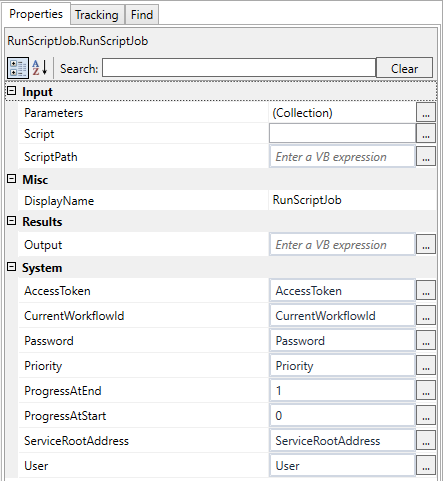
Input
|
Name |
Description |
|---|---|
|
Script |
String containing C# script |
|
ScriptPath |
Path to a file containing C# script |
|
Parameters |
Input parameter collection Example: |
Output
|
Name |
Description |
|---|---|
|
Output |
Dictionary<string, object> containing the results |
Example walk-through
1. Add RunScriptJob activity to your workflow
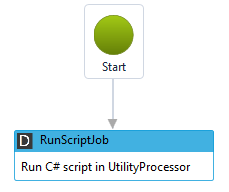
2. Select activity to display Property Grid for it.
3. Set ProgressAtStart to 0 and ProgressAtEnd to 1

4. Click "..." button near Script property to open ScriptPad editor

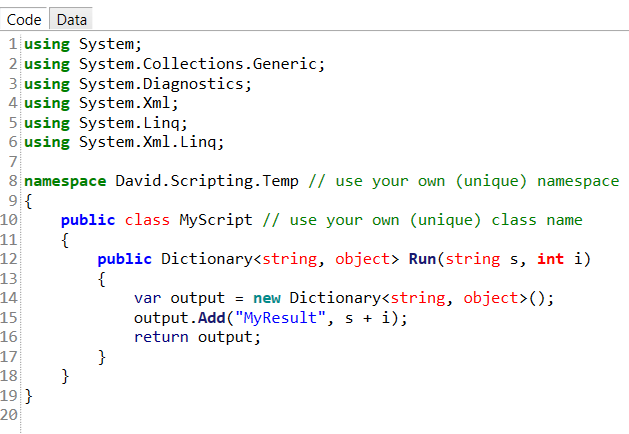
5. Click menu item "Paste Script Skeleton" to get sampe code
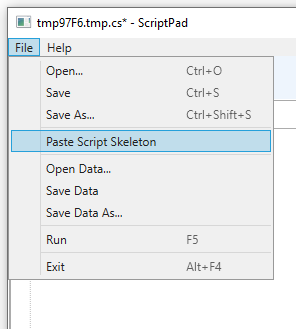
6. The sample C# script has 2 parameters.
-
string s
-
int i
7. The signature of the main entrance point into the script, the Run method, can be modified to your needs. Parameter types must be serializable. We recommend simple data-types.
8. Press Ctrl-S to save back the sample code to the activity.
9. And close ScriptPad. Notice that the Script property has been updated with the content of the C# script.
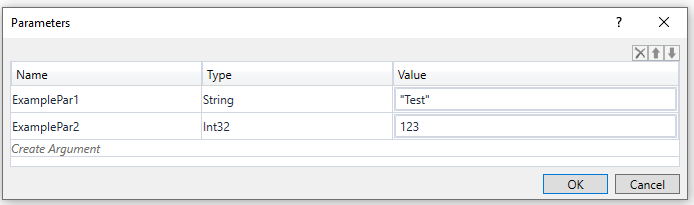
10. Open the Parameters collection dialog in Property Grid to add parameters for you C# script. Parameter names and types must match the signature of the method Run in your script.
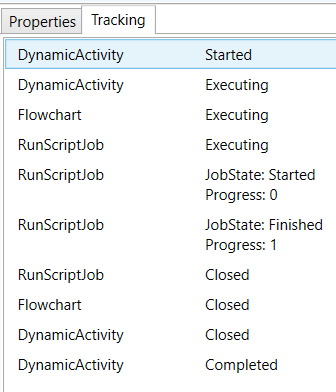
11. Execute script by clicking Run button in toolbar
Returning Results From Script
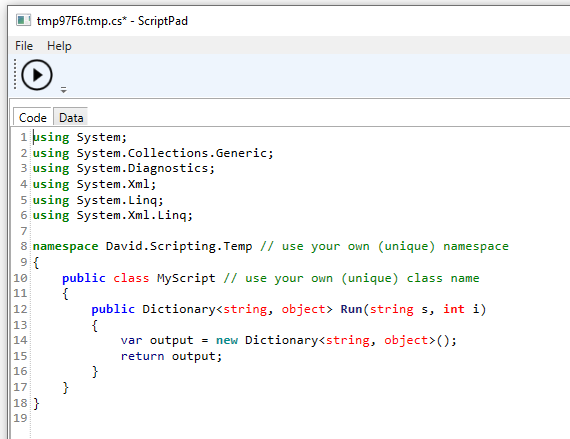
Results are returned in a dictionary.
1. Modify script to return a result
2. Modify workflow to receive response.
3. Add a variable of type Dictionary<string, object>. In this example we name it output

4. Use variable in RunScriptJob activity. Set property Output
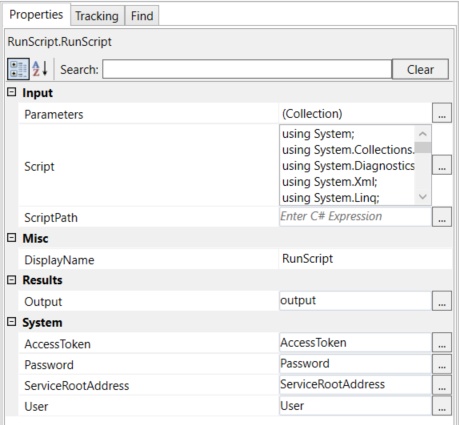
5. Use variable to work with result in workflow
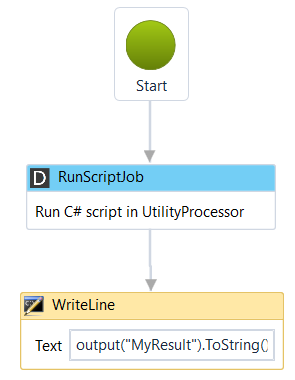
Using 3rd Party Libraries from C# Script
-
Copy the 3rd party library to WorkflowEditor folder and UtilityProcessor folder.
-
Add a double slash reference line to the beginning of the C# script, e.g.
//reference MyLibrary.dll;
No space between double slash and reference is allowed. The #reference line must be at the very top. Multiple reference lines are allowed. All lines must end with a semi-colon.