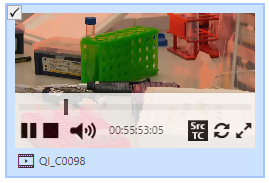
Thumbnail View can be used to gain a better overview of graphical and video content, while still having access to their metadata.
Working in Thumbnail View requires Content Manager Option: Thumbnail View
Entering Thumbnail View
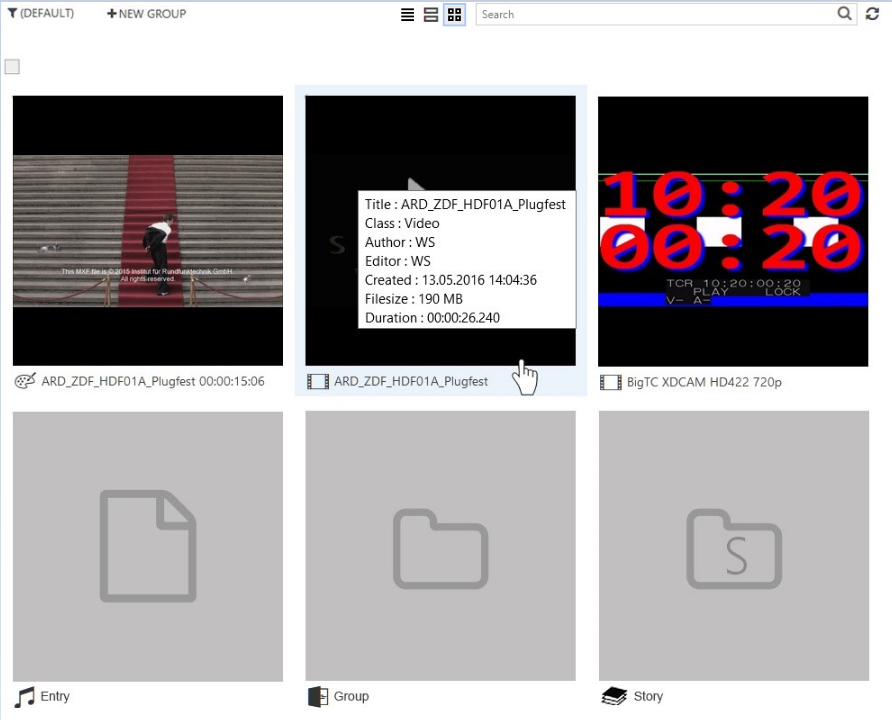
Simply switch from normal list view to Thumbnail View, by clicking the 4-box icon on the left-hand side of the search bar.

or in group area

Tooltip for quick access of meta data
Your Administrator can configure the tool tip, which appears, when hovering over an thumbnail image. The displayed tool tip gives you quick access to important metadata.
Watching Preview in Thumbnail View
-
Hover over a preview tile. The play button appears.
-
Click the [Play] button. The video starts automatically and the player interface appears

-
Hovering over the previewed window gives you access to the player controls