
The ROAD Streaming Configurator is a Windows application designed to test and analyze stream inputs for the ROAD engine. Users can specify a URL or file as input, allowing the application to detect and play streams. It generates a JSON configuration file that can be seamlessly integrated into ROAD Job templates.
Prerequisite
-
ROAD Streaming Configurator uses the DAVID FFmpeg Source filter, which is installed with the ROAD backend package.
-
Copy the
StreamingConfgurator.exeto your hard disk (recommended into theProgram Files\ROADdirectory ).
Usage
Playback
-
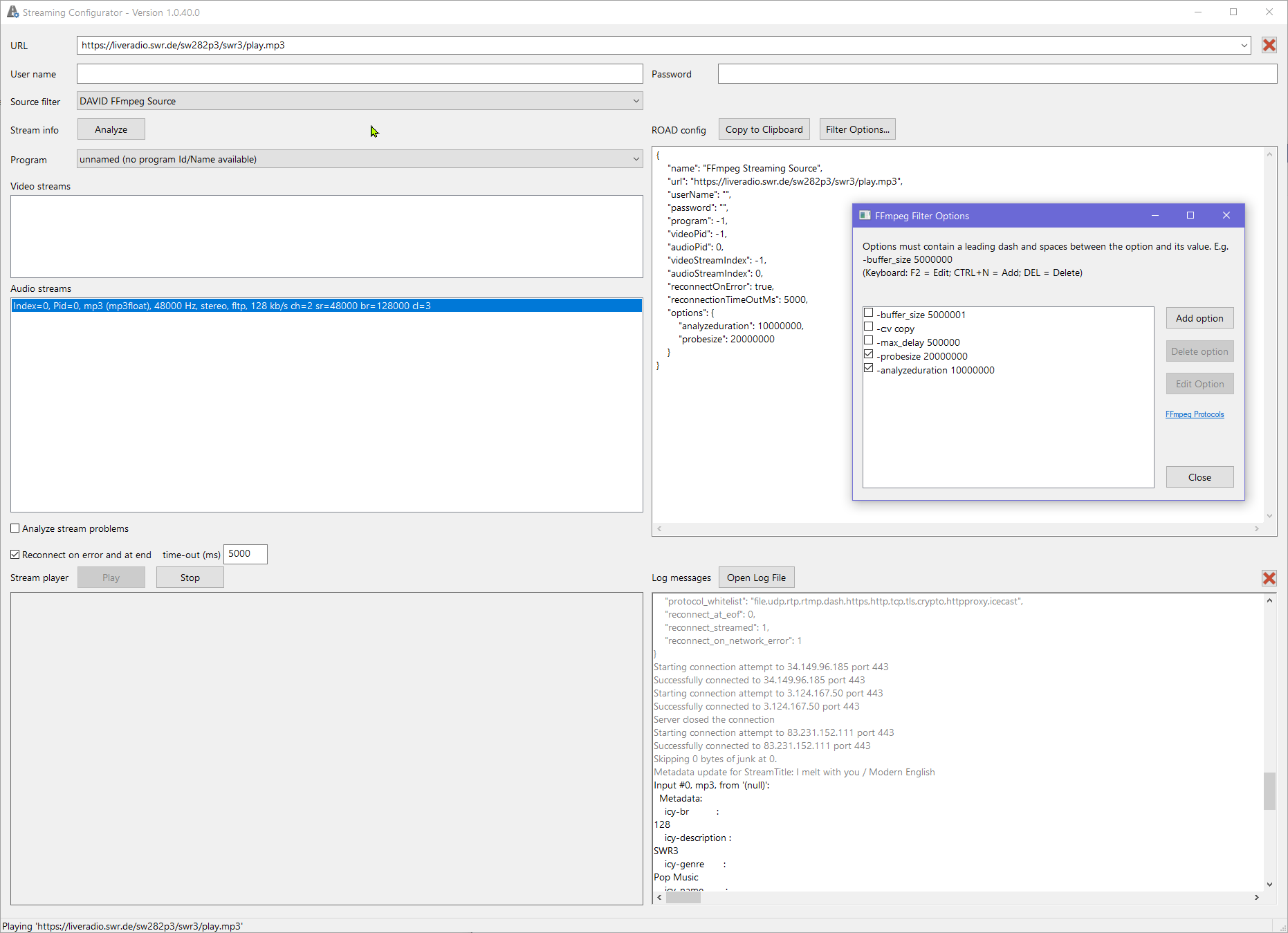
Launch the ROAD Streaming Configurator by double-clicking its executable file or using the desktop shortcut.
-
-
Enter a URL supported by FFmpeg. This URL can be any protocol or stream type compatible with FFmpeg. For more details on supported protocols, refer to the FFmpeg Protocols Documentation.
-
Click the Analyze button. The application will analyze the provided URL and populate the following fields:
-
The Program dropdown menu
-
The Video Streams list
-
The Audio Streams list
-
-
From the populated lists, select the desired stream to configure.
-
Configure Reconnection Settings
-
For IP streams (e.g., RTP, HTTP, HLS, MPEG-DASH), enable the Reconnect on error and at end checkbox.
-
For file-based streams, disable the Reconnect on error and at end checkbox.
-
-
Click the Play button to start playback of the selected stream.
FFmpeg Filter Options
-
The FFmpeg Filter Options enable you to add custom FFmpeg parameters, similar to how you would specify them as command-line arguments for
FFmpeg.exe. Use these options when the default settings are insufficient for reliable stream playback, and if the log file indicates that a specific parameter needs adjustment.
ROAD config
-
In the top right edit field, the configuration required for the ROAD Jobs can be copied to the clipboard.
-
Press Copy to Clipboard to copy the ROAD configuration to the clipboard.
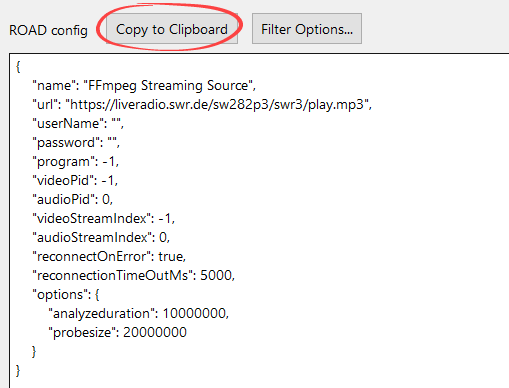
Streaming Configurator - ROAD config -
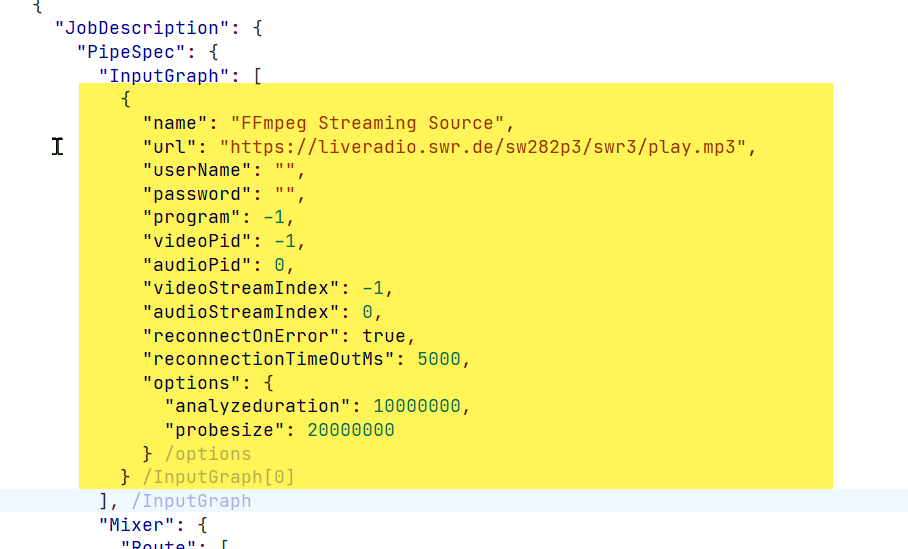
Replace the existing element in the
InputGrapharray of the schedule or job template with the provided configuration.
Logging
-
in the lower right part of the window, log messages are written, as well as into a file.
-
In case of an error click on Open Log File and look for error entries.
-
If the error message is not clear contact the DAVID support.