
DAVID Systems provides you with templates in order to:
-
Get you started with a basic setup.
-
Reset or refer to the templates in case of a configuration issue.
-
Keep you from accidentally overwriting your configuration if you update to a newer version of WebDigAIRange.
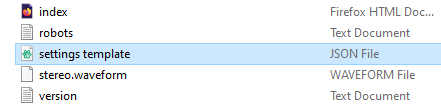
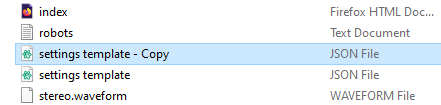
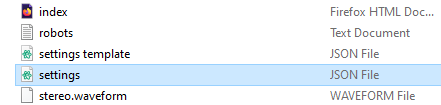
Step 1: Inside of your WebDigAIRange folder, copy the file settings template.json and rename it to settings.json
Note: If you create the settings.json file manually, make sure to use UTF-8 encoding.
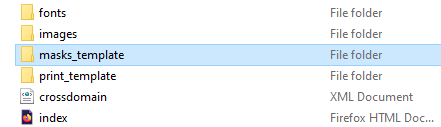
Step 2: Copy the folder masks_template and rename it to masks
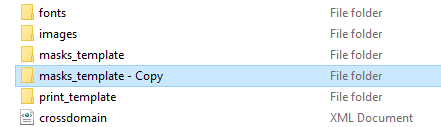
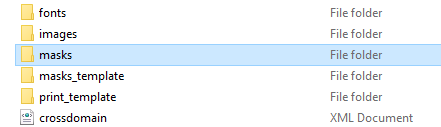
Step 3: Copy the folder print_template and rename it to print
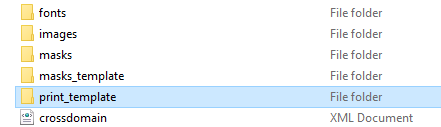
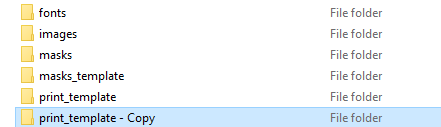
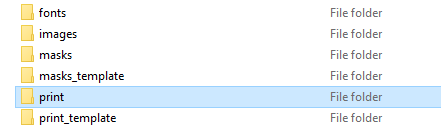
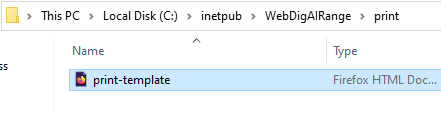
Note: Do not rename the file print-template.html inside of the print folder
Configure
You are now ready to configure the settings.json file. The according documentation can be found on the Configuration Overview page.