
Editor Variants
There's several variants of DigaSystem Audio Editors:
-
MultiTrack Editor, abbreviated MTE
-
EasyTrack Editor, abbreviated ETE
-
SingleTrack Editor, abbreviated STE
These variants appear as so-called "screens" in the program. There's additional screens for special workflows:
-
Reporter Box, abbreviated RBS
-
Record Mode, abbreviated RMS
In each program's user interface most items are common to all these editors. Differences will be explained where they occur.
Overview Picture
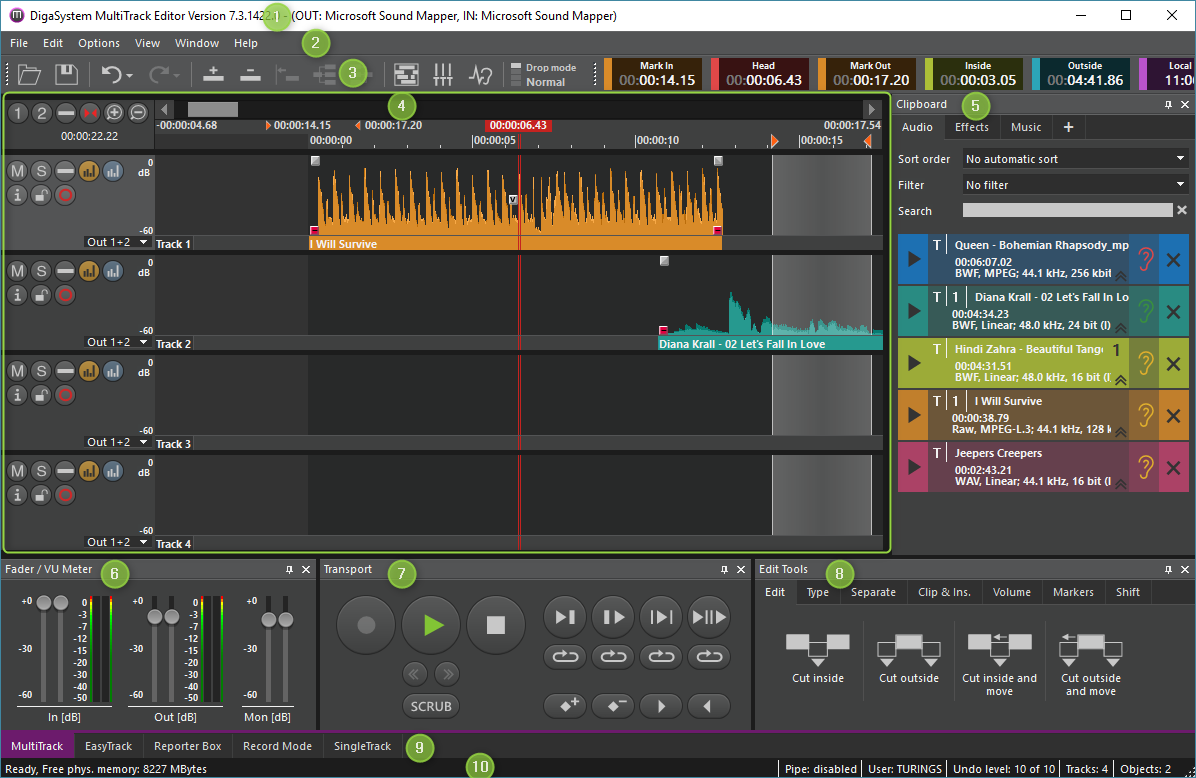
Here a sample screen of MTE to illustrate the main elements. The number circles refer to the explanation below.
|
|
Element |
Description |
|---|---|---|
|
1 |
Main caption bar |
Displaying the editor variant, its version and the current main output and input audio devices |
|
2 |
Main menu bar |
Standard Windows menu to access most commands In usual workflows rather infrequently used as important commands can be accessed via other control items or keyboard accelerators |
|
3 |
Toolbars |
Offers buttons for some basic functions; there's a main and additional toolbars |
|
4 |
Track area |
Shows the actual workspace in one or more tracks, which differs depending on editor variant and screen |
|
5 |
Clipboard pane |
Contains lists of all audio or other objects to be worked on |
|
6 |
Fader / VU Meter pane |
Shows main faders and VU meters |
|
7 |
Transport pane |
Shows items to control audio playback, recording, etc. |
|
8 |
Edit Tools pane |
Offers many different tools to work on the audio timeline |
|
9 |
Screen selection tabs |
Allows to change the current editor screen; the current screen is highlighted |
|
10 |
Status bar |
Displays some status information |
All these items may differ depending on the currently open screen and your configuration.
Layouts and Docking Mechanism
Toolbars and all so-called panes are dockable and can be moved by the mouse. Click on its drag handle or caption bar and move a bit to undock and make it floating, then drag it to another location and drop to leave it there. For docking, move it near a window border and follow the provided options.
The inner edges of panes can be dragged for resizing.
Panes provide a close button (little "x" on the right of its pane), which hides it. All of them can be shown again by an item in the main menu's "View" entry.
The complete layout is being stored individually for each DigaSystem user and individually for each editor screen. When you switch between editor screens, the particular layouts will be restored. This applies also after closing and re-opening the audio editor.