
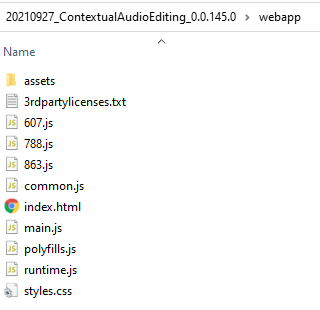
A. Copy CAE files
Copy the files under webapp to a folder C:\inetpub\CAE on a machine running Microsoft IIS
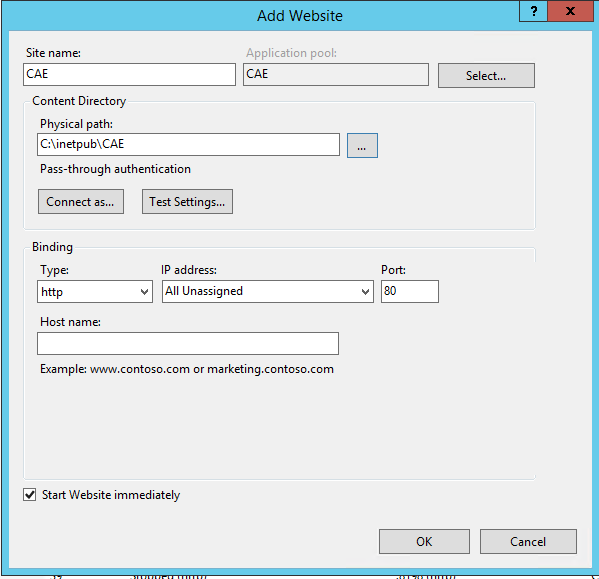
B. Add a new web site
Add a new web site from IIS Manager
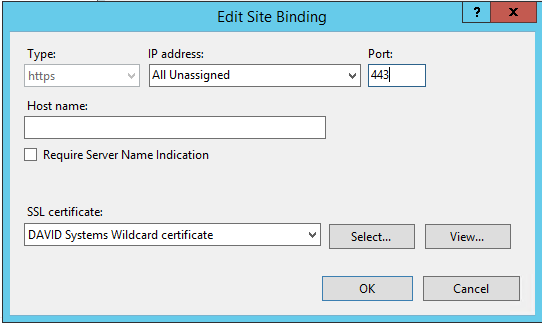
C. Bind
Bind it to HTTPS and remove the HTTP binding for productive usage (using your own certificate).
D1. Web.config
A web.config file is needed in the folder C:\inetpub\CAE for further modification.
Here is an example of a web.config you can use:
<?xml version="1.0"?>
<configuration>
    <system.webServer>
      <httpProtocol>
        <customHeaders>
          <add name="Access-Control-Allow-Origin" value="*" />
        </customHeaders>
      </httpProtocol>

      <security>
        <requestFiltering>
          <requestLimits maxAllowedContentLength="4294967295" />
        </requestFiltering>
      </security>

	  <staticContent>
		  <clientCache cacheControlMode="DisableCache"/>
		  <remove fileExtension=".woff"/>
		  <mimeMap fileExtension=".woff" mimeType="application/font-woff"/>
		  <remove fileExtension=".woff2"/>
		  <mimeMap fileExtension=".woff2" mimeType="application/font-woff"/>
		  <remove fileExtension=".webmanifest"/>
		  <mimeMap fileExtension=".webmanifest" mimeType="application/json"/>
	  </staticContent>
	</system.webServer>
</configuration>
This file is mandatory for allowing the use of:
-
Fonts
-
PWA (Progressive Web Application) to install the app
-
See MIME types
-
Request size restriction
D2. Adapt caching in IIS for settings.json
There are three separate caches to think about on IIS, and a web.config can turn off all of them:
|
Layer |
Config section |
What it does |
|---|---|---|
|
Browser / proxy |
|
Controls the |
|
IIS user-mode output cache |
|
IIS holds the response in worker-process memory |
|
http.sys kernel cache |
|
Windows caches the response below IIS entirely |
The one that actually bites you is the first. Like nginx, IIS's static file handler sends no Cache-Control at all by default (cacheControlMode="NoControl") — just ETag and Last-Modified. Browsers then apply heuristic freshness and serve the file from disk without asking.
The config
<?xml version="1.0" encoding="UTF-8"?>
<configuration>
  <location path="assets/settings.json">
    <system.webServer>
      <staticContent>
        <clientCache cacheControlMode="DisableCache" />
      </staticContent>
      <caching enabled="false" enableKernelCache="false" />
    </system.webServer>
  </location>

  <!-- everything else: normal config -->
  <system.webServer>
    <staticContent>
      <clientCache cacheControlMode="UseMaxAge" cacheControlMaxAge="365.00:00:00" />
    </staticContent>
  </system.webServer>
</configuration>
cacheControlMode="DisableCache" makes IIS emit Cache-Control: no-cache plus a past-dated Expires. <caching enabled="false" enableKernelCache="false" /> stops IIS and http.sys from serving a stale copy from their own memory — this matters when the file is replaced on disk by a deploy script or a mounted share, because the kernel cache in particular can survive a file overwrite briefly.
<location> scoping is what keeps this from killing caching for your hashed JS/CSS bundles, which you do want cached forever.
no-cache vs no-store
no-cache doesn't mean "don't cache" — it means "revalidate before every use." The browser still issues a conditional request and IIS answers 304 Not Modified when the file is unchanged. That's correct behaviour and usually what you want: the content is never stale, and unchanged files cost you an empty 304.
If you want the request to never be conditional at all, you need no-store. The most deterministic way to get an exact header on IIS is to suppress IIS's own header and set your own:
<location path="assets/settings.json">
  <system.webServer>
    <staticContent>
      <clientCache cacheControlMode="NoControl" />
    </staticContent>
    <httpProtocol>
      <customHeaders>
        <add name="Cache-Control" value="no-store, no-cache, must-revalidate" />
      </customHeaders>
    </httpProtocol>
    <caching enabled="false" enableKernelCache="false" />
  </system.webServer>
</location>
NoControl is important here — it stops IIS emitting its own Cache-Control, so you don't end up with two of them. (cacheControlCustom also exists and appends directives to IIS's header, but exactly what you get varies by IIS version, so the explicit-header route is easier to reason about.)
Note that IIS still sends ETag and Last-Modified alongside no-store. That's harmless — a compliant client won't store the response, so it has nothing to revalidate. IIS has no supported switch to strip ETag from a static response; it takes a URL Rewrite outbound rule, and it isn't worth it.
Placement, when the app sits at varying depths
<location path="assets/settings.json"> is resolved relative to the config file's own directory, so a site-root web.config won't match /some-branch/assets/settings.json in a per-branch subfolder deployment.
Two ways around it:
-
Put a small
web.configinside theassetsfolder itself with<location path="settings.json">(or no<location>at all, applying to that folder). If it ships as part of your build output, it lands correctly at every deployment depth automatically. -
Or add one
<location>per deployed path in the root config.
The folder-level one is generally the better answer, since it travels with the artifact rather than living only on the target server.
Verifying
curl -I https://your-host/assets/settings.json
You want Cache-Control: no-store, no-cache, must-revalidate (or no-cache with the first config) and no far-future Expires.
Two things that will make a correct web.config look broken: if the system.webServer/staticContent or caching sections are locked at the machine level, IIS returns HTTP 500.19 rather than ignoring your file — unlock them with appcmd unlock config /section:staticContent. And on the client side, none of this evicts what a browser already holds, so clear site data once after deploying.
E. Adapt CAE Settings
See Adapt Settings