Many options are centrally configured by the administrator in the settings.json file of the web application itself.
Nevertheless, some options can additionally be configured/overriden by the user. These options are remembered locally for the computer and browser the user is currently working with.
How to Open
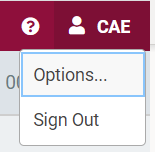
Open the options dialog by opening the user menu and clicking on Options.
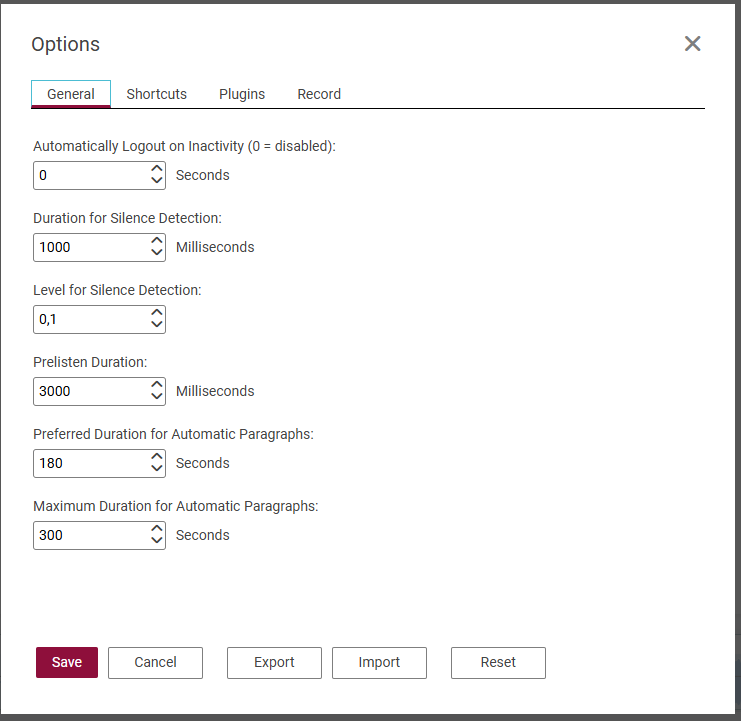
Options offer the following topics in tabs: General, Transcription, Shortcuts, Smart Audio and Record.
General
Configure the following general options here:
Automatically Logout
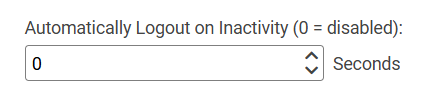
Automatically logout after N seconds of inactivity. A value 0 disables the auto logout.
Silence Detection
Silence is visualized in the Text area.
A gap between words is only interpreted as silence if it is longer than the amount of time configured in 'Duration for silence detection'.
A gap between words is only interpreted as silence if it contains audio with a volume level higher than the fraction configured in 'Level for Silence Detection', e.g. 0,10 means 10%.
Note:
-
Detected silence is not mandatorily equal to an audio level of 0.
-
Silence detection may in some cases not identify all silent (or not silent) passages correctly (for performance reasons it is only analyzing some samples of the audio material)
Prelisten Duration
Some pre-listening functionalities play only the beginning and/or the end of a piece of audio, e.g. "Play inside" or "Play outside".
The duration that is played is configured by 'Prelisten duration'.
Automatic Paragraphs
Large text blocks are automatically broken down into smaller paragraphs.
A new paragraph starts not before the duration configured in 'Preferred Duration for Automatic Paragraphs' and not later than the duration configured in 'Maximum Duration for Automatic Paragraphs'.
Transcription
Transcription providers are now configured in the Plugins tab.
Shortcuts
Configure shortcuts here.
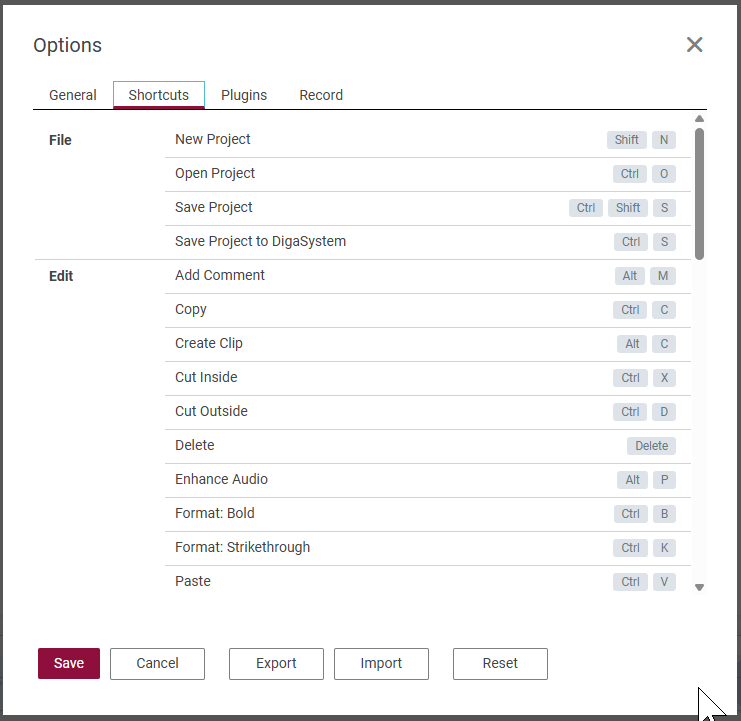
Select a command and click the edit icon to start modifying a shortcut:
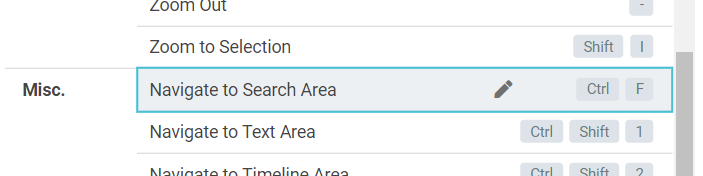
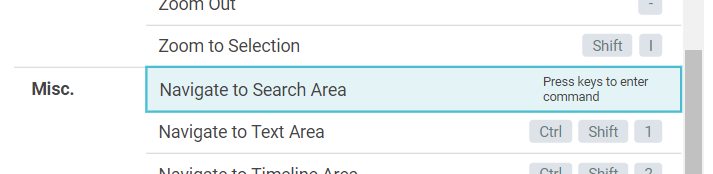
Now press the keys you want to associate to this command:
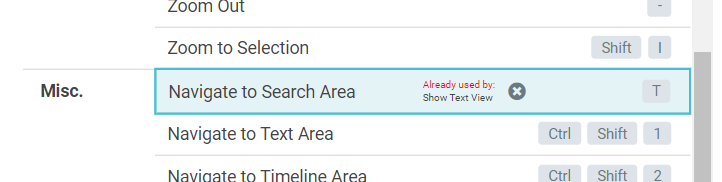
Conflicts are displayed and will prevent the requested shortcut to be applied:
Plugins
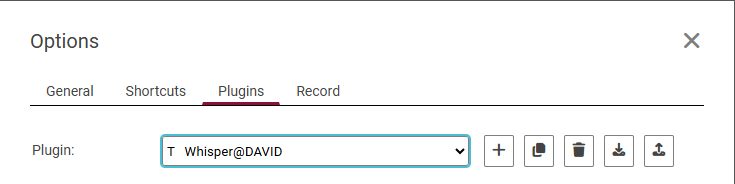
The Plugins tab allows to add, remove and configure various types of plugins, e.g. plugins for transcription, audio enhancements or text to speech.
-
Use the “+” button to add a new plugin.
-
Use the clone button to clone the config of a plugin.
-
Use the trash can button to remove the currently displayed plugin.
-
Use the download button to download a json file that contains the config for the currently selected plugin. You can copy and paste the into the settings.json file.
-
Use the upload button to upload a previously downloaded plugin config.
Plugins provide various features to CAE, e.g. transcription, audio enhancement or speech-to-text generation. For each feature CAE offers some providers.
Transcription
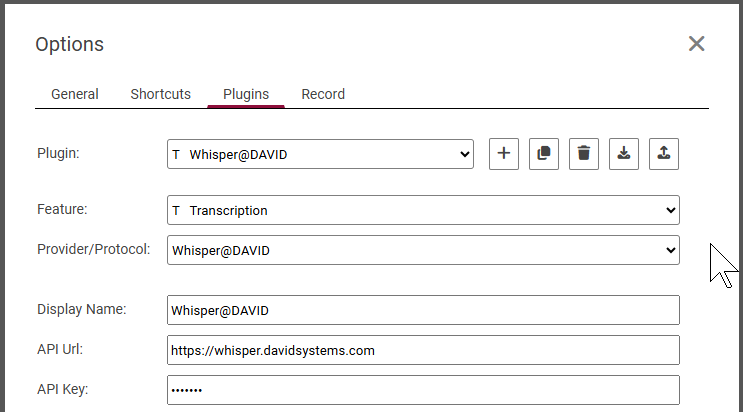
Provider/Protocol: Whisper@DAVID
Integration into DAVIDs S2T service using open source whisper
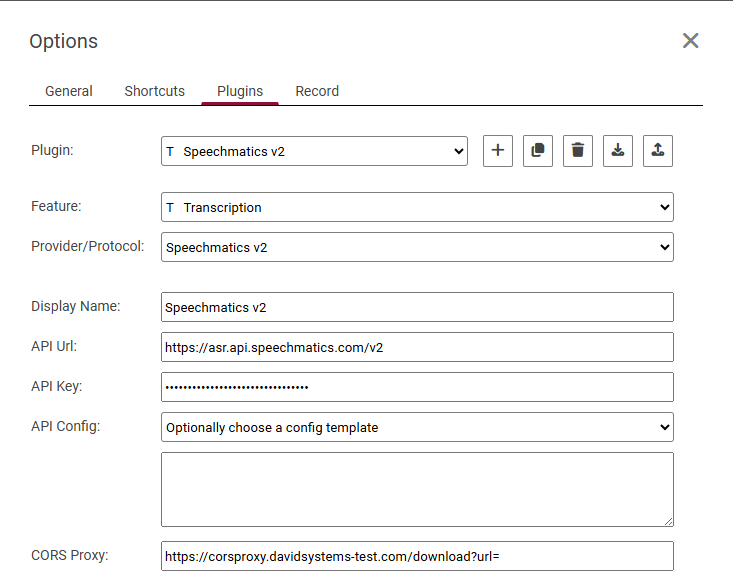
Provider/Protocol: Speechmatics v2
Integration into Speechmatics S2T services:
https://www.speechmatics.com/
A CORS proxy is needed to make Speechmatics services available from a browser.
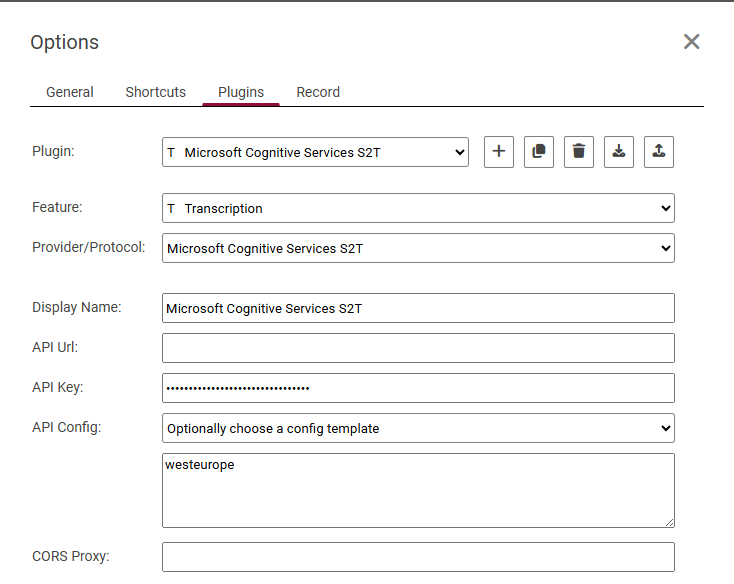
Provider/Protocol: Microsoft Cognitive Services S2T
Integration into Microsofts Azure S2T service
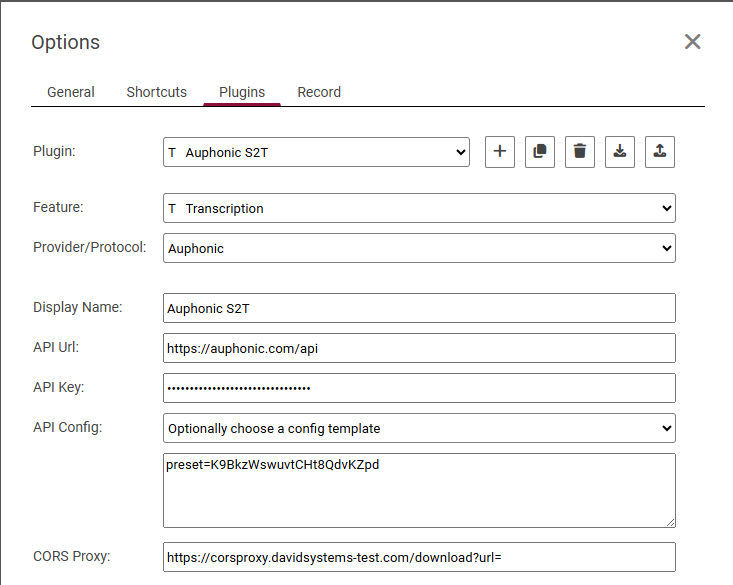
Provider/Protocol: Auphonic S2T
Integration into AI services from https://auphonic.com/landing
A CORS proxy is needed to make Auphonic services available from a browser.
Example config:
Audio Enhancement
Provider/Protocol: Dummy
This is just a dummy plugin, it will always return the orignal audio.
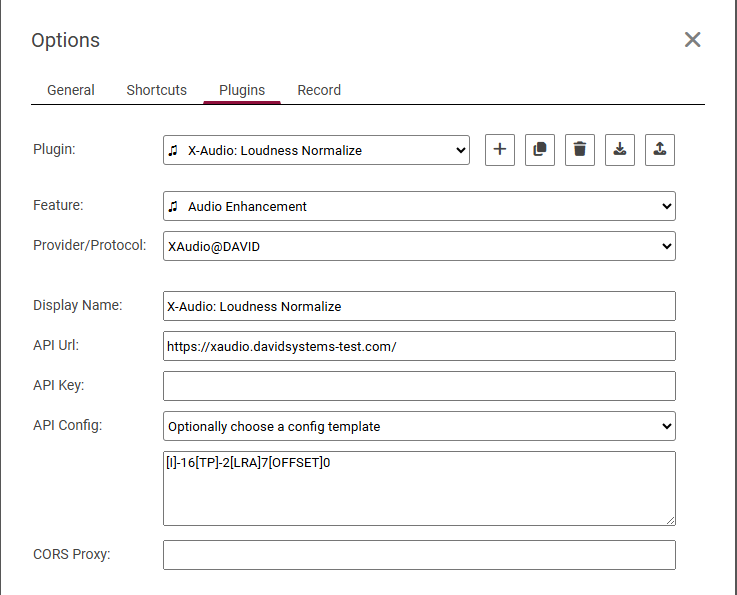
Provider/Protocol: XAudio@DAVID
Plugin for DAVID Systems X-Audio services
Example config for loudness normalization:
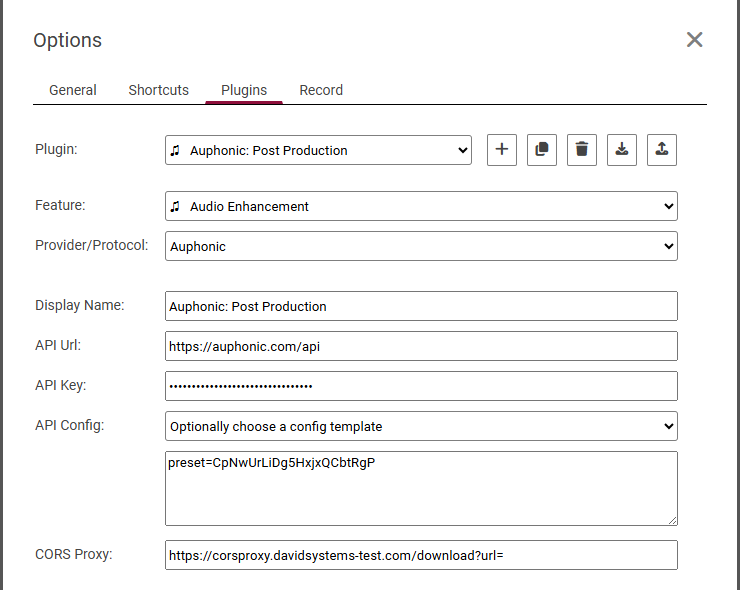
Provider/Protocol: Auphonics
Integration into AI services from https://auphonic.com/landing
A CORS proxy is needed to make Auphonic services available from a browser.
Example config:
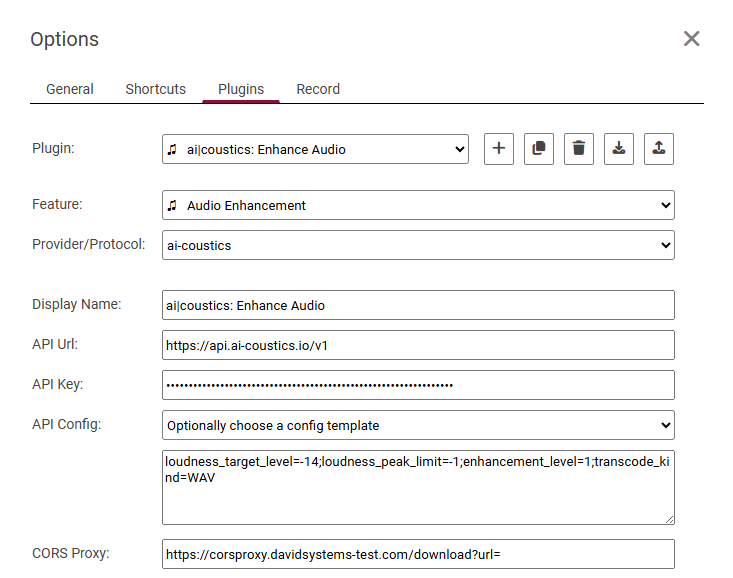
Provider/Protocol: ai-coustics
Integration into AI services from https://ai-coustics.com/
A CORS proxy is needed to make ai-coustics services available from a browser.
Example config:
Text to Speech
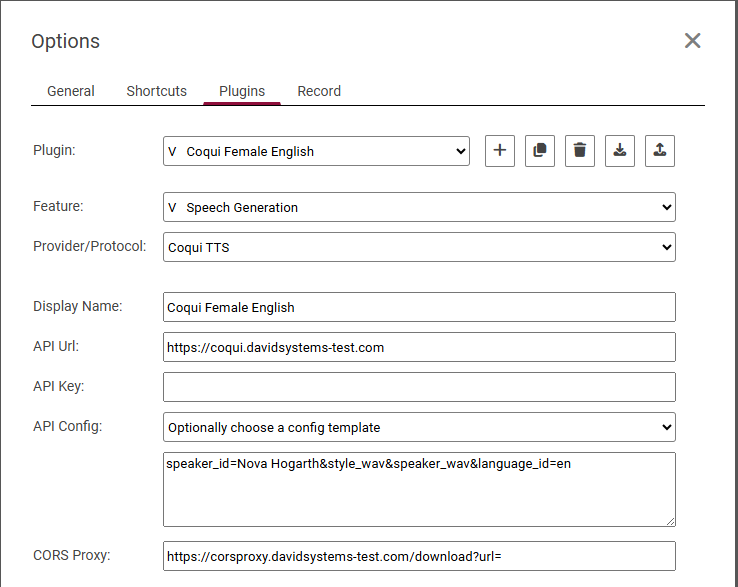
Provider/Protocol: Coqui TTS
Integration into open source Coqui TTS
A CORS proxy is needed to make coqui services available from a browser.
Example config:
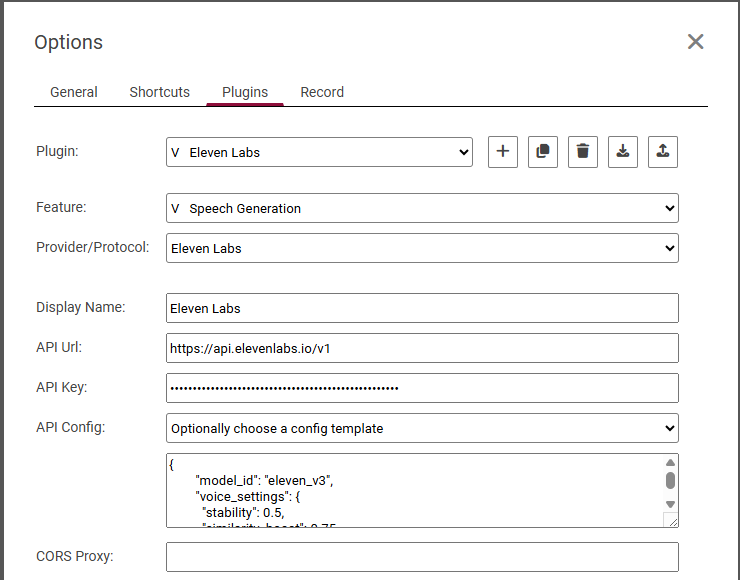
Provider/Protocol: Eleven Labs
Integration into Eleven Labs https://elevenlabs.io/
Example config:
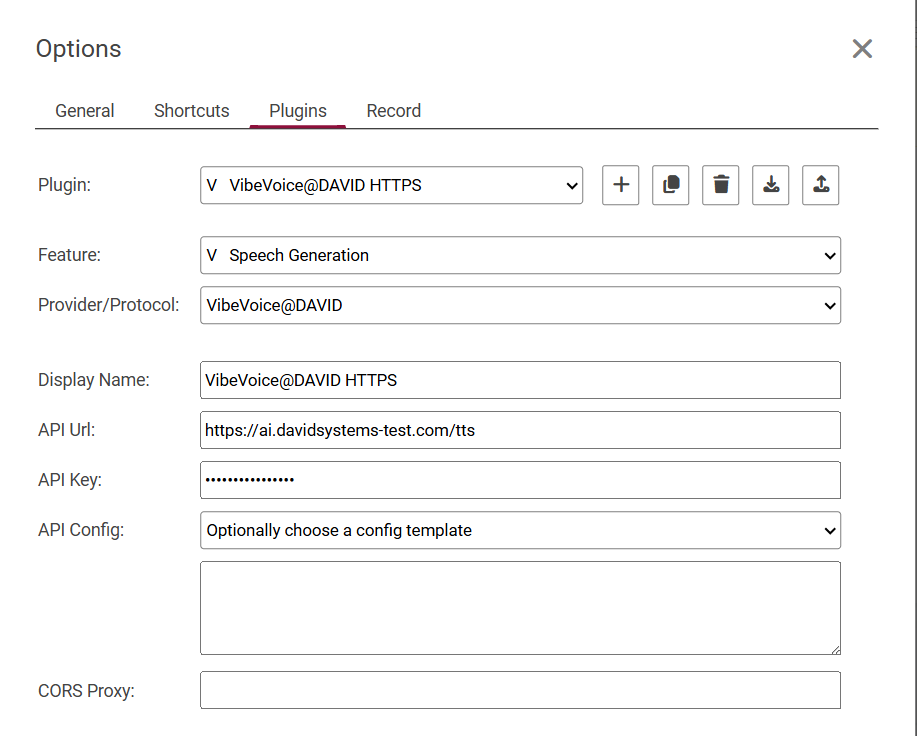
Provider/Protocol: VibeVoice@DAVID
Integration into experimental open-source VibeVoice embedded into a REST API provided by DAVID
Example config:
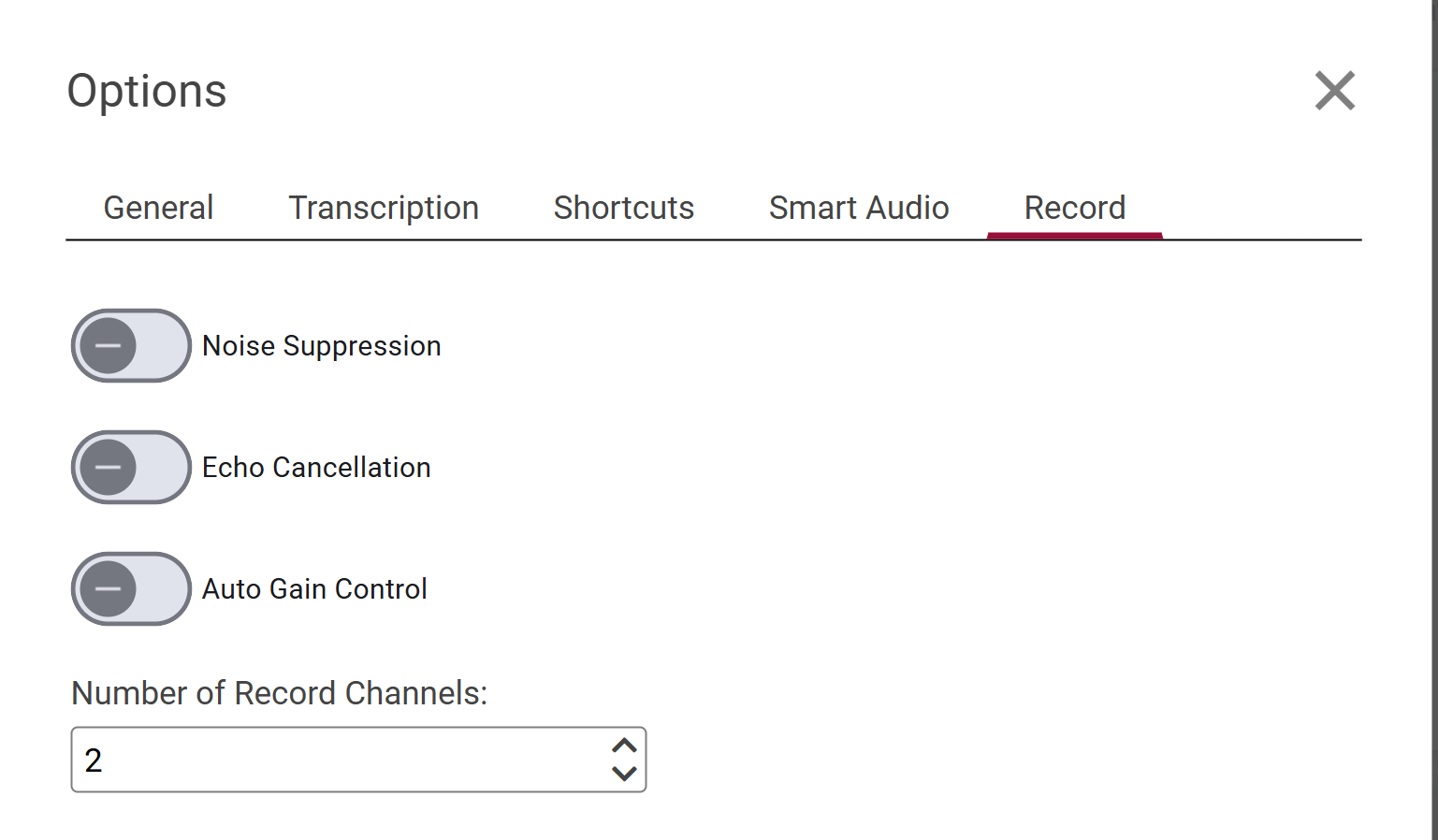
Record
The Record tab allows to configure some microphone properties for recording