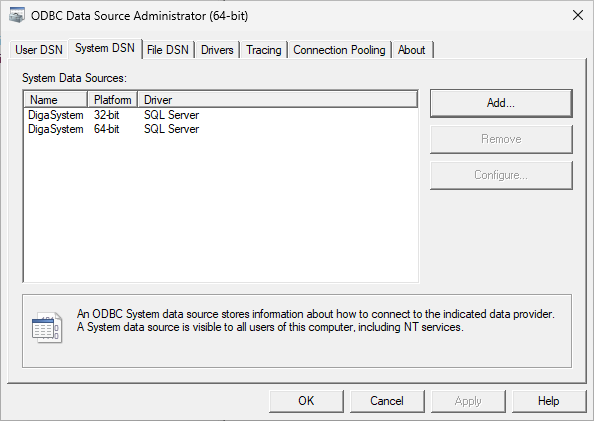
If you want to use the “Microsoft Access File DSN” in a 64-bit program like MTE 8 or DBM 6 you must provide a 64-bit compatible *.dsn file, as well as 64 bit compatible drivers”.
Enable saving to a local access database using 64-bit applications and drivers
Install the 64 bit drivers
-
You should have Admin64 (latest is v3.6.4463.0) installed in the 64 bit DigaSystem folder (usually C:\Program Files\DigaSystem or C:\Program Files\DigaSystem64). If not, install it.
-
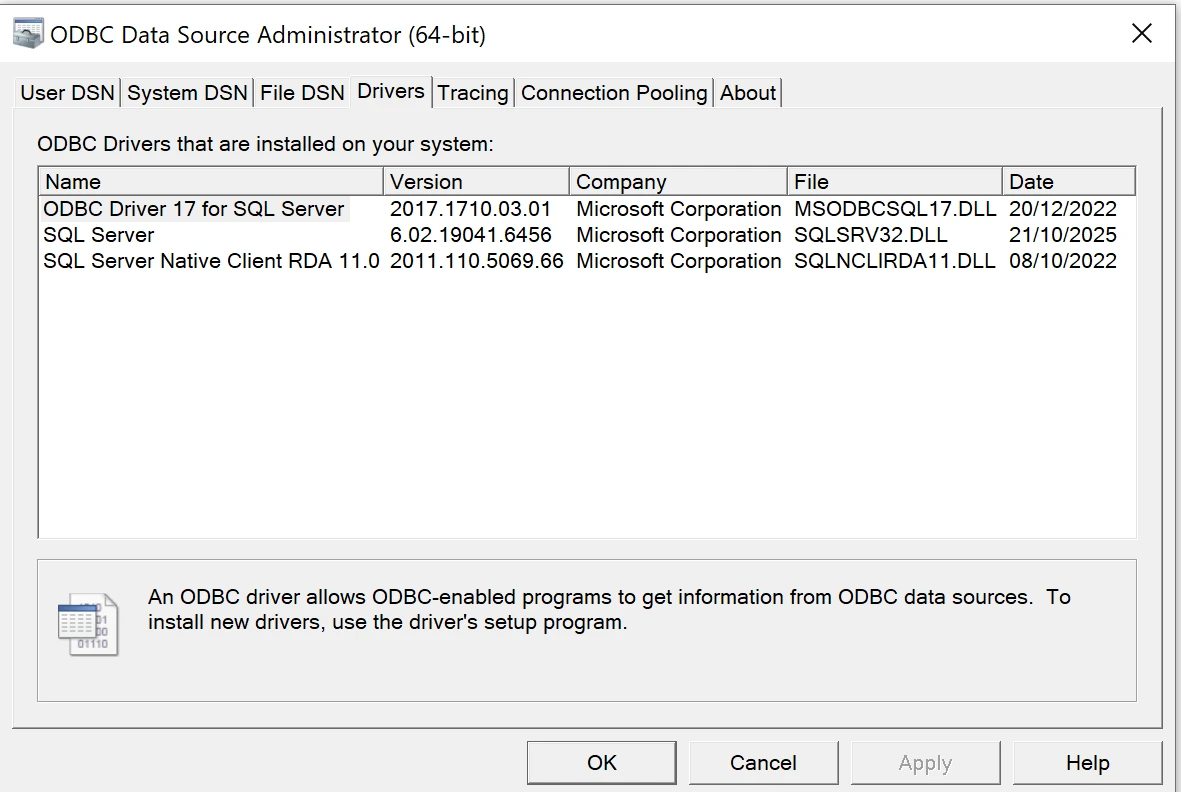
Open Admin64 > Databases > Manage data sources > Drivers; you should see something like this:
-
Download and install Microsoft 365 Access Runtime https://support.microsoft.com/en-us/office/download-and-install-microsoft-365-access-runtime-185c5a32-8ba9-491e-ac76-91cbe3ea09c9
-
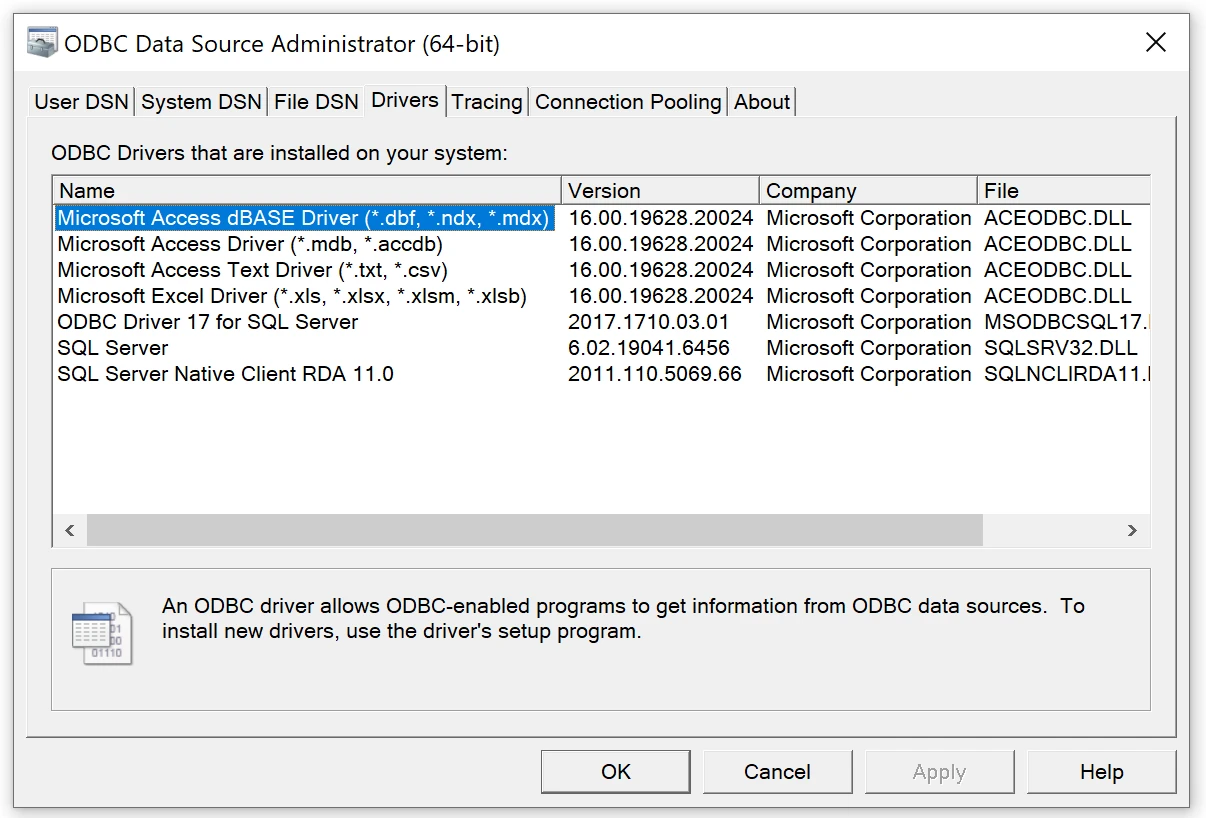
Reopen Admin64: you should see the new drivers installed:
Add a 64 bit compatible .dsn file
-
Prerequisite: you should have DigaSQL64.dll version 3.20.3496.0 or newer installed in you 64 bit DigaSystem folder.
-
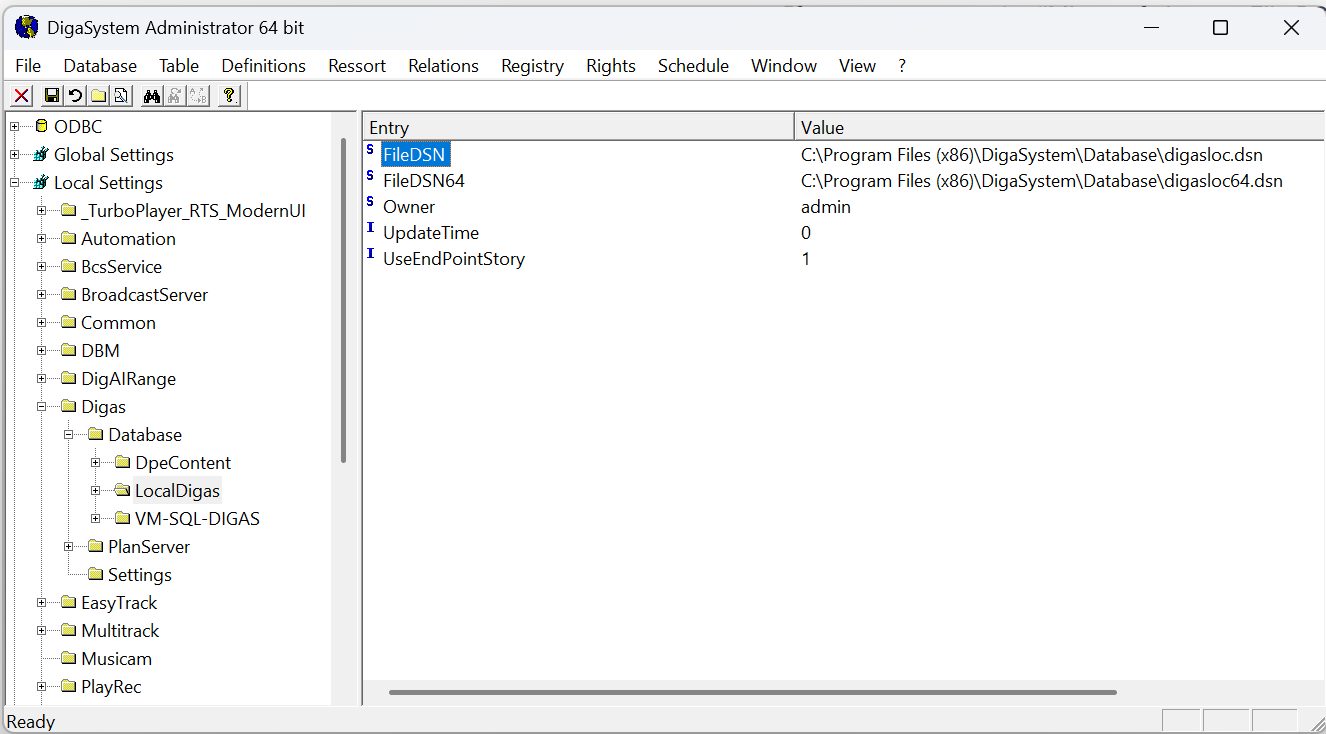
Locate the original *.dsn file path in the local parameter “Digas\Database\\FileDSN” parameter.
-
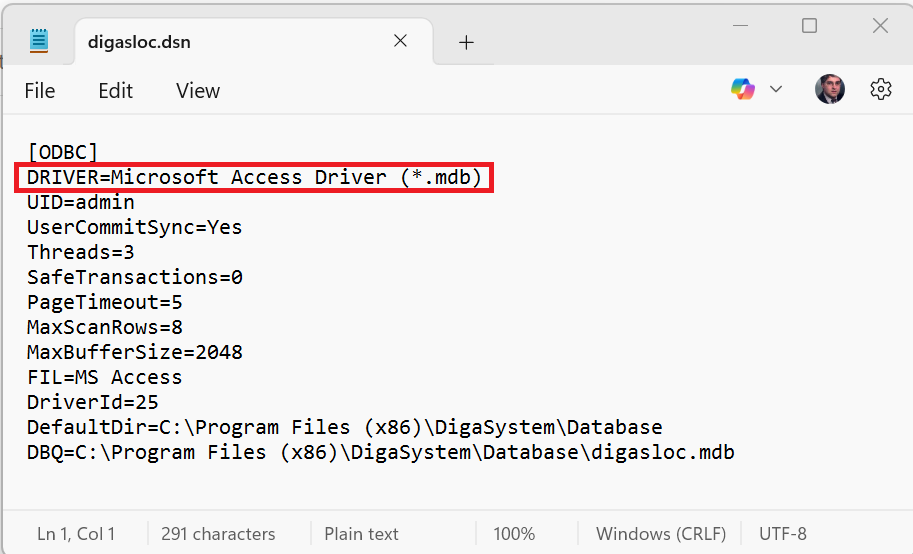
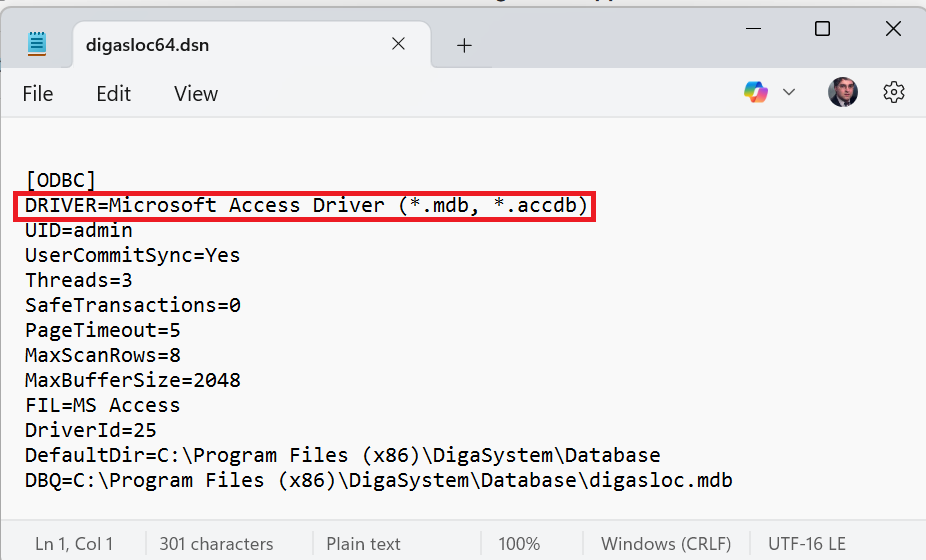
Make a copy of the .dsn file, usually digasloc.dsn and rename the copy e.g: digasloc64.dsn
-
Modifiy the new file with any text editor and change the line
“DRIVER=Microsoft Access Driver (*.mdb)” to “DRIVER=Microsoft Access Driver (*.mdb, *.accdb)”.
-
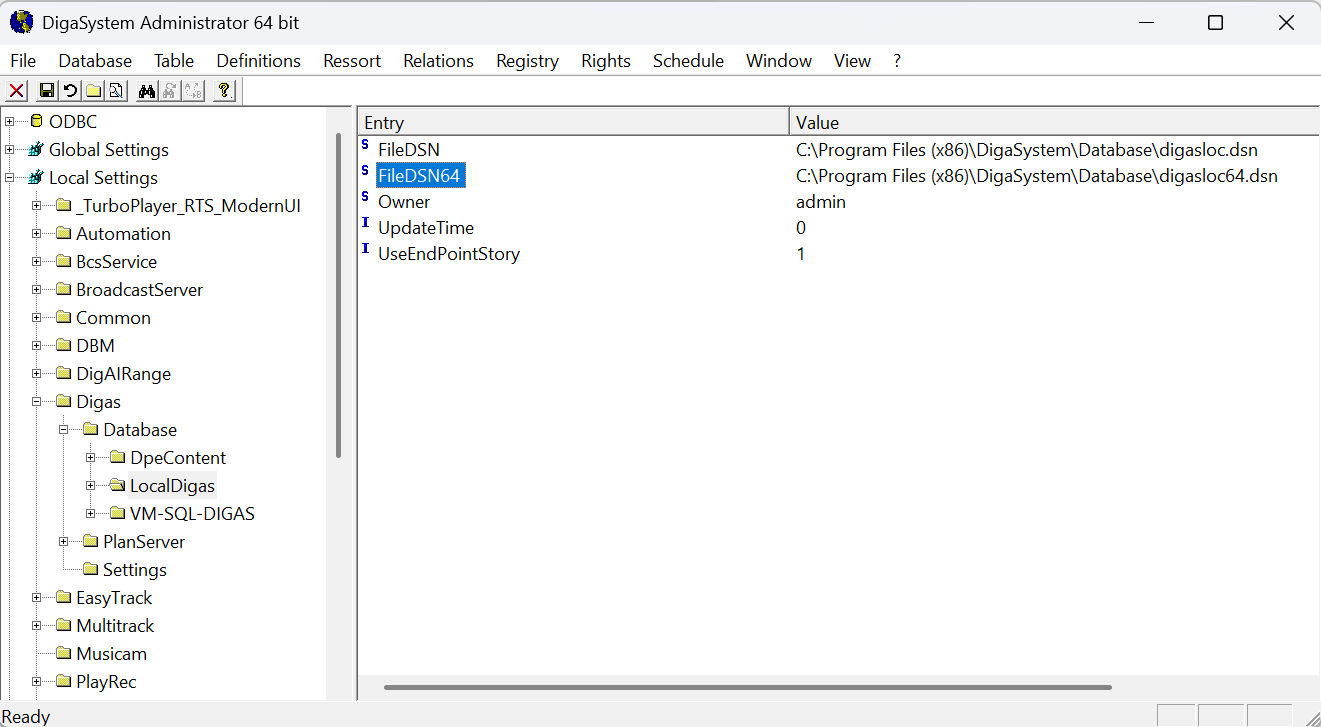
Provide the path to the new file with the additional parameter “Digas\Database\\FileDSN64” (supported in DigaSQL64.dll from version 3.20.3496.0 onwards)
Enable saving to a Global table using 64-bit applications and drivers
Prerequisites
Everything above in this page
Add 64-bit DSN for ODBC data sources
-
Open Admin64 as an Administrator
-
Database > Manage data sources > SystemDNS > Add…
-
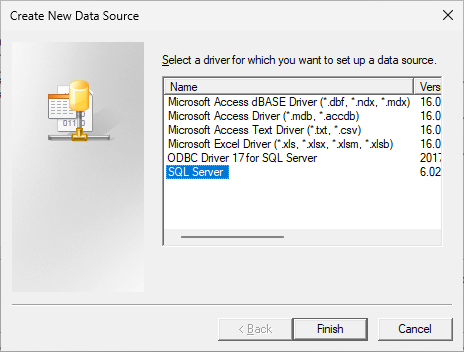
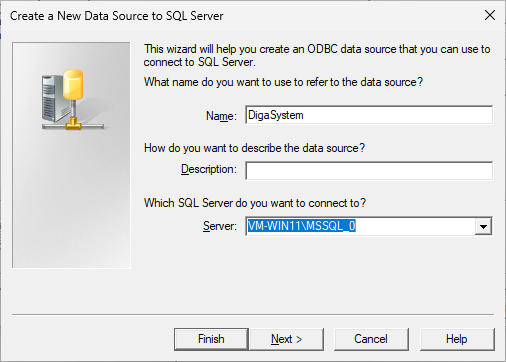
Select SQLServer then Finish - a new dialog will open:
-
Name: should be exactly the same as the 32 bit data source
-
Server: your SQL server eg MACHINENAME\MSSQL
-
click Next and continue the configuration, matching your settings for the 32 bit source
-
-
You should see the new 64 bit datasource under SystemDSN