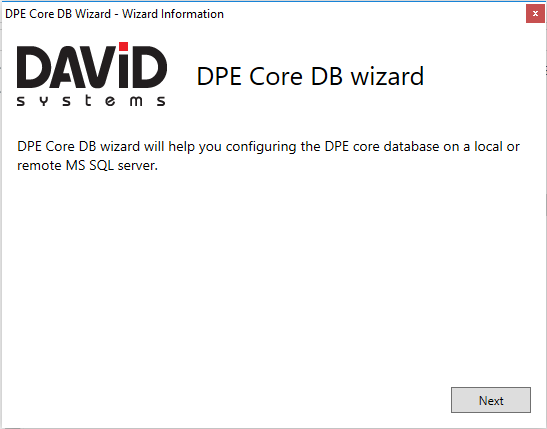
Before installing DPE the first time it is necessary to install and configure the DpeCoreDb on a local or remote MS SQL Server. This database is used for DPE internal configuration data. Therefore execute the file “DpeCoreDbWizard.exe”
Wizard Information
Click Next to start the setup configuration.
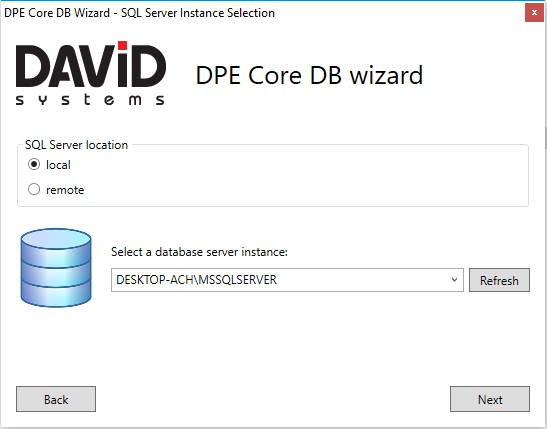
SQL Server Instance Selection
Where is your database located?
Select local if you want to install the DPE CoreDB on this machine, otherwise choose remote.
Select a database instance: Choose a database from the dropdown list or type in an instance path.
Refresh: Listing MS SQL instances in the drop down requires a running “SQL Browser Service”. When choosing a local data base, if some instance names are not found, the setup uses the InstalledInstances registry key from "HKEY_LOCAL_MACHINE\SOFTWARE\Microsoft\Microsoft SQL Server" to populate the list of available instance names.
Then click Next.
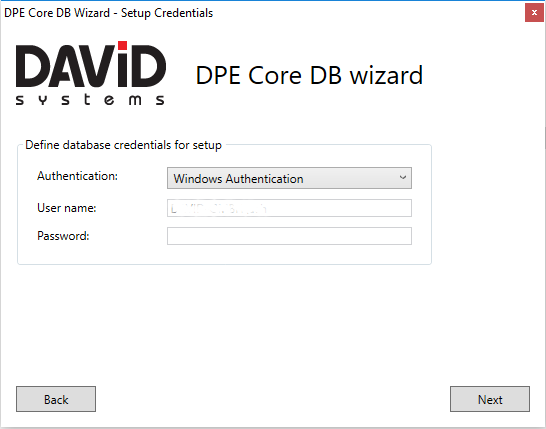
Setup Credentials
By default the current Windows account of the currently logged on user is used.
Optionally select SQL Server Authentication and enter the credentials for executing the tasks of this setup (create and modify databases).
Click Next.
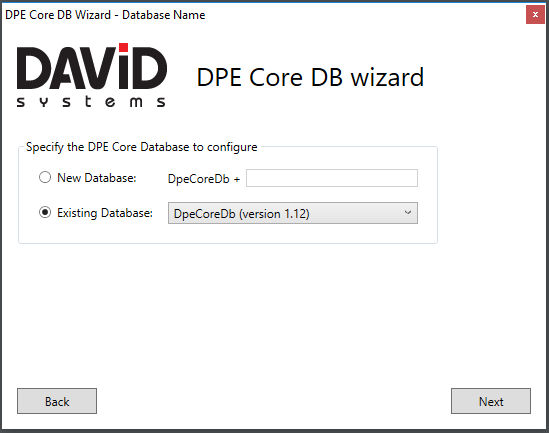
Database Name
New Database: You can optionally enter a title to a new database. This title will be added to the Default database name DpeCoreDb.
A SQL Server database name can be 16 characters long at maximum, so the suffix is limited to 7 characters supporting alphanumerical characters and $, _ as well as #.
Existing Database: In the dropdown menu you can select an already installed database to perform a version update.
Click Next.
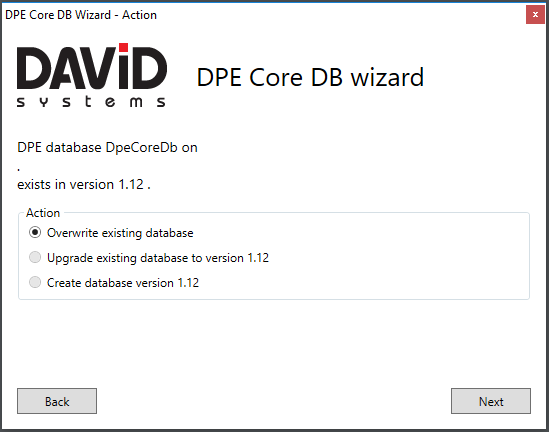
Actions
DPE database on…:
If a database already exists its instance and version is shown here.
Now you optionally can:
• Overwrite the existing database
• Upgrade existing database to this setup´s version (if the available version is older)
• Create a new database (if no database yet exists with this name)
Click Next.
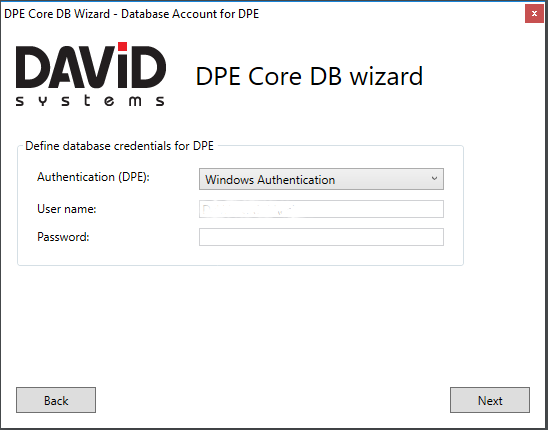
Database Account for DPE
Define the user account DPE WebService will use to access the DpeCoreDb, which will be either the currently logged on Windows user or a definable SQL DB user (in that case select SQL Server Authentication in the dropdown menu). This user needs at least read/write access to the DB tables.
Click Next.
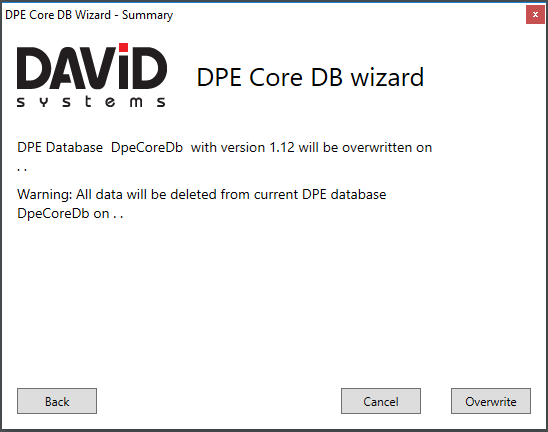
Summary
In this window you confirm the task this wizard will execute. This also is the last chance to Cancel the wizard before the configuration begins.
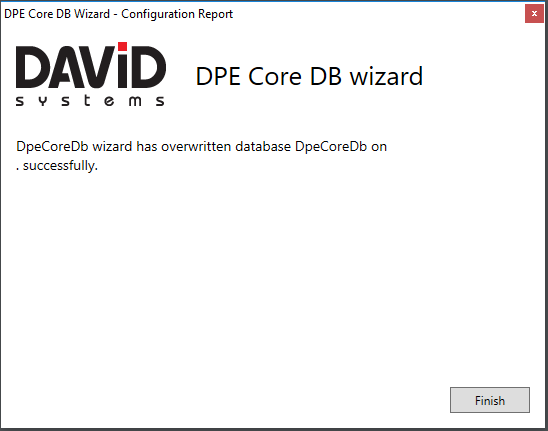
Configuration Report
After the configuration a final window will confirm that the DpeCoreDb has been successfully installed.
Click Finish.
Please take care, that the transaction log of the DpeCoreDB is regularly cleaned up, e.g. by scheduling a regular (daily/hourly) backup job for the database.