
This page contains the following topics
Workflow templates can be stored as files or in the DPE Workflow System database (DpeCoreDb).
Opening a Workflow Template from File
-
Select menu item Workflow\Open from file... or shortcut Ctrl-Shift-O
-
A selection dialog appears
-
Select a workflow template file
-
Click Open
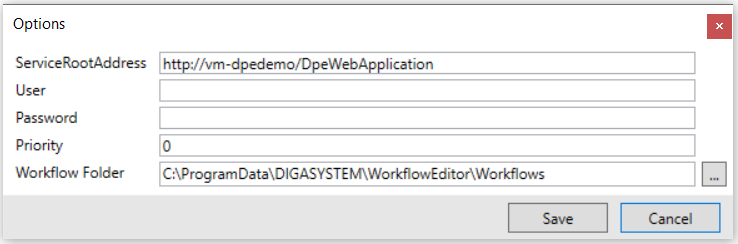
Use the Options dialog to configure the default location for workflows:
Opening recently used Workflows
-
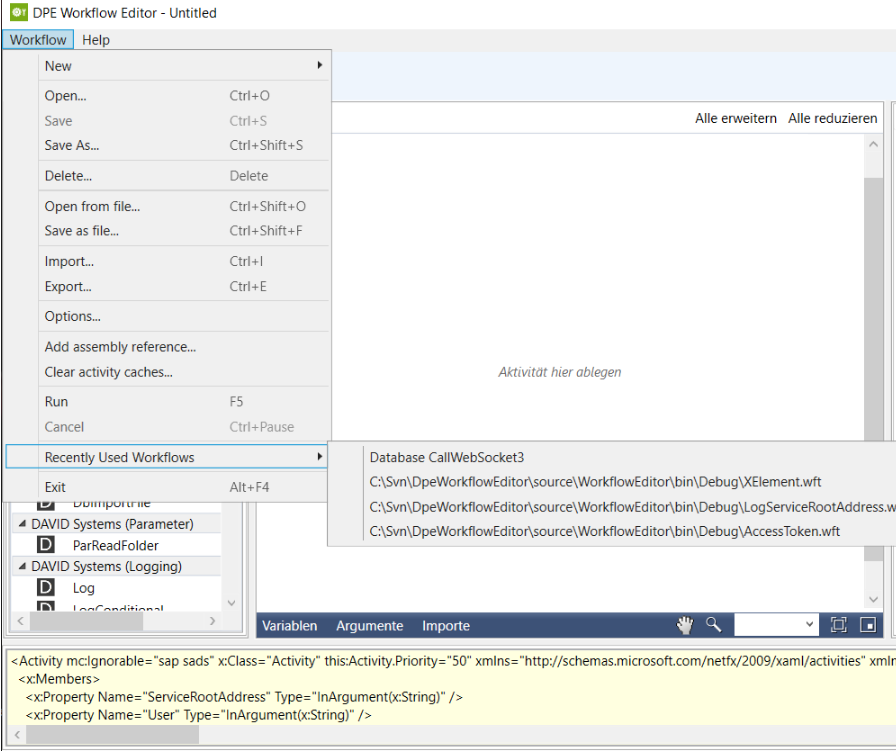
Select menu item Workflow\Recently Used Workflows
-
Up to 10 items are remembered.
-
Items can be workflows from a file or database.
-
Last used is always on top.
Saving a Workflow Template as File
-
Select menu item Workflow\Save as file... or shortcut Ctrl-Shift-F
-
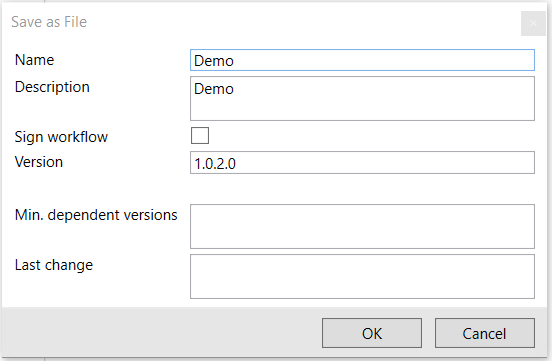
A dialog appears that allows to enter workflow template information. Name and Description are mandatory. Note: only DAVID Systems can sign workflows and change the Version info arbitrarily.
-
Click OK after entering information
-
A file save dialog appears
-
Enter a workflow template file name
-
Click Save
If the workflow was loaded from file before you can update it by shortcut Ctrl-S.
Opening a Workflow Template from Workflow System Database
-
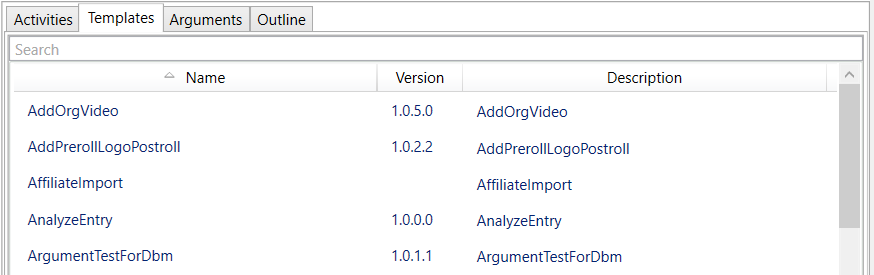
Select the tab Templates (in the left area)
-
Optionally you can enter a search phrase in the search box
-
Double-click on a workflow template in the list
Or
-
Select menu item Worfklow\Open or shortcut Ctrl-O
-
A selection dialog appears
-
Select a workflow template
-
Click Open
Saving a Workflow Template to Workflow System Database
-
Select menu item Workflow\Save As... or shortcut Ctrl-Shift-S
-
A dialog appears that allows to enter workflow template information. Name and Description are mandatory. Note: only DAVID Systems can sign workflows and change the Version info arbitrarily.
-
Click OK after entering information
-
Click Save
If the workflow already exists in the database you can update it using menu item Workflow\Save or shortcut Ctrl-S.
Open from XAML
Allows to modify the XAML source code directly and reload the designer applying the changes.