Using Activity Toolbox and Search
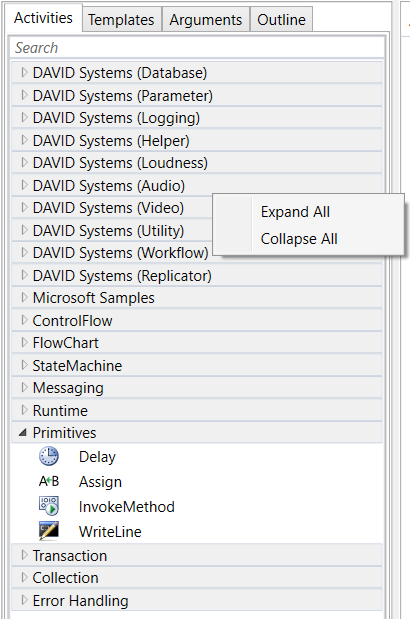
Workflow activities are organized in collapsible category folders. Use the context menu to expand or collapse all folders.
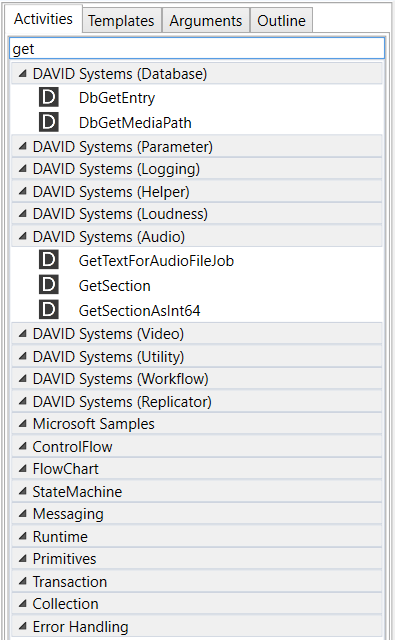
Use the search box to find activities easily, e.g. activities that contain the text "get":
Dragging and Dropping an Activity to the Designer
Drag and drop an activity to add it to a workflow in the designer.
Arrows appear when dragging the activity near another existing activity. The new activity is auto-wired when you drop it onto an arrow.
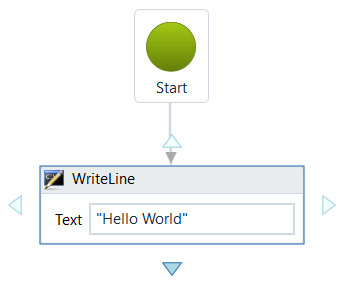
Otherwise the activity is unconnected and you have to wire it manually.
Getting Help for an Activity
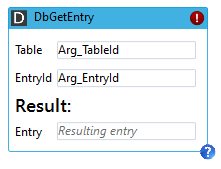
All DAVID activities show a small question mark on the bottom right corner when hovering over the activity.
Click onto this question mark to open online help for this activity.
Auto-wrapping of Activities
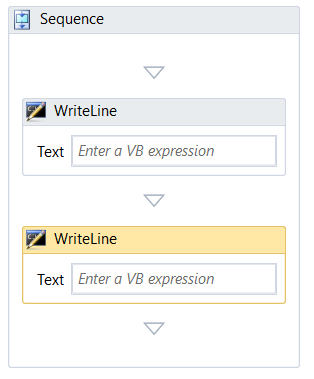
In some places multiple activities are only allowed when they are wrapped into a sequence activity. In such a case, the designer can auto-wrap activities into a sequence.
Example:
You start creating your workflow with a single WriteLine activity. Then you want to add another WriteLine activity.
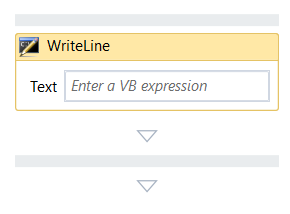
When you drop the second WriteLine activity onto the grey separator line both activities are auto-wrapped:
Modifying Properties of an Activity
Activities may offer to edit some of their properties inline, i.e. directly in the designer.
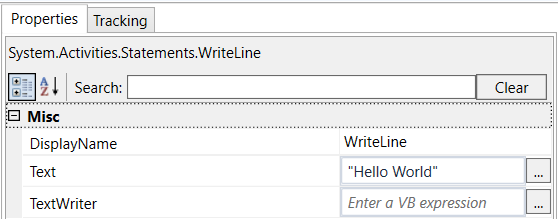
All properties of an activity can always be edited in the property grid (in the right area):
Cutting, Copying and Pasting Activities
Activities support the standard cut, copy and paste operations.
Writing Readable Workflows
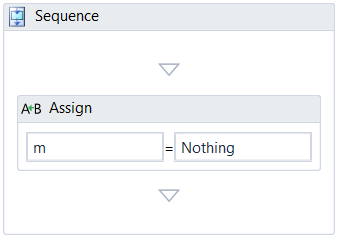
Every activity has a DisplayName which is the text in the headline of the activity. We recommend to use that property to make your workflows more readable and debuggable/trackable.
Example:
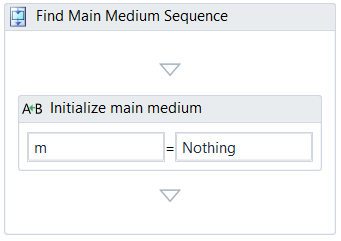
Instead of
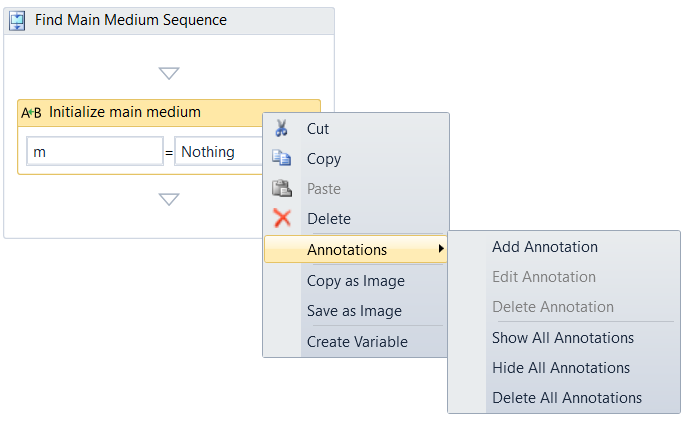
In addition you can add annotations to your activities with verbose comments.