
Virtual elements and placeholders are used whenever you need to reserve a slot in the rundown, but don't have the final content yet. They can be used to prepare transitions in advance and be filled with audio later.
Creating Virtual Audio Elements
-
Start Database Manager (DBM)
-
Select "New virtual entry" and define a duration in the Transfer tab.
-
Drag the entry to the show in DigAIRange.
Creating Placeholder Elements
-
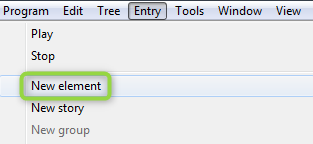
Create new entry in DigAIRange.
-
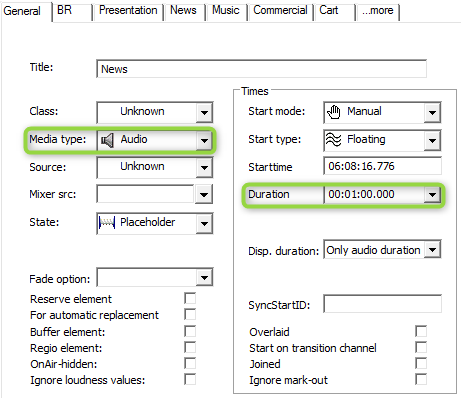
Make sure the MediaType is Audio and the duration is greater than zero. This can be done in DigAIRange's entry mask.
OTM is designed to skip placeholders with duration=0.
To fill placeholders with audio, please have a look at Record on placeholders
Virtual Audio Elements in OTM
The feature in OTM is dependent on the option: "Allow editing of elements without file". This can be activated in DigAIRange's Settings at the OTM tab.
You can see virtual elements in two places in OTM
-
In the overview track at the bottom of the OTM virtual elements are displayed with a dotted border.
-
In the timeline displayed with a dummy waveform.
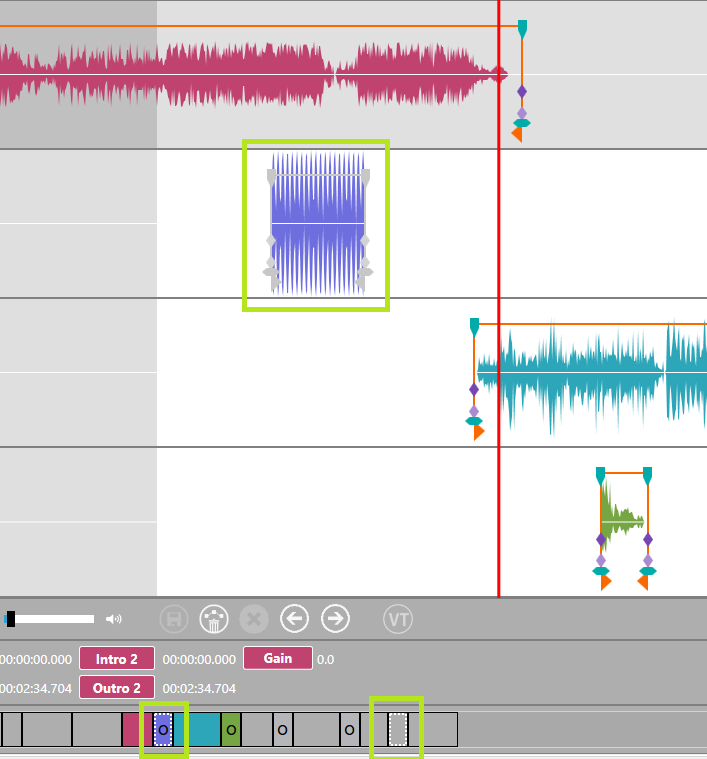
Virtual Elements Have the Following Restrictions:
-
A default waveform is shown for the elements.
-
Fade curve handling and markers are disabled.
-
Voice tracking of any type is disabled if a virtual element is loaded in the timeline.
-
Gain is disabled for virtual elements.
-
Inserting a virtual audio entry to OTM via Drag/Drop is not supported - virtual element needs to be added to DigAIRange's rundown.