Play
Playing an audio can be started from the transport bar using the play button.

Change Playback Speed
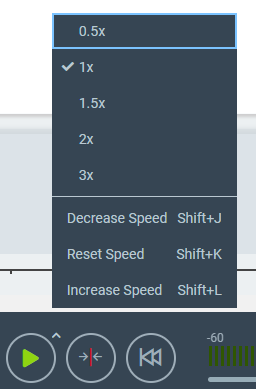
The playback speed can be changed with the pop-up context menu at the play button or by shortcuts.
Range Playback
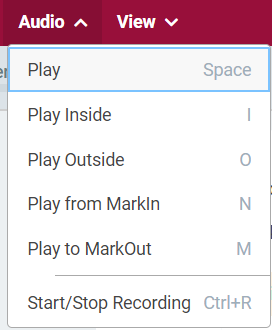
There are various playback options in Top menu Audio drop. These options can also be triggered with configured keyboard shortcuts.
-
Play Audio: play from current sound head position (the keyboard shortcut toggles between Play and Pause)
-
Play Inside: play the inside of marked audio
-
Play Outside: play some seconds before the marked audio range and continue with a few seconds after the marked audio range
-
Play from MarkIn: play some seconds at the beginning of the marked audio range
-
Play from MarkOut: play some seconds before the end of the marked audio range
Moving and fixed head
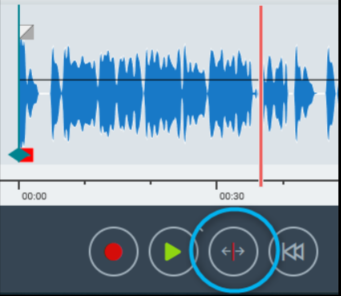
With a button in the Audio area you can switch between 2 Modi.
Its either the moving or the fixed head to have different play experiences.
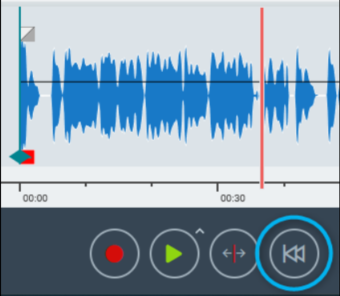
Move the soundhead to the begin
You can simply move your soundhead to the beginning of your timeline with one-button click.