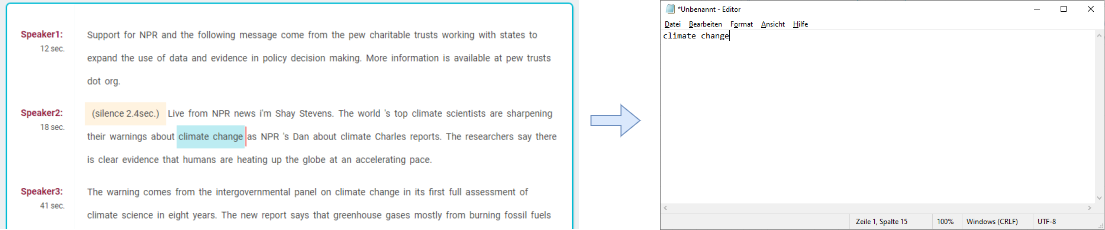
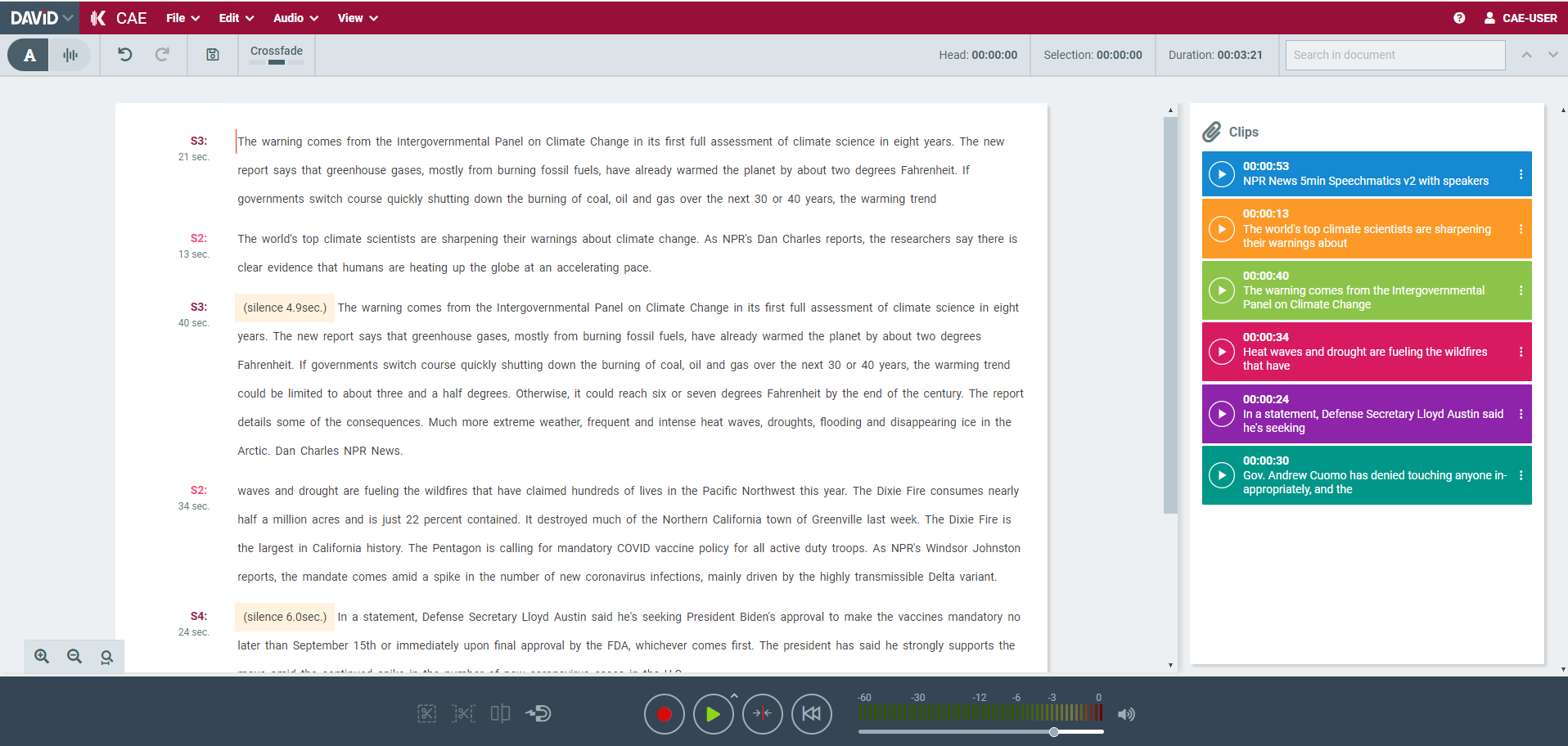
The Text View offers more text like editing experience for users. Operations like selecting, deleting a word or paragraph can be realized within seconds. Editing in text area will be reflected immediately in the audio waveform view.
Please note that, a speech-to-text service-integration / data is needed for working with Text Area.
Enable Text Area
-
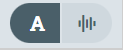
The Text Area can be enabled or disabled by clicking on view modes buttons in left corner of the toolbar.
Positioning the soundhead
-
Click into the text using the left mouse button
-
Once, soundhead is placed you can also navigate sound head in the text area using keyboard (arrow keys) step by step.
Marking a text range

-
Mark a text range by left mouse button+dragging the mouse
-
Mark a single word by double-clicking a word with the mouse
-
If soundhead is placed you can also mark a text range using keyboard (arrow keys together with shift).
-
In addition you can create a clip out of your marked Text
Soundhead and text range in Waveform and Text View are both in sync, altering position in one will be immediately reflected in another.
Moving a marked text range
-
Mark a text range by left mouse button+dragging the mouse.
-
Drag & drop the marked text to move it to a specified location.
-
If you hold Ctrl (or Cmd in Mac) while dropping, the marked range will be duplicated in the dropped location.

Copy a marked text range
-
Mark a text range by left mouse button+dragging the mouse.
-
Press CTRL+C (relies on shortcut configuration).
-
Open any text-editor, mail program or text-area and press CTRL+V to paste the marked text into.