General
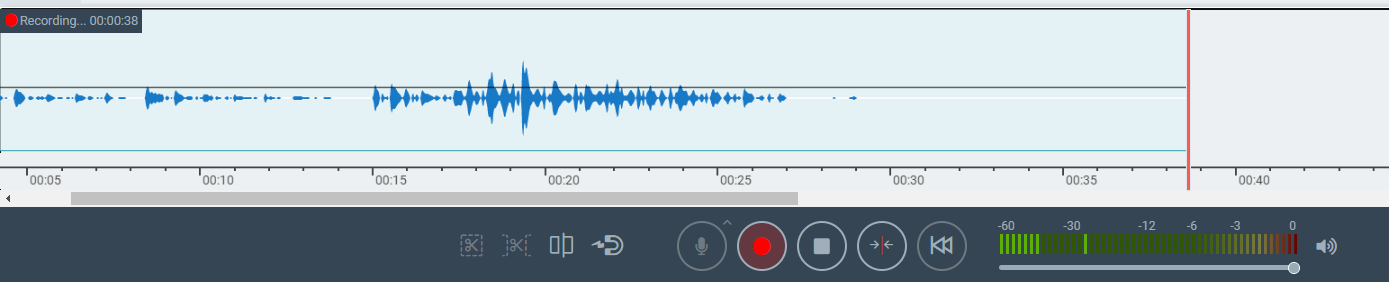
The recording in CAE can be achieved by entering pre-arm mode by clicking on the record button in the transport bar.

Pre-arm Mode
On clicking the record button once, pre-arm mode is activated. Pre-arm is also highlighted with blinking record button.

In this mode, you have the option to select the microphone by watching the input levels in level-meter.
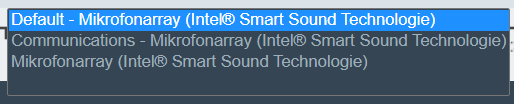
Press the "Microphone" button to select the input source.

This will open an overlay with the list of available input sources.
Record
Once desired input source is selected, press the red blinking record button to start recording.

The button stops blinking, and the recording is in progress. You have the option to pause / continue the recording using the same button again.
Clicking on "Stop" button will stop the recording.
Recording mode is also highlighted by a 
Please note that the recorded audio is added from the playhead position. In recording mode the clip or the region of the clip that is overlapping with the recorded audio will be overwritten.