
It is possible to record an Audio directly from the Details Area when in Edit mode.
To enable Audio Recording, EAO (Audio prelisten player and recorder) must be configured in Details Area with appropriate configuration settings. Please see Audio Player and Recorder Components for more information.
Recording with EAO
Step 1: Clicking the record button starts the recording.
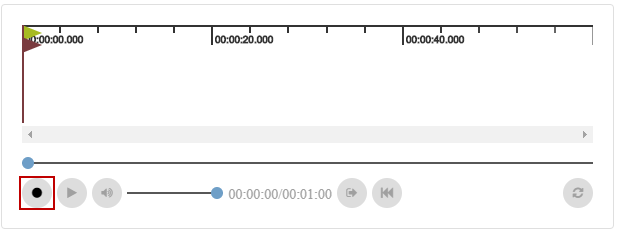
Please make sure that use of microphone is allowed by the browser.
Step 2: Recording symbol 
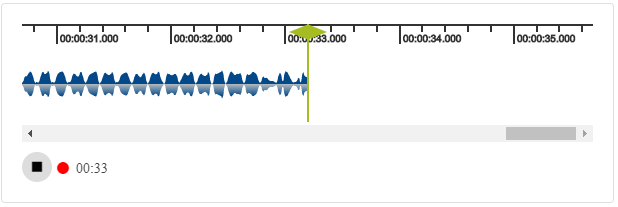
Step 3: Stop the recording with 
Previous recording will be lost if a recording is stopped and started again for the same entry.
Saving the recorded audio
A recorded audio for an entry can be saved in following ways:
When creating a new Entry
An audio can the recorded while creating a new Entry from new entry drop-down menu. Please see Creating an Entry for more information.
On pressing "Create" the audio file will be uploaded to Digasystem. On uploading, a "progress" bar and remaining "upload time" appear next to the User Menu.
When editing an Entry
Recording while editing an entry is only supported for virtual entries. On successful upload, the state of a virtual entry is then set to "Existing" from "Virtual".