
CAE includes an AI Assistant designed to enhance your workflow through capabilities such as audio editing, text input and output, and clip editing.
AI Assistant plugin configuration
To get started with the AI Assistant, you must first configure an AI Assistant plugin.
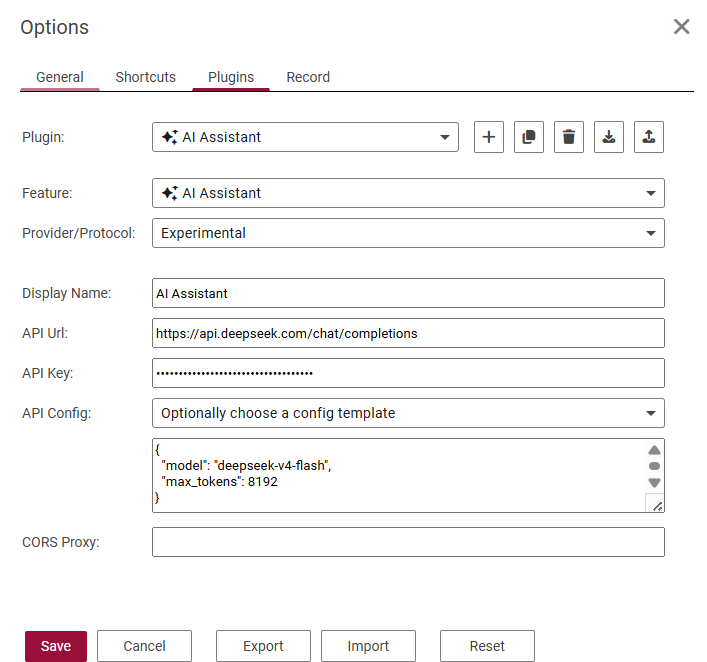
Here is a table introducing the fields:
|
Field |
Description |
|---|---|
|
Plugin |
Dropdown to select or switch between plugin items. The adjacent icons are: Add new (+), Duplicate, Delete, Export (download), Import (upload) |
|
Feature |
Specifies the type of functionality this plugin provides, select "AI Assistant" here. |
|
Provider/Protocol |
Specifies the service provider or communication protocol type, e.g. "Experimental" here |
|
Display Name |
The name shown for this plugin item in the UI |
|
API Url |
The API endpoint URL called when invoking the AI plugin's functionality |
|
API Key |
The key required to authenticate with the API |
|
API Config |
Detailed configuration for the API. |
AI Assistant Usage
Once you have configured an AI Assistant plugin, the AI Assistant chat panel becomes available.
You can select a configured plugin from the top-right corner of the panel.
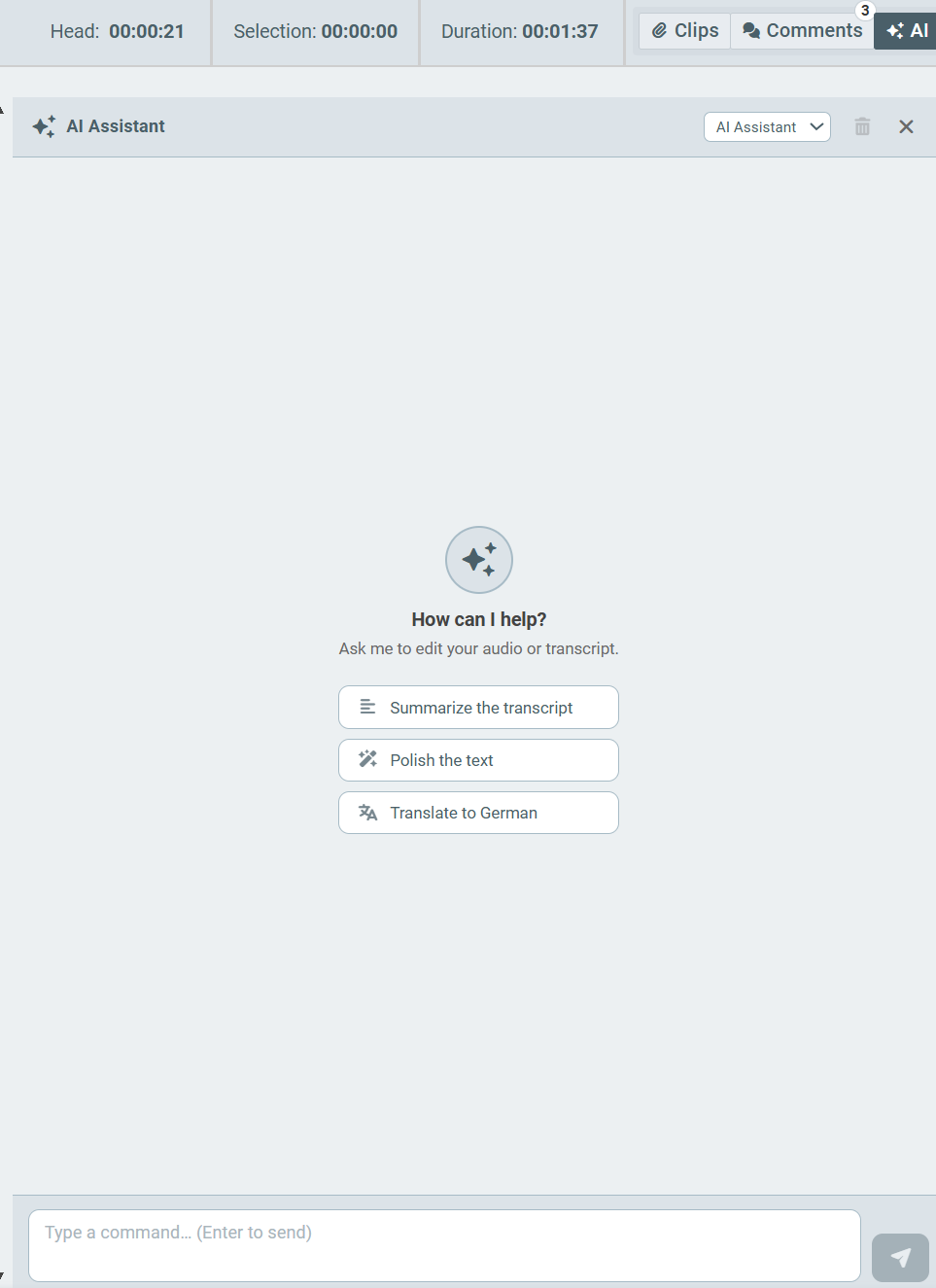
Interact with the AI Assistant using natural language to control CAE functionality. The following are representative use cases:
-
Ask about the content of the current project or audio, for example, “What is the content of this project?”
-
Search for specific sentences and highlight them.
-
Identify and remove filler words.
-
Create placeholders and draft content based on the provided topics.
-
Identify the five key sentences and create clips from them.
-
Translate the content and add it into the placeholder
-
…