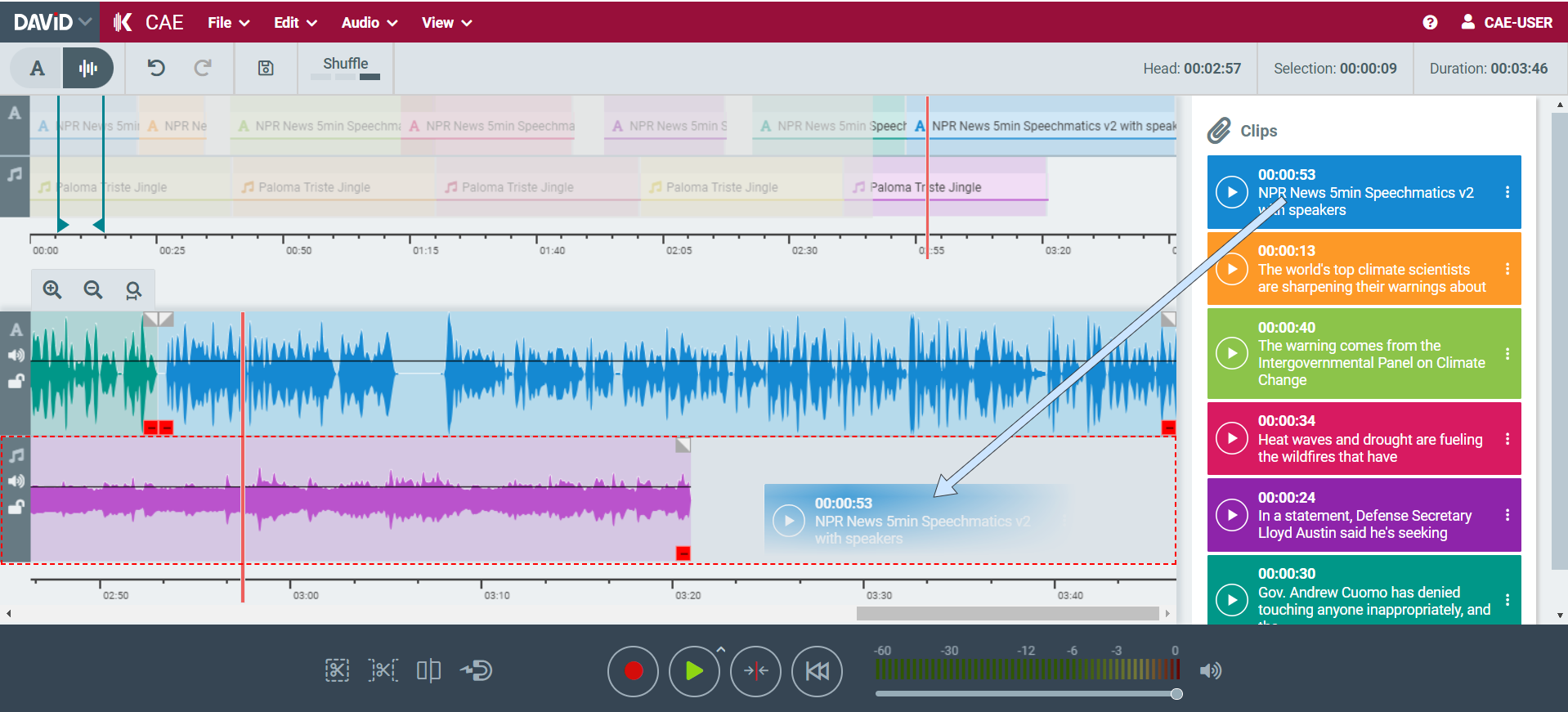
The Clipboard is an area in CAE to pin audio parts with/without text.
Starting to work with CAE the Clipboard is empty.
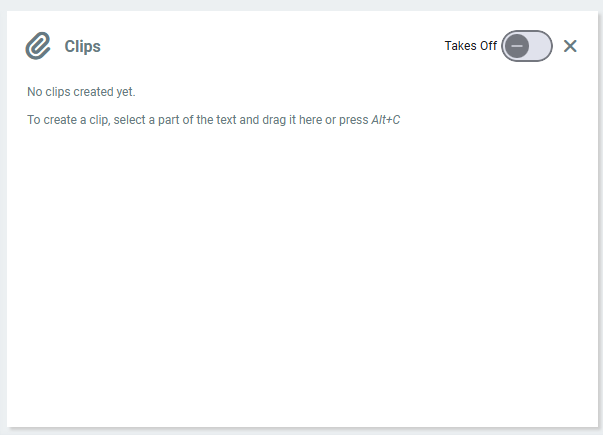
Fill the Clipboard
There are several ways to fill the clipboard:
-
You can simply drag&drop your Elements from e.g. ContentManager into it.
-
Within the Top Menu item "Edit→Create Clip..." you can create a clip in the Clipboard.
-
You can select text in the Text Area, and drag it to Clipboard.
-
You can use the context menu, and choose “Create Clip”
-
You can use the configured keyboard shortcut
Collapse/ Expand Clipboard
With a click on the "Clips" button you can collapse or expand the Clipboard.
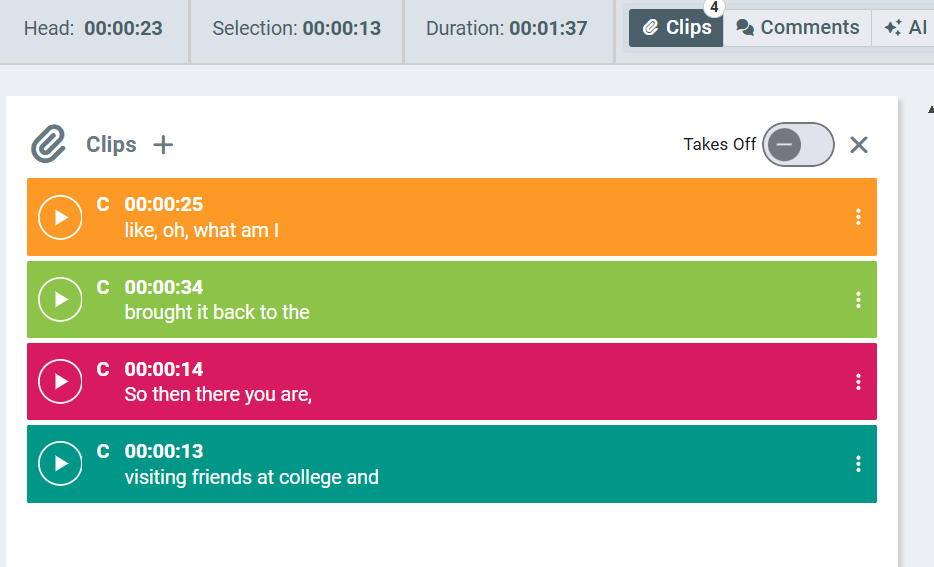
Takes on/off
A take is the entire audio source, while a clip is a segment of that source. When Takes is on in the Clipboard, you’ll see both the full audio source and the clip taken from it.
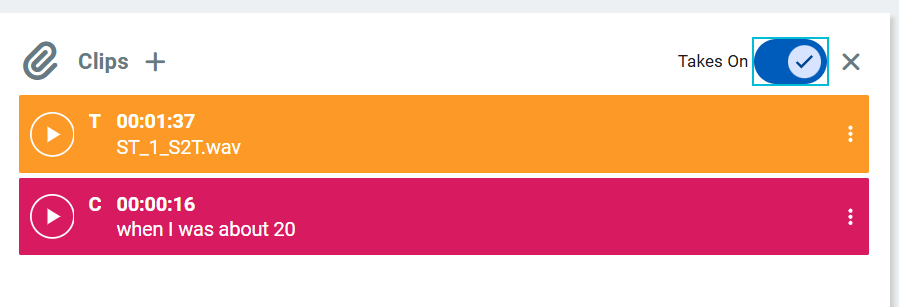
Manage Clipboard Items
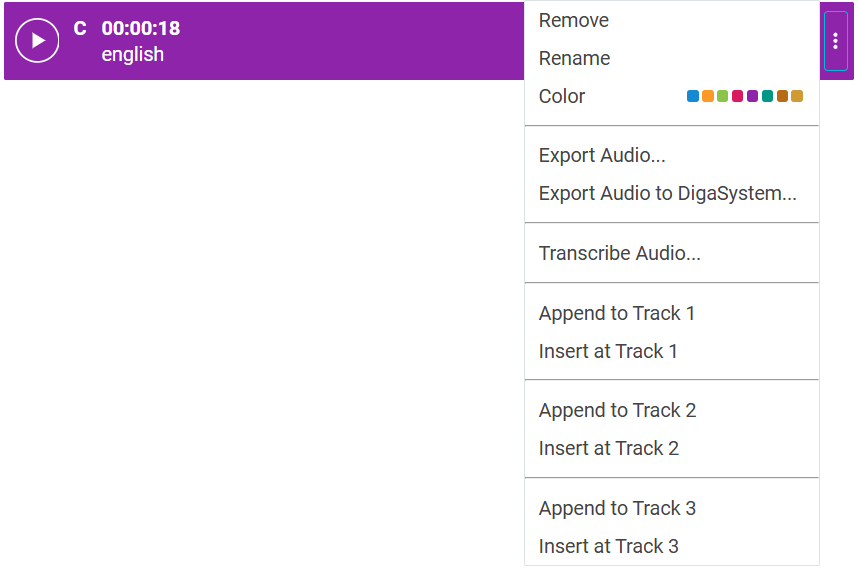
Having Elements in the Clipboard you are able to edit its items. Simply choose the 3 dots on the right side of each top the items.
-
Remove: Is removing the entry from Clipboard
-
Rename: Change the Name of the entry
-
Color: choose your color per entry
Using the Clipboard
Shift+Drag is not supported for Safari Browser.
You can add clips from the Clipboard to the timeline in several ways with the following context menu:
-
Append to Track: puts the entry after the last entry on the targetting Track
-
Insert at Track: Puts the entry to the position of your soundhead on the targettingTrack
-
Transcribe Audio: Transcribe the audio of the selected clip
You can use drag&drop to append a clip to timeline track end.
-
With Shift+Drag, you can insert a clip at the position of soundhead on the timeline.