
Play an Entry
To play an Audio or Video entry you can
|
|
Click the middle mouse button on the required entry in the table, or |
|
|
Click on the required entry once to mark it, then on the Play symbol in the button bar, or |
|
|
Mark the entry and select the Play option from the Entry menu. |


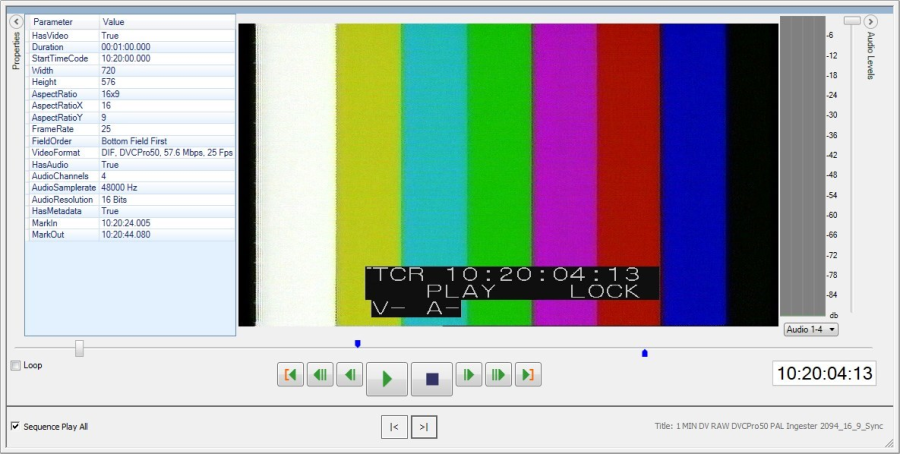
A small preview tool opens directly beneath the marked row(s). The entry is played back automatically. In case of video items, the embedded MCLPlayer control is opening. The window size can be adjusted at the window borders.
Audio Mini Player
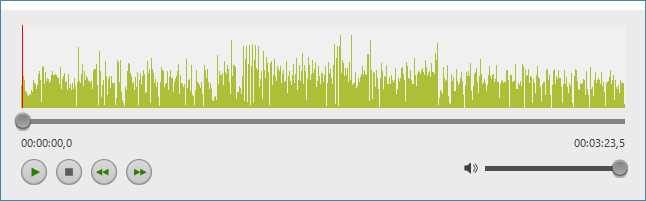
|
Soundhead |
Shows the time position of the soundhead |
|
Length |
Shows the duration of the media file |
|
|
Playback Starts playback |
|
|
Pause Stops the playback |
|
|
The Rewind/Fast Forward buttons or the Playhead slider are used to navigate through the audio.
|
|
|
Volume control Dragging the slider adjusts the playback volume. |



MCL Player
|
|
Loop
|
|
|
Play
|
|
|
Stop
|
|
|
Mark IN\OUT
|
|
|
Go to mark IN\OUT
|
|
|
Jump 10 frames
|
|
|
Jump 1 frame
|
|
|
Current head position
|
|
|
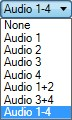
Audio channels
|
|
|
Vol meter
|



In case you are playing a Group entry containing videos, then additional navigational buttons appear at the bottom:
|
|
Use the navigation buttons to switch to the previous/next group member (non-video entries are skipped). |
|
|
Set a checkmark to watch all group videos consecutively. |



Press Esc to close the EasyPlayer.
MultiFile Entries
Database entries can contain any number and any kind of files. These files are displayed and managed in the Media Tab of an entry.