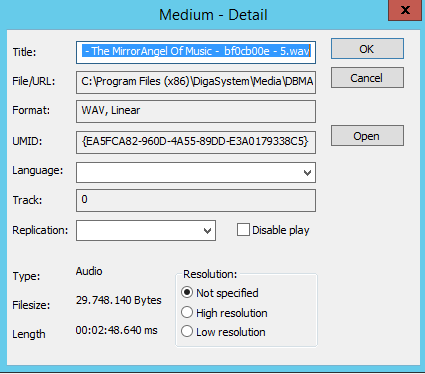
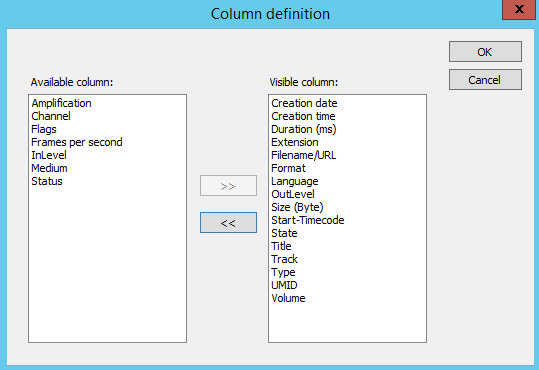
The Files window:
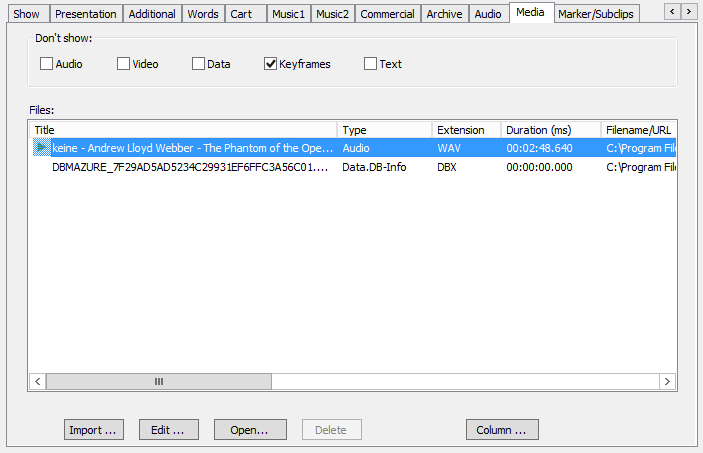
Since any type of file can be stored in a DBM entry (audio, video, graphics, texts, docs, pdfs etc.), the media tab lists all files that are assigned to the entry and show their file type.
Depending on the format of the media files, different tools for viewing / editing are used. All files which cannot be edited or viewed with a DigaSystem module are automatically opened with the application assigned by Windows for this kind of file type. E.g. by double-clicking a pdf file, the Acrobat Reader (if installed) automatically starts and opens the file. If more than one audio file exists, the file having the green arrow is loaded, while the file with the red dot marks the file saved in filename 1.
|
|
The file having the green arrow is the one to be loaded default into the Player module whenever pre-listening the database entry (depending on configuration, this might be the filename2 (LoRes) file). The green arrow marks the main media file of the entry, if it cannot be played in the DBM player. |

The Don't show: dialog:

This section is a filter; set a checkmark for any file type you do not want to see in the Files: field.
Important to know:
-
All external files (like pdf etc.) are not used for the DigaSystem features like indexing, full text search etc.
-
Non-destructive editing works only on audio files.
Buttons on the bottom:
|
|
Import…
|
|
|
Edit…
|
|
|
Open…
|
|
|
Delete
|
|
|
Column…
|