
|
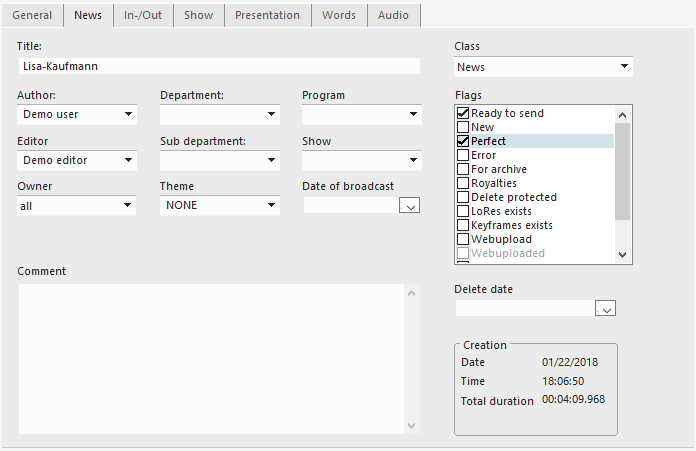
Title |
Shows the title of the table entry (not the file name). |
|
Author |
Input/selection field. The author's name is automatically entered (login name). The author of an entry can be changed either from out of the list or newly entered. |
|
Editor |
Displays the name of the user who worked on this entry. |
|
Owner |
Input/selection field. The user's name is automatically entered (login name). The user of an entry can be changed either from out of the list or newly entered. |
|
Department |
Selection field. The department for this entry can be selected from a predefined list. |
|
Sub department |
Selection field. The sub-department for an entry can be selected from a list of those available for the selected department. A sub-department can only be assigned after a department has been assigned. |
|
Theme |
Input/selection field. The theme for the planned transmission can be selected or entered here. |
|
Program |
Selection field. The relevant program can be selected here. Depending on the admin tool configuration, user might only select the program(s) they are allowed to. |
|
Show |
Entry field. The respective transmission can be entered here for which the entry is destined. |
|
Date of Broadcast |
The broadcast date can be entered in this calendar field. |
|
Comment |
Entry field for comment text. |
|
Class |
The class assigned on the Miscellaneous tab is displayed. |
|
Flags |
Set one or more flags for this entry (also see 5.4 Entry Flags) |
|
Delete date |
The date this entry becomes obsolete. This field can be valid for the Selection Tree and deletion routines. |
|
Creation |
System field. The exact date and time of the entry's creation as well as its length is displayed here. |
Flags
The list of flags highly depends on the configuration. Several flags are only displayed under circumstances, and even those that are displayed may be disabled, and you cannot change their states. Some flags can even be displayed under a different name. The following table lists the conditions that must be met for a flag to be displayed, and to be editable.
|
Flag |
How to define a display name |
Displayed when |
Disabled when |
Footnote |
|---|---|---|---|---|
|
Ready to send |
n/a |
always |
no DBMChangeReady right |
5. |
|
New |
NameOfNewFlag parameter |
NameOfNewFlag parameter not empty |
never |
1. |
|
Perfect |
NameOfPerfectFlag parameter |
NameOfPerfectFlag parameter not empty |
no DBMChangePerfect right |
1., 2., 5. |
|
Error |
NameOfErrorFlag parameter |
NameOfErrorFlag parameter not empty |
never |
1. |
|
For archive |
n/a |
entry not archived or flag set |
complex condition, see footnote |
6. |
|
Please dearchive |
n/a |
entry archived and NameOfDearchive not empty |
complex condition, see footnote |
6. |
|
Royalties |
NameOfRoyaltiesFlag parameter |
NameOfRoyaltiesFlag parameter not empty |
never |
|
|
Delete protected |
n/a |
always |
no DBMChangeNotDel right |
5. |
|
LoRes exists |
n/a |
always |
no DBMChangeLowResExists right |
5. |
|
Keyframe exists |
n/a |
always |
no DBMChangeKeyFrameExists right |
5. |
|
Webupload |
NameOfWebupload parameter |
NameOfWebupload parameter not empty |
never |
1. and 3. |
|
Webuploaded |
NameOfWebuploaded parameter |
NameOfWebuploaded parameter not empty |
always |
1. and 3. |
|
Serverupload |
NameOfServerupload parameter |
NameOfServerupload parameter not empty |
never |
1. and 3. |
|
Serveruploaded |
NameOfServeruploaded parameter |
NameOfServeruploaded parameter not empty |
always |
1. and 3. |
|
Hires exists |
NameOfHiresExists parameter |
NameOfHiresExists parameter not empty |
never |
1. and 3. |
|
(custom flags) |
must be explicitly defined |
must be explicitly defined |
never |
4. |
Footnotes
-
These parameters are defined in the DBM section of the LOCAL or GLOBAL Digas registry. If defined in LOCAL and GLOBAL, the LOCAL value overrides.
The parameter contains the display name of the flag; if the parameter doesn't exist, the flag uses the name from the "Flag" column. If the parameter exists and is empty, the flag is not displayed. -
This flag only applies to these types: FILETYPE_AUDIO, FILETYPE_VIDEO, FILETYPE_TEXT, FILETYPE_GROUP, FILETYPE_COLLECTION. For other types (e.g. MTE project), the flag is disabled and unchecked.
-
This is an "extended" flag. To see extended flags, set DBM|ShowExtendedFlags=TRUE. You can override this setting per table in Digas|Database|[DSN]\[Table].
-
Custom flags are defined in Digas|Settings|Flags. Each flag has a subfolder whose name is the flag name. Required values are Key and Icon.
-
Rights are assigned to users or user groups with the Digas Admin tool, or with the DPE Admin page.
-
Whether this flag can be changed or not, depends on the combination of the current state of the flag, the mode of the database table ("normal" or "archive") and the user's DBMChangeArchive right.