
Gain Adjustment for Tracks
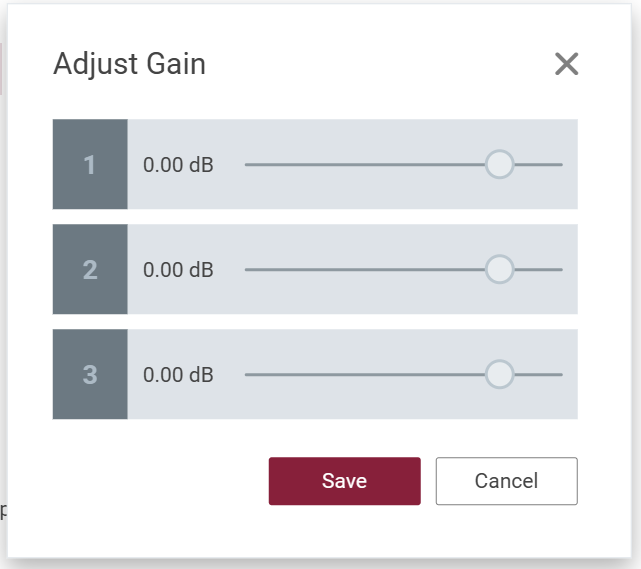
The gain for tracks can be adjusted through the "Adjust Gain" option under the "Audio" menu. The dialog provides three sliders to change the gain of each track.
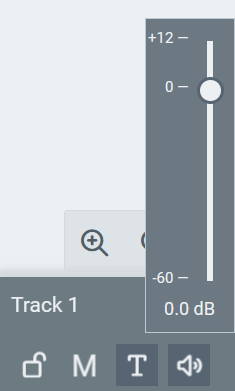
Track gain can also be adjusted directly from track header. Clicking the speaker icon opens a vertical slider for adjusting the gain of the respective track.
Gain Automation Points
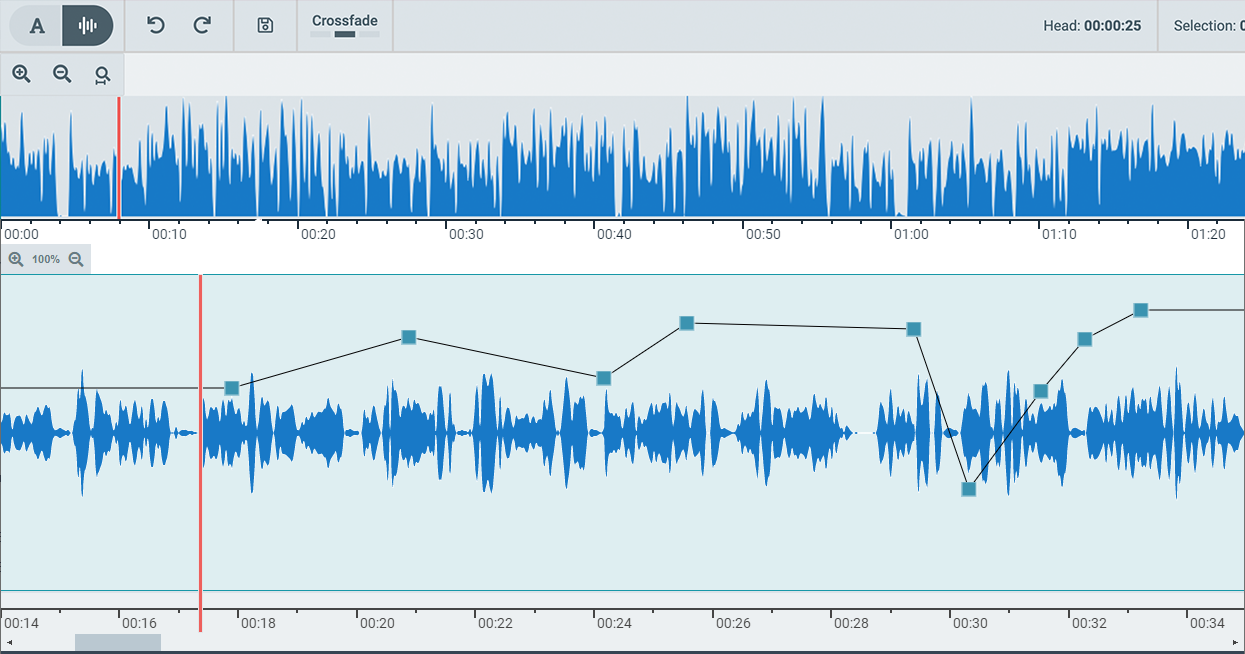
The Timeline View also let users make gain adjustments by simply adding/adjusting gain handles.
Adding Gain Automation Points
To add Gain Automation Points, simply go the position in the waveform and press "Ctrl+LeftMouseClick" on the line right above waveform.
Dragging the gainhandle also shows the gain value in the tooltip.

Removing Gain Automation Points
Press Ctrl+double click on the handles to remove them.