
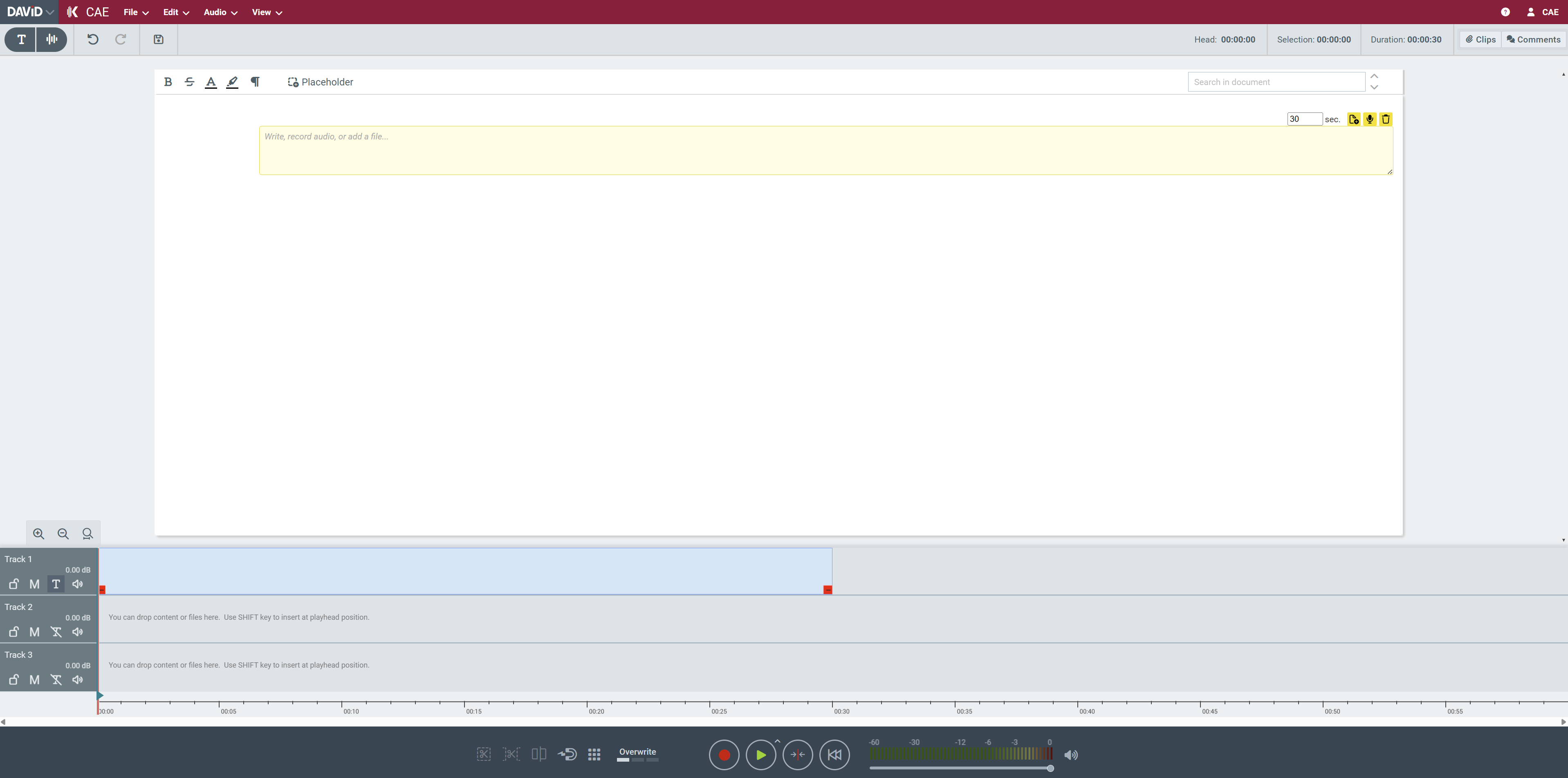
Placeholders let you reserve space on the timeline for content you plan to add later. They show up in the transcript as editable blocks, so you can plan your audio layout and fill things in as you go.
Typing Text
Each placeholder contains a text area where you can type notes or descriptive content directly. The text area supports rich text formatting including bold, strikethrough, and text/background color
Adding Files
You can add files to placeholder in two ways:
Using the Add Files button - click the button in the placeholder header to pick files from your computer. Supported formats:
-
Audio files (.mp3, .wav etc) - replaces the placeholder with the imported audio
-
Text files (.txt, .rtf) - content gets appended to the placeholder text area
-
Transcript files (.s2t) - matched to audio by filename and imported alongside it
Drag and drop - drag files directly from your file system or DigaSystem onto the placeholder, same files types, same behavior.
Recording
You can record directly into a placeholder without leaving the transcript view.
-
Click the microphone button in the placeholder header to start the recording flow
-
Recording starts directly at placeholder position after the pre roll
-
Stopping the recording removes the placeholder and replaces it with the recorded audio