The command File –> Save extended... saves the production in different file and audio formats, these may also be stretched, compressed, or normalized. Calling the command, a dialog box appears:
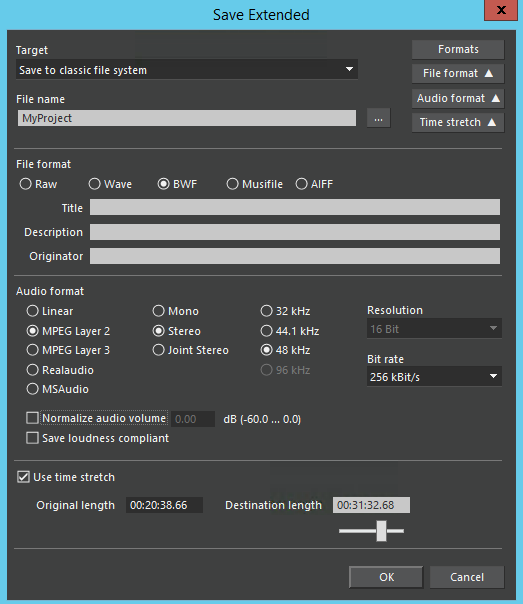
With the Target drop down menu and File name or Table / Destination fields you can determine where you want your project to be saved to. Pressing the button 
With following drop down buttons you can expand the Save Extended dialog box:
|
|
Different file formats may be saved. Click the File format button, and the dialog box will be extended as shown above.
|
|
|
Different audio formats may be saved. Click the Audio format button, and the dialog box will be extended.
You can either activate the option Normalize audio volume or Save loudness compliant.
|
|
|
The production may be stretched or compressed, without change in voice pitch (no Mickey Mouse effect). Click the Time stretch button, the dialog box will be extended showing a slider.
|
|
|
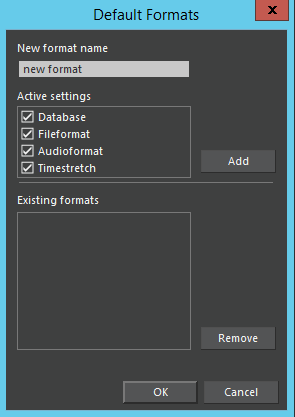
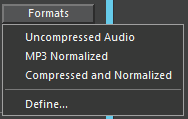
For future quick access, the Save extension ... settings may be saved. Click the Formats button in the Save Extended dialog box: Clicking the Define... button gives you the format dialog: Enter a New format name, activate the desired options, and press Add for adding that format to the list of Existing formats. The Remove button deletes selected formats not required any longer. For loading an existing format perform the command Save extended... and click the Formats button. A previously defined format may be chosen: |