
Once a project is completed, it may be saved as new take. Then, all tracks will be compiled into one.
-
Click on the menu option File – > Save... or the Save icon

The database screen appears, or without a database, the Windows dialog:
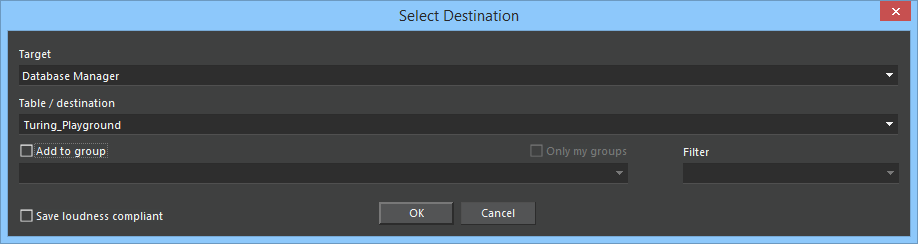
Save into Group
(Note: Please refer to thetopic for the controls near "add to group".)
-
Select destination, optionally check the Select loudness compliant mark and confirm with OK.
The calculation of a new audio file will be computed with DAVID Systems software codecs in the CPU. This substantially increases the save speed, depending on the CPU and memory (RAM) speed.
The "Add to group" functionality is explained in the "Save into Group" chapter.